
- DVD rips, ProRes and 10-bit
- Any file size
- Trying a part first
- Comparing pixel for pixel
- Saving on an iPhone
- Recognised before the upscale
- Also in this version
- How it's done
- Questions
How to upscale a DVD rip in MKV, a ProRes MOV or a 10-bit video
Some videos play in a video player but not in a browser. A DVD ripped to MKV keeps the disc's MPEG-2 picture, an older rip in MKV is often Xvid, editing apps export Apple ProRes, and cameras' high-quality modes record 10-bit or 4:2:2 H.264. 4K Video Upscaler now opens all of them in every browser that runs it: where your browser can't play the file, the page converts it to MP4 first, on your own device, and then upscales it on your graphics chip. It's free, there's nothing to sign up for, and the video is never uploaded.
- Choose the file as it is.
Press Choose video on the home page and pick the MKV, MOV or MP4, or drag it onto the box: there's no need to convert it first. The first time you open such a file, the page downloads the decoders it needs, about 1.4 MB: they run in the page, with nothing to install. The box shows "Preparing your MKV video…" with a percentage.
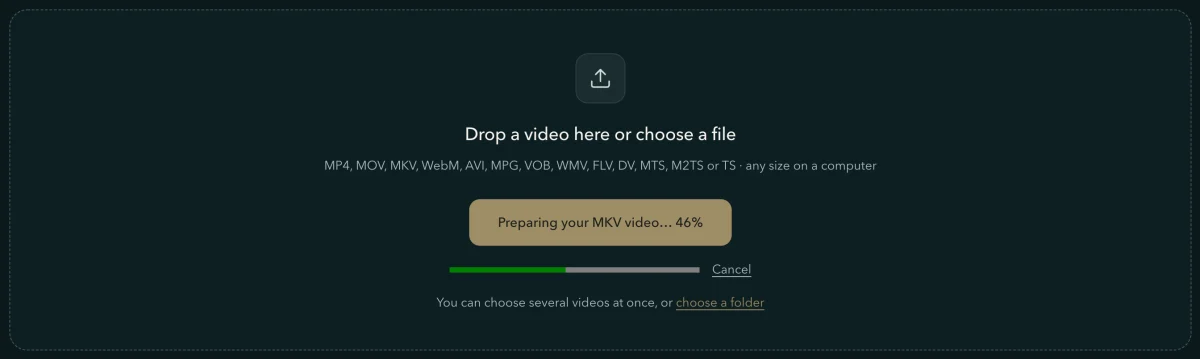
- Watch the first part while the rest is prepared.
A long video opens on its first 30 seconds, so you can play it, trim or crop it and preview a frame straight away, while the bar above the video says how much of the rest is ready. A DVD's interlaced picture is deinterlaced on the way.
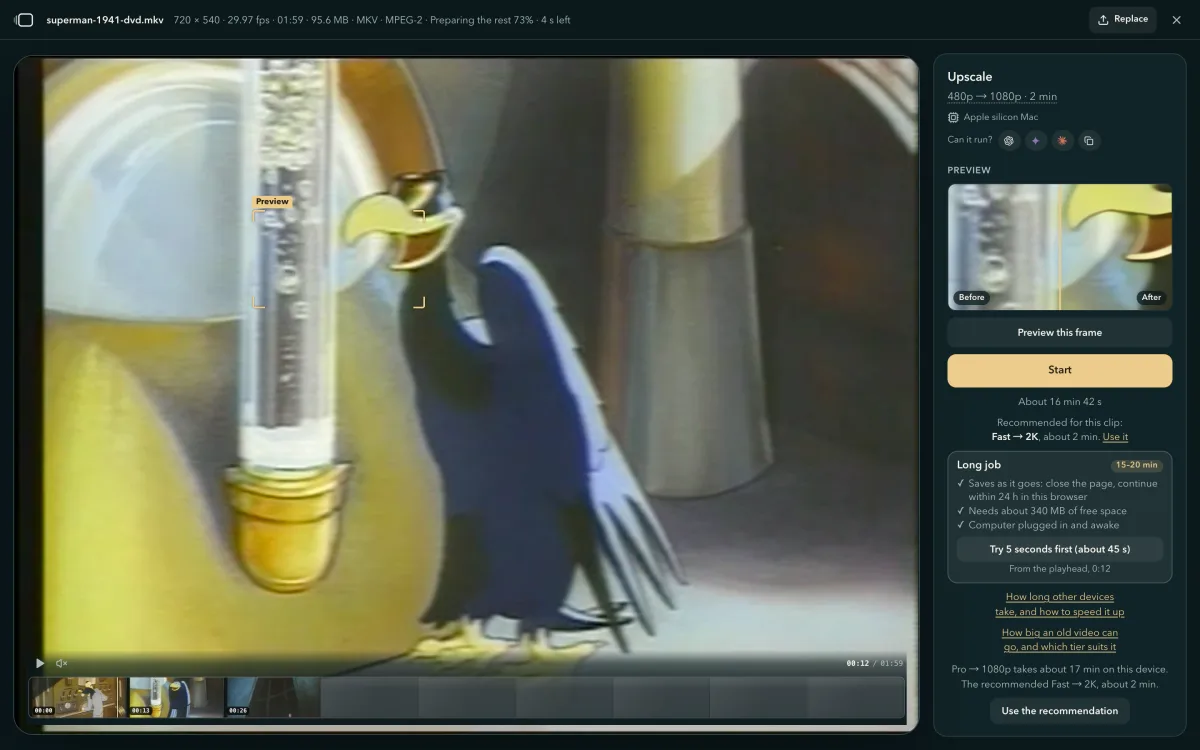
- Under Output, pick a size; under Quality, a tier. Then press Start.
Under Start, "How big an old video can go, and which tier suits it" opens the guide on old videos: a DVD and a tape upscaled at each tier, side by side, and how long an hour of video takes.
Which videos the page converts first, and what they usually are:
| Your file | Usually | In your browser |
|---|---|---|
| MKV with MPEG-2 video | A DVD ripped to MKV | Converted to MP4 in the page, then opened |
| MKV, AVI or MP4 with Xvid or DivX | An older rip or download | Converted to MP4 in the page |
| MOV in Apple ProRes | An export from an editing app, an iPhone's ProRes recording | Converted to MP4 in the page |
| 10-bit or 4:2:2 H.264 | A 10-bit anime rip, a camera's high-quality modes | Opens as it is in Chrome and Edge; converted in Safari and Firefox |
| VOB, MPG, AVI, DV, WMV, FLV | DVDs, camcorders, tapes and old downloads | Converted to MP4 in the page |
Have the disc itself rather than a rip? Copy its VIDEO_TS folder to your computer: the film is in its large VOB files, and each one opens here as it is. The guide on old videos has the steps.
Any file size on a computer, up to 2 GB on a phone or tablet
On a computer, a video file of any size opens: a long screen recording, a whole tape transferred as one DV file, a full film. The page reads the file where it is, a piece at a time, and before a job starts the panel says how much free space it needs. On a phone or tablet, one file can be up to 2 GB: for a larger one, open this page on a computer, or trim the part you need in your Photos or Gallery app first.
Try a short part of the video before you upscale all of it
When an upscale will take a while, 4K Video Upscaler offers a trial in the panel's Long job box: 5 to 30 seconds of the video at the same settings, so you see the result before you wait for all of it. Its length depends on your device and your settings: as many seconds as your device upscales in about 1 minute.
- Move the playhead to the part you care about.
The playhead is the marker that shows where you are in the video. The trial starts where you leave it, and the line under the button says so: "From the playhead, 0:12". If you don't move it, the trial starts at the beginning, or, when the video opens on black, a fade or a title, at the part with the most going on.
- Press the button that starts with "Try".
It names the length and about how long the trial takes. Here, on a Mac with Apple silicon, the Long job box puts Pro on the two-minute DVD rip at 19–24 minutes, so the trial is the shortest one: "Try 5 seconds first (about 50 s)". While it runs, the panel says which part it is upscaling.
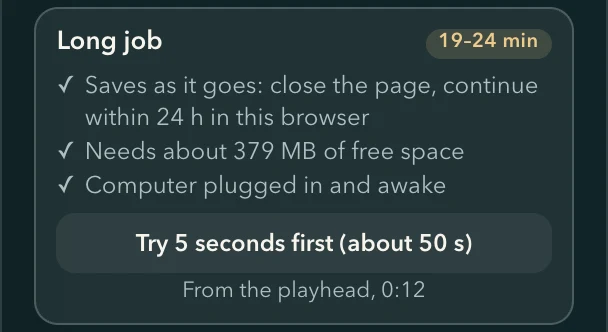
- Look, then upscale the whole video.
When the trial is done, compare it with the original on the picture and in the Detail window. To keep it, press "Download trial" first: its name ends in _trial-5s, and upscaling the whole video replaces it. Then press "Upscale the whole clip (about 19 min)": it runs the whole video at the same settings, and its time comes from the trial.
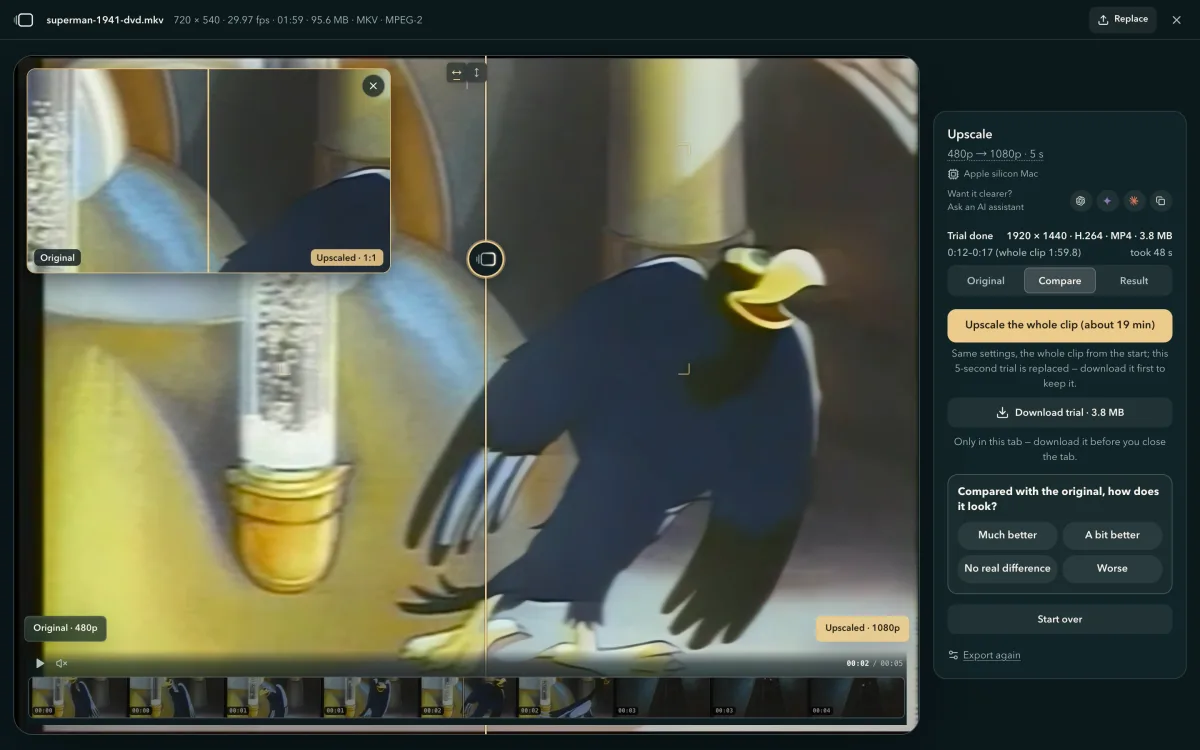
The whole video then runs as a long job, which saves as it goes: if the page closes, continue it in the same browser within 24 hours from "Your recent videos" on the home page. Keep a computer plugged in and awake, and a phone or tablet plugged in with this page open.
When the panel offers no trial, it says why in the trial's place:
| The panel says | Because |
|---|---|
| "The whole clip takes 3 min — no need to try first." | The whole video is quick anyway |
| "At 0:18, a trial takes nearly as long as the whole clip." | The video is short |
| "With this setting even 5 seconds take about 4 min on this phone." | The setting is heavy for this device: the note under Start names a faster one |
Compare video quality side by side, one pixel to one pixel
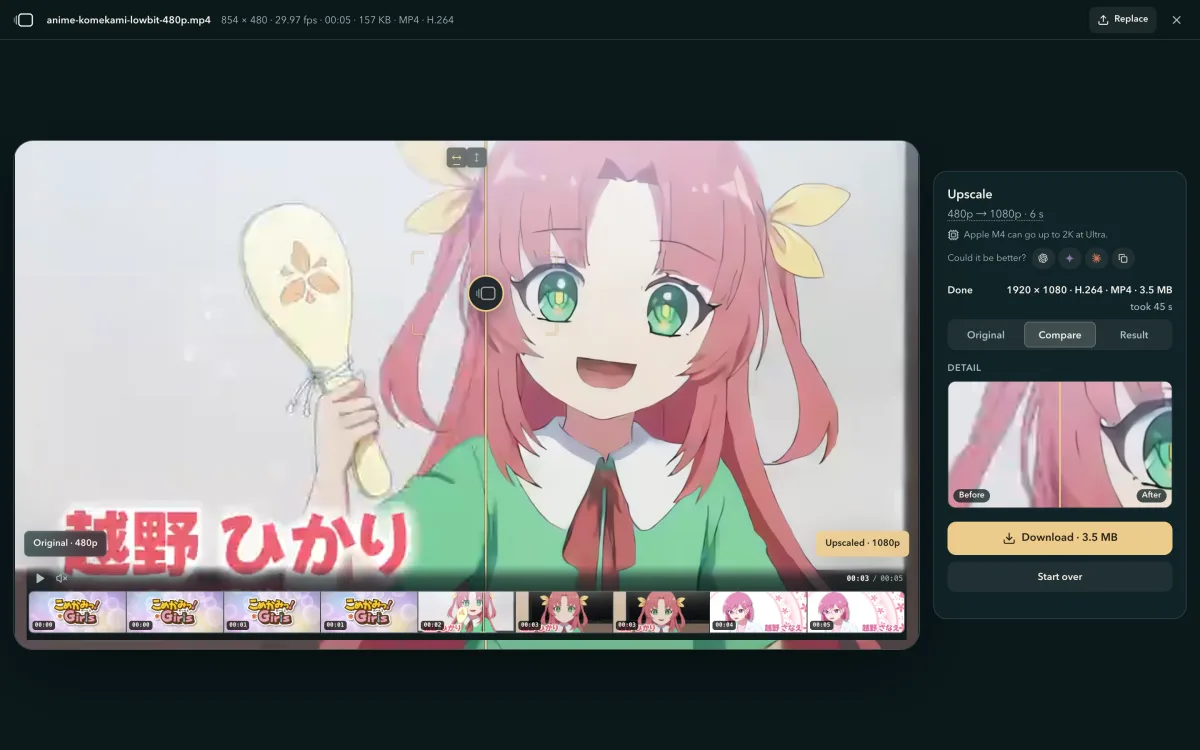
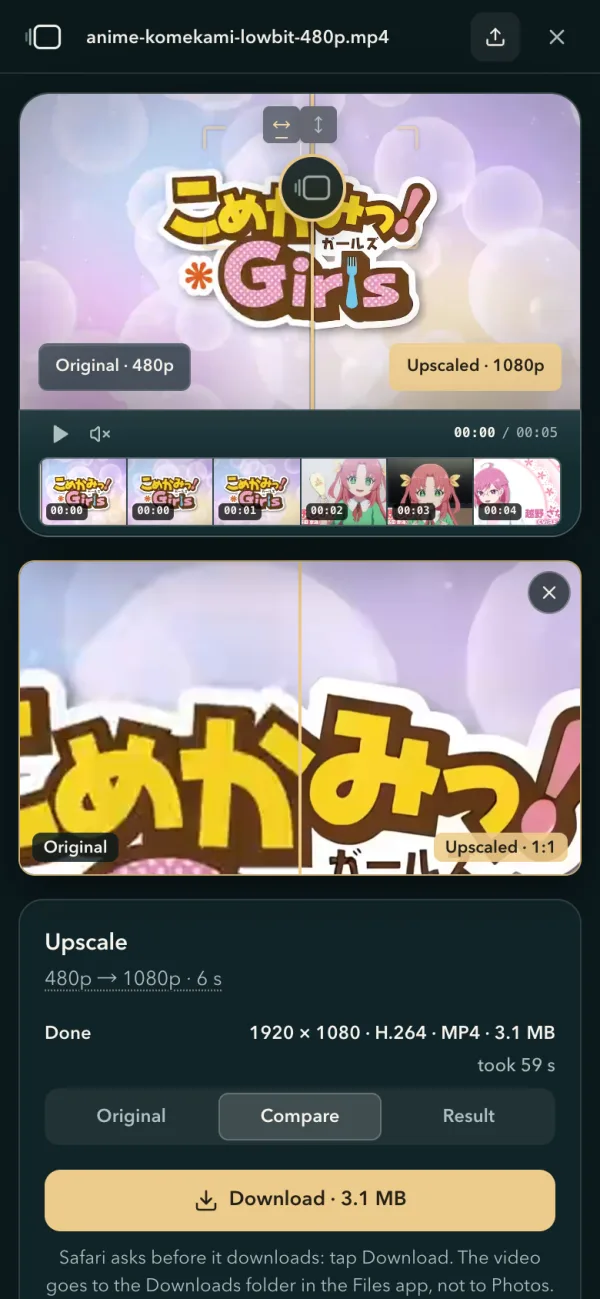
When a video is done, the picture shows the original and the upscaled video with a slider between them. The picture is fitted to your screen, so on a computer each pixel you see stands for several of the result's, and fine detail is easy to miss. The Detail window shows one spot of the original and of the result at the result's own pixels — one pixel of the result on one pixel of your screen — with a slider of its own.
- It opens on the part the upscale sharpened the most: a face, lettering or an edge, rather than a soft background.
- Drag the box on the picture to look somewhere else, and the window's own slider to compare.
- Its × puts it away, and a "Detail 1:1" button in its place brings it back.
Where do Safari downloads go on iPhone? Saving the upscaled video to Photos
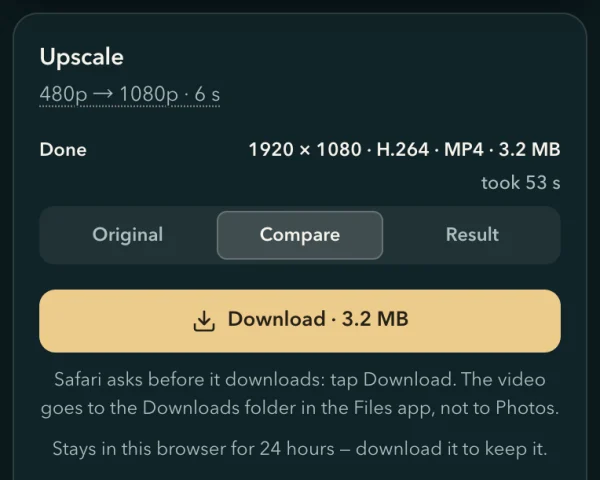
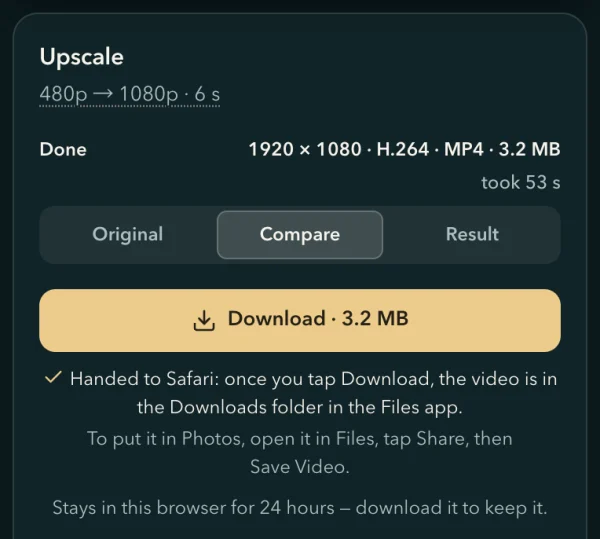
On an iPhone or iPad, Safari doesn't put a downloaded video in Photos. It first asks whether to download the file; tap Download, and the video goes to the Downloads folder in the Files app — in iCloud Drive, unless Safari's settings send downloads to On My iPhone (On My iPad on an iPad). A line under the Download button now says so, and once you tap it, that Safari has the video.
- Tap Download under the result. When Safari asks, tap Download again.
The line under the button says where the video will go.
- Open the Files app, then Downloads, and tap the video.
Once you tap Download, the line says that Safari has the video and where it is.
- Tap the Share button (a square with an arrow pointing up), then Save Video.
The video is in Photos, and Photos shows which phone shot the original — an Android phone's too. When the result is H.264 or HEVC in an MP4 or MOV, as it usually is, the line under Download gives these steps too.
When the system takes back the graphics chip Safari was using
On an iPhone or iPad short of memory, the system can take back the graphics chip Safari was using, and the upscale stops. A job that had saved its progress continues from "Your recent videos" on the home page, from where it stopped. The panel says how to get the chip back: close the apps and Safari tabs you don't need, swipe Safari away from your recent apps and open the site again.
On a phone or tablet, the memory goes to the upscale itself as far as it can: playback stops while a video upscales (a line on the video says why), the video is decoded only a few frames ahead of the upscale, the enlarged picture is resized a strip at a time, and the preview keeps only the part you're looking at.
Before it upscales, the page recognises faces, subtitles and the kind of picture
4K Video Upscaler runs a whole video super-resolution workflow in your browser — reading the video, recognising what it holds, upscaling and repairing it, encoding the result — and every step happens on your device. Its models together are SR-MoE, a mixture-of-experts (MoE) super-resolution model: a gating model looks at the picture first and decides which experts to call — experts that find faces, experts that find the words on screen, experts that upscale and repair. The whole set comes to about 8.6 MB, and a run loads only the part its device and the tier you choose use.
This version brings the recognition before the upscale: once a video is open, the page takes 16 moments evenly across it and recognises whether the picture is 2D animation, live action, 3D animation or a screen recording, whether it shows faces, and whether the words on screen are subtitles, a watermark or danmaku (comments that scroll across the picture), then measures how sharp, how noisy and how blocky it is, and reads whether the file carries an AI-generated label.
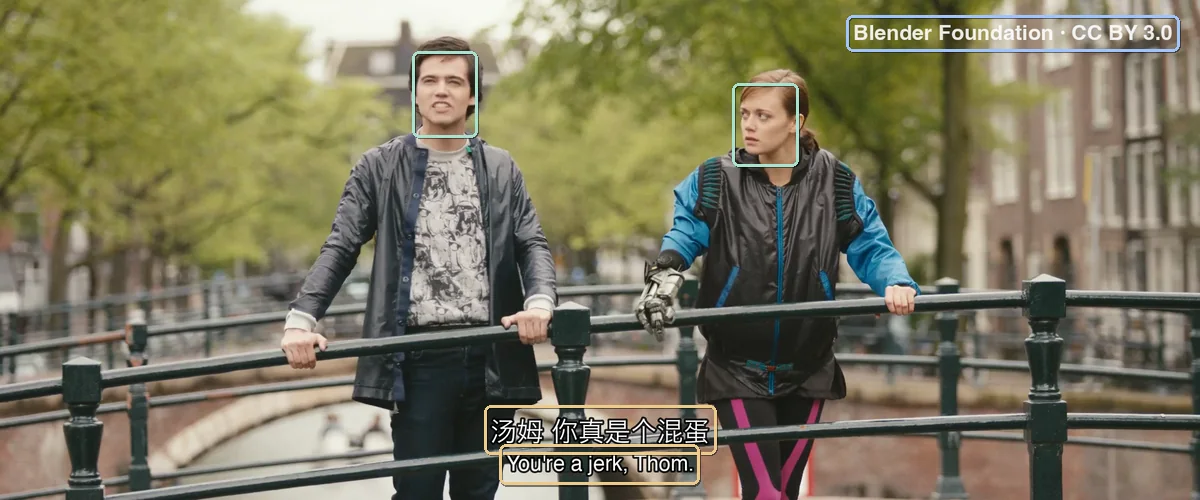
Different pictures need different care when they are enlarged, and recognising the content first is the basis for choosing the upscale's experts and tuning it to the content automatically:
| What it recognises | Why the upscale needs to know |
|---|---|
| Kind of picture | 2D animation wants clean, crisp lines, live action natural texture, and the small text of a screen recording has to stay legible |
| Faces | Faces are where viewers look first, so eyes, mouths and skin have to come out natural |
| Words on screen | Subtitles, titles and watermarks laid over the picture need sharp, clean edges |
| Picture quality | Noise and compression blocks are best repaired as the video is enlarged; a picture that is already clean only needs its detail filled in |
| An AI-generated label | A file that says it was made with AI should still say so after the upscale, and an AI-generated picture is already clean and soft, a look the upscale has to keep |
The recognition happens entirely on your device. On a computer, the gating model looks at the whole picture first, and only where it sees a face does it call the face expert (an open-source face detector), only where it sees words the text expert (an open-source text detector), so the experts run only on the moments that need them. The gate and the recognition experts come to about 1.9 MB, downloaded once a video is open; of the upscale's experts, only the tier you choose is downloaded. Every model runs on the same engine as the upscale, with no inference runtime to download. A phone or tablet whose graphics chip supports half-precision shaders (shader-f16) runs the gate and the face expert, about 0.8 MB, and leaves the text expert out; any other phone or tablet measures the picture by its rules only. The recognition runs in the background and stops the moment you press Start, handing the graphics chip to the upscale. The frames are never uploaded.
Also in this version
Five guides, linked under Guides at the bottom of every page, answer the questions that come up most. The panel links to three of them where they help:
| Guide | What it answers | Where the panel links to it |
|---|---|---|
| How long to upscale video to 4K? | The time on each kind of computer and phone, with yours marked in the table, and links that open the upscaler at faster settings | Under Start, when an upscale will take long: "How long other devices take, and how to speed it up" |
| Video won't open in your browser? | Every message the page shows about a file it can't open, and what to do | Under each such message: "What this means and what to do" |
| How to upscale old DVD, VHS and 480p videos | How big they can go, which tier suits them and how long an hour takes | Under Start, for a video the page converted |
The other two answer what people look up when they choose a size or a tool:
| Guide | What it answers |
|---|---|
| What is 4K resolution? | How many pixels 4K has, what it means for vertical and 4:3 video, how big the files get and when it beats 1080p |
| SeedVR2 video upscaler: VRAM, speed and ComfyUI settings | What SeedVR2 is, how much VRAM it needs, how long it takes, how to run it in ComfyUI, and when a browser upscaler does the job |
An AI-generated video stays labelled as AI-generated
Many AI-generated videos carry a label you can't see in the file: Content Credentials (C2PA), an IPTC digital source type, or the generator's own label in the metadata. When the original says it was made with AI, an MP4 or MOV result declares it too, in IPTC's standard form: made, or edited, with generative AI. A generator's label in the metadata goes over word for word, in MP4, MOV, MKV and WebM alike. It all happens on its own, with no setting, whether or not "Keep date, location and camera info" is on.
Ask an AI assistant what a word means
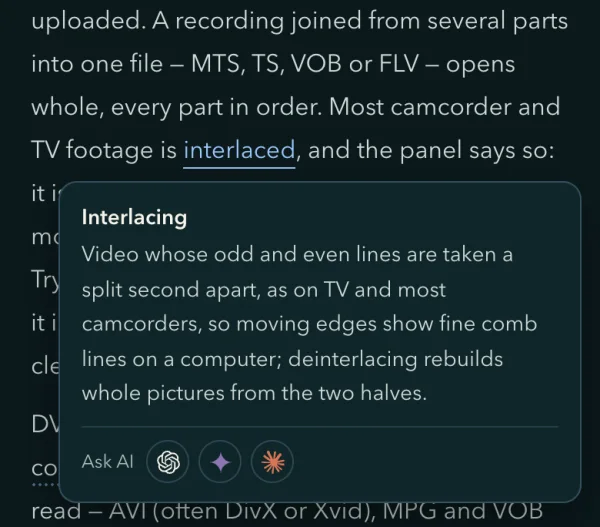
Picture, format and device words in the guides and in this changelog open a card that ends in a row of AI assistants: one tap asks what the word means. The assistant you tap most comes first, there and in the Upscale panel. The row offers ChatGPT, Gemini and Claude, and Doubao too on Chinese pages.
When the device runs out of space partway through a long job
When the device runs out of space partway through a long job, the panel says how much the job had stored and how much free space finishing needs: free up that much and press Start to carry on. With no saved progress to continue from, it offers a smaller Output that fits, with what that size needs.
Crop in Safari
Cropping a video to a square, 16:9, 9:16 or 4:5 works in Safari too: drag the crop frame on the video to choose what stays in, and the part you keep is what gets upscaled.
How 4K Video Upscaler opens DVD rips, ProRes and 10-bit video in the browser
From version 2026.10.27, 4K Video Upscaler hands a video your browser can't decode to FFmpeg's decoders, compiled to WebAssembly and run in a background thread of the page: they read the MKV, MOV or MP4 and decode its MPEG-2, Xvid, ProRes or 10-bit, 4:2:2 or 4:4:4 H.264 picture, the browser's own H.264 encoder writes it into an MP4, and SR Engine, the product's own WebGPU engine, upscales that MP4 on your graphics chip. A long job's trial is the longest of five lengths this device upscales in about a minute, and the Detail window is aimed by measuring, cell by cell, where the result came out sharper than the original. Before the upscale, the page measures the picture from 16 moments on your device, and on a computer the gate of SR-MoE recognises the kind of picture and calls the face and text experts where they are needed. An original's AI-generated label goes into the result, and an MP4 or MOV result declares its source type in IPTC's standard form. The video stays on your computer or phone, and nothing is uploaded.
Decoded in the page
about 1.4 MBof decoders to download, the first time you open such a file
DVD rips, ProRes and 10-bit H.264 become an MP4 on your device
The page first asks your browser's own decoder. A picture it refuses that the page's build decodes — MPEG-2 or Xvid in an MKV, ProRes, H.264 beyond 8-bit 4:2:0 — goes to FFmpeg's decoders, compiled to WebAssembly. In a background thread they decode it to 8-bit 4:2:0, and FFmpeg's bwdif deinterlaces the frames flagged interlaced, such as a DVD's, one frame for each frame; frames flagged progressive pass as they are, and nothing is inverse-telecined. The browser's own encoders then write an MP4 — the picture in H.264, the first sound track in AAC (Opus in Firefox), a DVD's 4:3 or 16:9 shape kept — its opening first, so the workbench opens while the rest converts. A video your browser decodes is never converted: it opens as it is.
A trimmed build with only the decoders these files need: 3.5 MB unpacked, where the complete ffmpeg.wasm is about 30 MB unpacked.
Sized to the device
5–30 sof video in a trial: as much as this device upscales in about 1 minute
The device is measured first, then the trial is sized to it
When a video opens, the page measures this device on one of its frames, at your settings: the same measurement that gives Start its time. The trial takes the longest of five lengths, from 30 seconds down to 5, that this pace upscales in about a minute, and starts at the playhead or, past an opening on black, a fade or a title, at the thumbnail with the most in it. Once it is done, its own time sets the time for the whole video.
Aimed by the result
1 : 1one of the result's pixels on one of your screen's
The Detail window opens where the upscale changed the picture most
When a video is done, the page reads one frame of the result back from the graphics chip a strip at a time, at the result's own size, draws the original up to the same size, and measures how much sharper the edges became in each 32-pixel cell. The window centres on the block of cells that gained the most, and stays where you put it once you move it. It draws the result's own pixels, so what you see in it is what the file holds.
Recognised before the upscale
16 momentstaken evenly across the video, where every device measures the picture
Before the upscale, every device measures the picture first
Once the opening's calibration is done and the page is idle, a background thread of its own takes 16 thumbnails evenly across the video and measures them by rules — sharpness, noise, compression blocks, brightness, interlacing, motion, flicker, repeated frames, black bars and how often the shot changes, and whether the picture was upscaled before — then reads whether the file carries an AI-generated label (C2PA, IPTC or a generator's own). Each comes out as a level, kept as the basis for tuning the upscale to the content. A file is measured once per page, and the measuring stops the moment you press Start.
On a computer, the gate and the recognition experts also recognise the kind of picture, the faces and the words; on a phone or tablet whose graphics chip supports half-precision shaders (shader-f16), the gate and the face expert recognise the kind of picture and the faces; on any other phone or tablet, this is all it does.
A mixture of experts
about 1.9 MBthe gate and the recognition experts together, downloaded once a video is open
The gate looks at the picture first, then calls the face and text experts
On a computer, and on a phone or tablet whose graphics chip supports half-precision shaders (shader-f16), the gating model of SR-MoE scores the thumbnails: whether the picture is drawn lines, live action, smooth shading or a software interface, and whether it shows faces or words. Only where it sees a face does it call the face expert, an open-source face detector, to find the face's position and size; on a computer, only where it sees words is the moment read again at 640 pixels on the long edge, for the text expert, an open-source text detector, to box them, each box called a subtitle, a title, a watermark, danmaku, interface text or words in the scene by its position, size, shape and how long it stays. For each form of text, it counts as "yes" when the gate and the text expert both see it, and "unsure" when only one does. The experts only find positions: they recognise no one and read no words.
The gate and the experts run on the same engine as the upscale, with no inference runtime to download: the WebGPU files of the general-purpose runtime ONNX Runtime Web are about 4.0 MB compressed with brotli, before any model.
Loaded as needed
about 8.6 MBthe whole of SR-MoE, of which a run downloads only what it uses
Each expert is a file of its own, downloaded when it is needed
The gate and each expert of SR-MoE are model files of their own. The gate and the recognition experts, about 1.9 MB, are downloaded on a computer once a video is open; a phone or tablet whose graphics chip supports half-precision shaders (shader-f16) downloads the gate and the face expert, about 0.8 MB. The upscale's experts come by the tier you choose: Fast one by strength, 4–20 KB; Pro about 1.2 MB; Ultra about 2.4 MB, and about 4.9 MB at the Light or Medium strength, which blends in an expert of the same size that denoises more lightly.
Each model file is downloaded the first time it is used and kept in the browser for the next time; 1 MB is 1,000,000 bytes.
Questions about this version
- Can I upscale a DVD that I ripped to MKV?
- Yes. Choose the MKV as it is: where your browser can't play its MPEG-2 picture, the page converts it to MP4 on your device, deinterlacing it on the way, and then upscales it on your graphics chip. It's free, and nothing is uploaded. The guide on old videos says how big a DVD can go and which tier suits it.
- Can I upscale the DVD disc itself?
- Copy the disc's VIDEO_TS folder to your computer. The film is in its large VOB files (VTS_01_1.VOB, VTS_01_2.VOB …), and each one opens here as it is: the page converts it to MP4 on your device. The guide on old videos has the steps.
- Does the upscaled video keep a DVD rip's 5.1 sound, subtitles and chapters?
- It keeps the rip's first sound track, re-encoded in AAC (Opus in Firefox). 5.1 stays 5.1 if your browser can encode it, and becomes stereo if it can't. Other sound tracks, subtitles and chapters aren't carried over; they stay in your rip.
- Can I upscale Apple ProRes or 10-bit video in the browser?
- Yes. ProRes, and 10-bit or 4:2:2 H.264 — a 10-bit anime rip, a camera's high-quality modes — open in every browser that runs the upscaler: Chrome and Edge play 10-bit and 4:2:2 H.264 as it is, and where your browser can't, the page converts the video to an 8-bit 4:2:0 MP4 first. The upscaled video is an MP4 like any other.
- Is there a file size limit?
- Not on a computer: a video file of any size opens, and before a job starts the panel says how much free space it needs. On a phone or tablet, one file can be up to 2 GB; for a larger one, open the page on a computer, or trim the part you need in your Photos or Gallery app first.
- Can I try part of a video before upscaling all of it?
- Yes. When an upscale will take a while, the panel's Long job box offers a trial: as many seconds as your device upscales at your settings in about 1 minute, from 30 down to 5, starting where you left the playhead. When it is done, the button that upscales the whole video gives the time the trial measured.
- How do I compare the upscaled video with the original?
- When a video is done, drag the slider on the picture to compare the two, and look in the Detail window: it shows the same spot of the original and of the result at the result's own pixels, opens on the part the upscale sharpened the most, and moves when you drag its box on the picture.
- Where do Safari downloads go on an iPhone, and how do I get the video into Photos?
- Safari asks before it downloads, then saves the video to the Downloads folder in the Files app — in iCloud Drive, unless Safari's settings send downloads to On My iPhone or On My iPad — not to Photos. To put it in Photos, open the video in Files, tap Share, then Save Video.
- Why does the upscaler recognise faces and subtitles first? Are the frames uploaded?
- Because different pictures need different care when they are enlarged: faces have to look natural, subtitles need sharp edges, animation wants clean lines, and noise is best repaired along the way. So once a video is open, the page takes 16 moments across it to recognise what it holds, the basis for tuning the upscale to the content. It all happens on your device, and the frames are never uploaded: a computer runs the gate and the recognition experts of SR-MoE, about 1.9 MB together, on the same engine as the upscale; a phone or tablet whose graphics chip supports half-precision shaders (shader-f16) runs the gate and the face expert, about 0.8 MB, and any other measures the picture by rules only. It runs in the background and stops the moment you press Start, so it doesn't slow the upscale.
- Does an upscaled AI-generated video keep its AI-generated label?
- Yes. When the original says it was made with AI — in Content Credentials (C2PA), an IPTC digital source type or the generator's own label in the metadata — an MP4 or MOV result declares it in IPTC's standard form, made or edited with generative AI, and a generator's label goes over word for word, in MP4, MOV, MKV and WebM alike. Content Credentials are signed for the original file alone, so the result doesn't copy them. It all happens on its own, with no setting.
- What if the device runs out of space partway through a long job?
- The panel says how much the job had stored and how much free space finishing needs: free up that much and press Start to carry on from the save. With no saved progress to continue from, it offers a smaller Output that fits, with what that size needs.
- Can I crop a video in Safari?
- Yes. Cropping a video to a square, 16:9, 9:16 or 4:5 works in Safari too: drag the crop frame on the video to choose what stays in, and the part you keep is what gets upscaled.