
- Batch upscaling
- Where the results go
- Switching browsers
- File names and metadata
- Also in this version
- How it's done
- Questions
How to upscale multiple videos or a whole folder at once
On a computer, 4K Video Upscaler takes up to 200 videos in one batch, in any browser that runs it. You set Output and Quality once, and the page upscales the videos one after another on your own graphics chip. On a phone or a tablet, it upscales one video at a time.
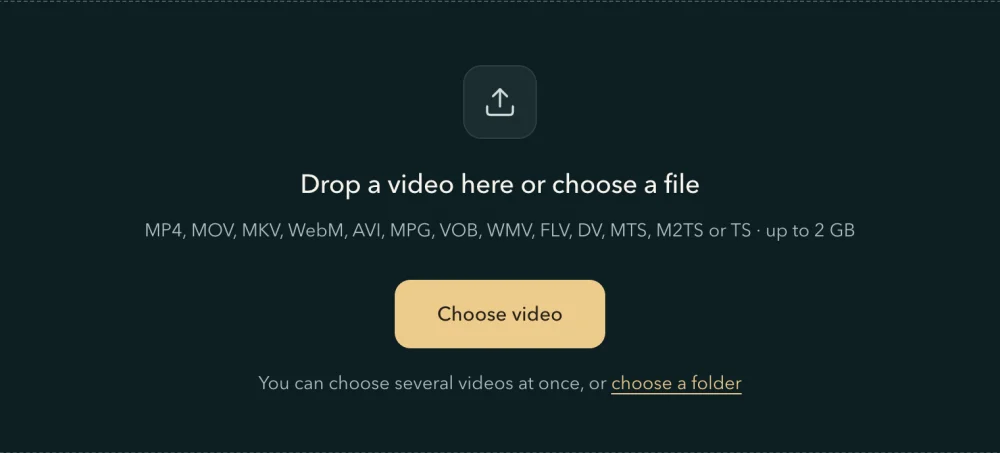
- Choose several videos, or a folder.
Press Choose video and pick several videos in the window that opens: hold Ctrl (⌘ on a Mac) as you click each one.
Or press "choose a folder", under Choose video, and pick the folder; videos in its subfolders come too. In Chrome and Edge the browser asks whether this site may view the files in that folder: choose View files. The videos are read on your computer, and nothing is uploaded.
Or drag the videos, or their folder, onto the page.
- Check the list.
The first video opens on the stage, and the list under it shows, in name order, what each video becomes and about how long it takes. One set of settings goes for every video: one too small for the Output you picked goes to the largest size it can reach, and a Quality this computer can't run for a video steps down to one it can, as its row says. Press "Preview this frame" to see the settings on the first video.
A video the batch leaves out is greyed, with the reason on its row: one already that size, for example. So is every file the page converts first, such as VOB, AVI, MPG or MTS: choose each of those on its own from the home page.

Five videos of different sizes with Output on 4K: the 480p one goes to 2K, and its row says why. - Choose where the results go, and start.
In Chrome and Edge, A folder (recommended) is already selected: press Choose folder… and pick a folder. A new, empty one is easiest. Your browser asks whether this site may edit files there: choose Allow (or a similar option) so the videos can be saved; files already in it are never overwritten. Other browsers keep the results in this browser.
Then press the gold button, which counts your videos: "Upscale 5 videos" for five. For a long batch, the panel also offers "Run the first video to check": only the first one runs, so you can compare it with its original before the rest.
- Leave it running.
The videos run one at a time, and the panel says how many are done and about how long the rest will take. You can switch tabs, and the batch keeps going; keep the computer plugged in and awake. Pause, Skip this one or Stop the batch whenever you like. If one video can't be upscaled, its row says why and the batch moves on; if the browser runs out of room, the batch waits and the panel says how to make room.
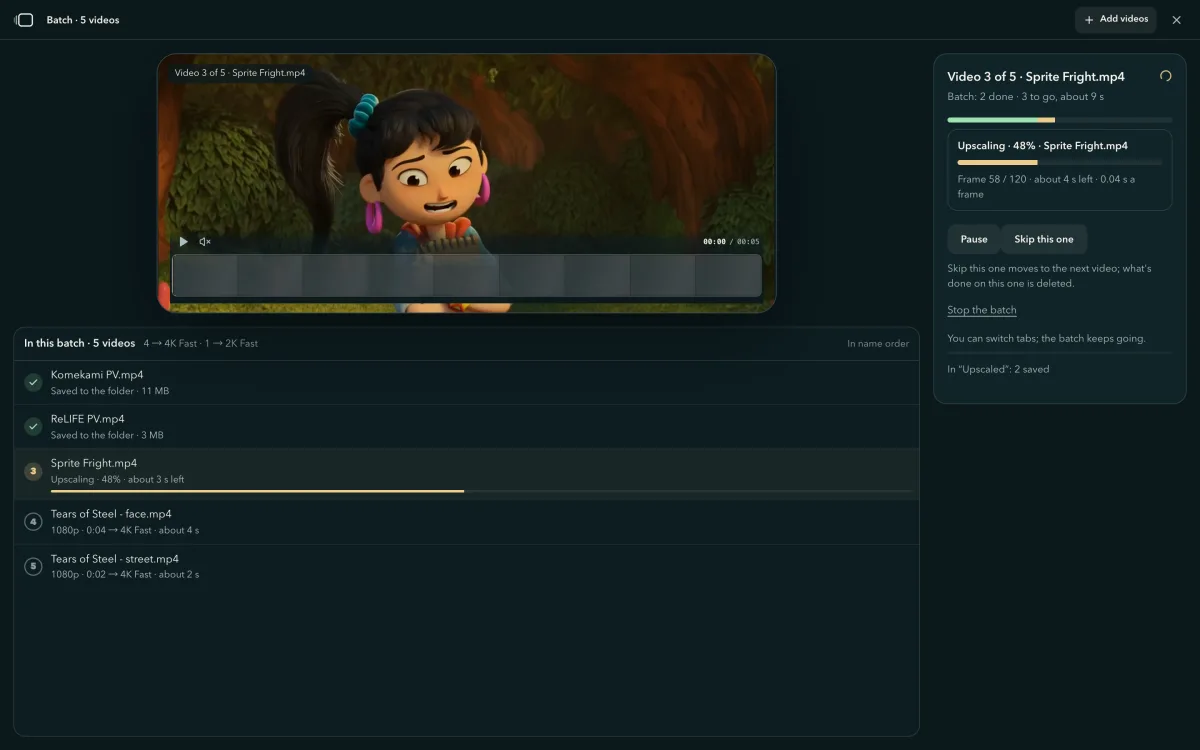
Saved into a folder, or downloaded one by one with Download all
Into a folder (recommended)
In Chrome and Edge. Each video goes into the folder you chose as soon as it is done, and its copy in the browser is deleted, so the browser needs room for one video at a time. When the batch is done, the videos are already on your computer, and the panel says where. A file of the same name already in the folder is never overwritten: the new one is saved beside it, its name ending in (2).
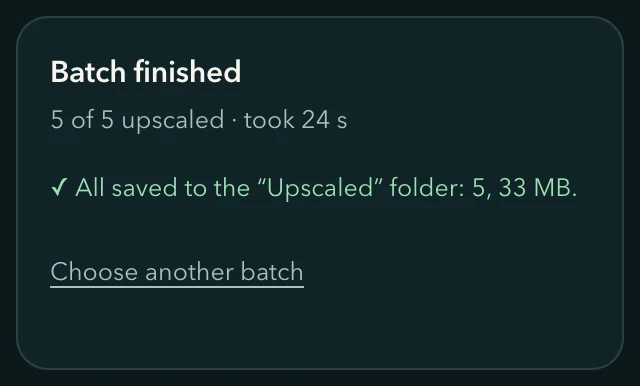
Kept in this browser
In every browser that runs the upscaler; the browser needs room for the whole batch. Press Download all, and the videos are downloaded one after another, each as a file of its own (no zip), skipping any you have already downloaded; they usually go into the Downloads folder on your computer. Stay on the page until it finishes. The browser may ask once to allow multiple downloads: choose Allow. Each row also has its own Download, and the videos stay in this browser for 24 hours after the batch's last change.
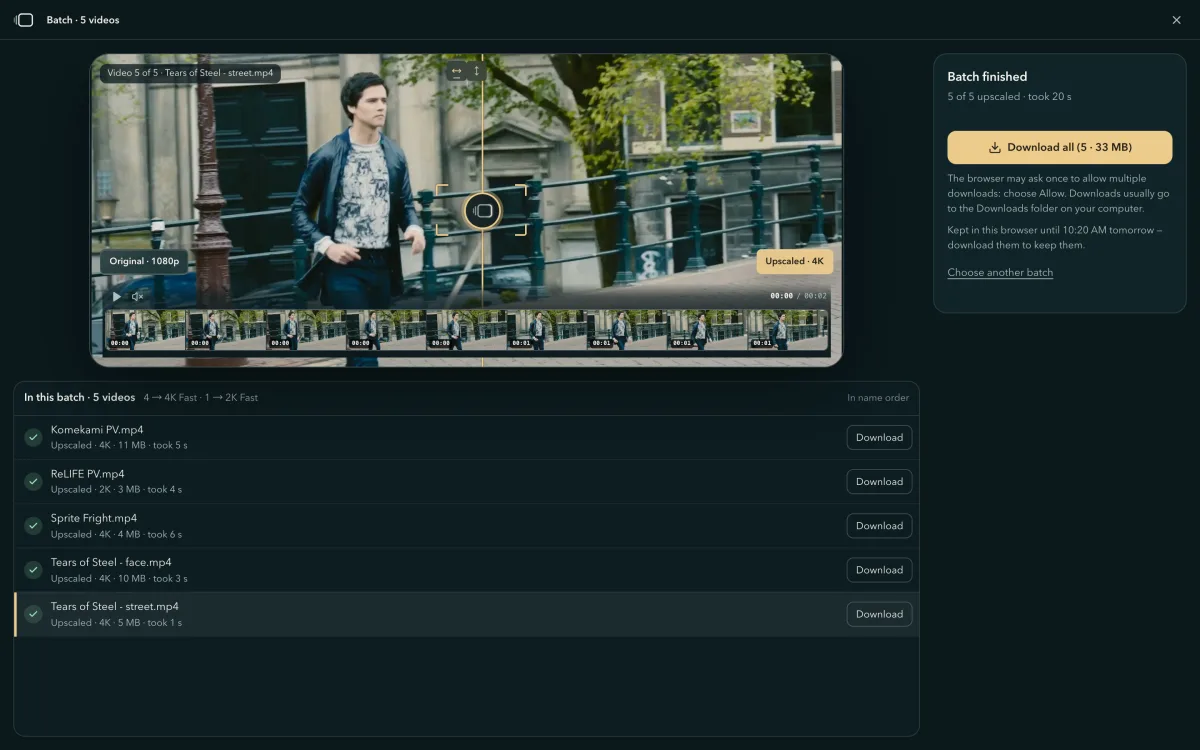
Closed the page? The home page keeps the batch
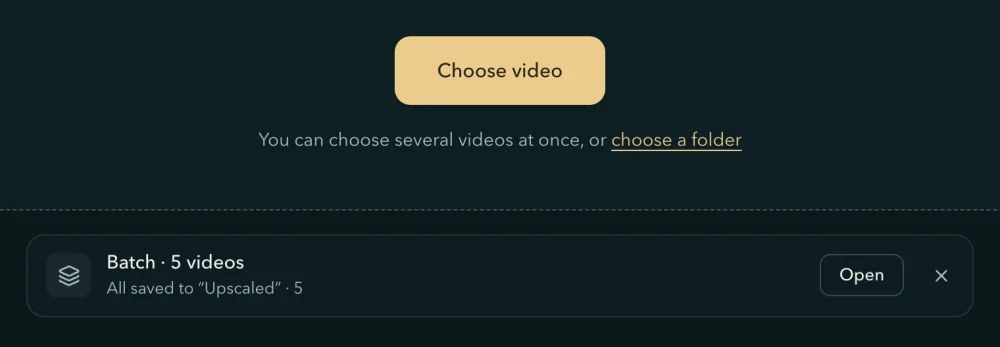
Close the batch, or the whole tab, and the home page lists it under Choose video with how far it got; Open shows it again, with the finished videos to download. To run the rest:
- Come back in the same browser within 24 hours.
- On the batch's row, press Choose videos, or Open and then Choose these videos (or Choose their folder).
- Pick the same videos again. A batch that was saving into a folder then asks for that folder, since the browser forgets its permission when the page closes: press Choose folder… and pick the same folder.
- Press the button that runs the rest: "Run the other 3" when three are left.
The page recognises the videos by their name, size and modified time, and one stopped halfway carries on from its last save.
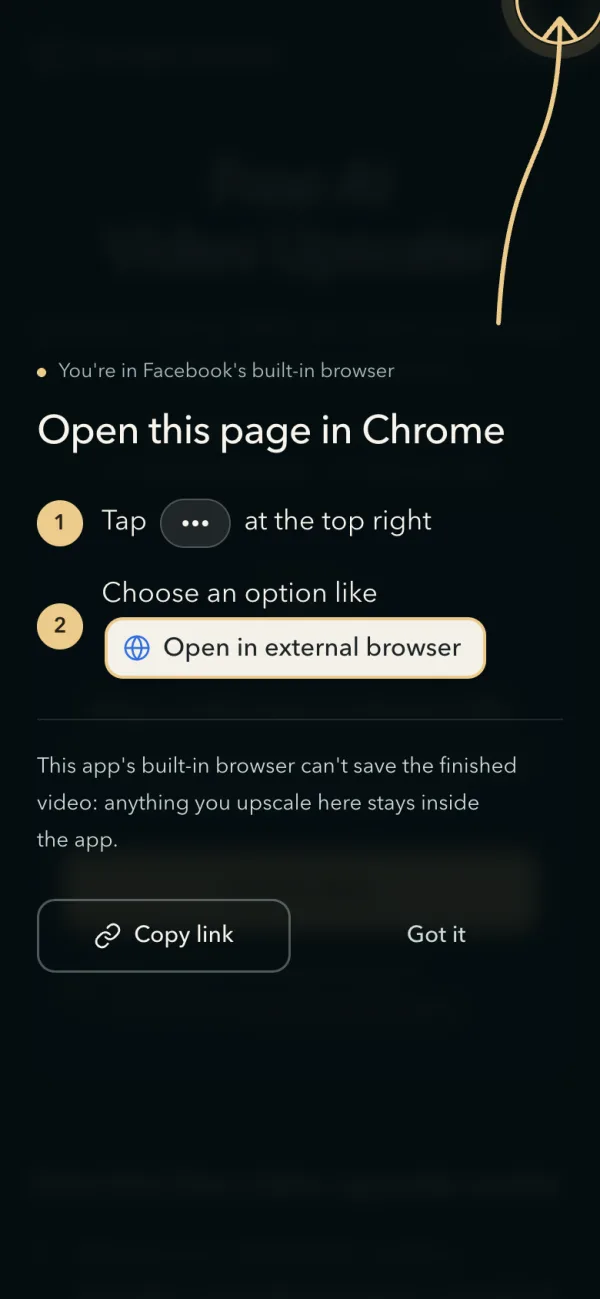
Opened in WeChat or Facebook on Android, or in a browser that can't upscale? The page shows where to switch
WeChat, Facebook, Instagram, TikTok and many other apps open links in a browser of their own. On Android, and in iPhone apps that can't share a file, that browser can't save the finished video. Opened there, the page covers itself with a short guide: an arrow points at the app's menu, and two steps show the button to tap and the option that opens the page in your phone's browser. Copy link does the same by hand. Got it closes the guide for this tab, and "How to switch browsers" under Choose video opens it again. In an iPhone app whose browser can share a file, nothing covers the page: there the finished video is saved through the share sheet, where Save Video puts it in Photos.
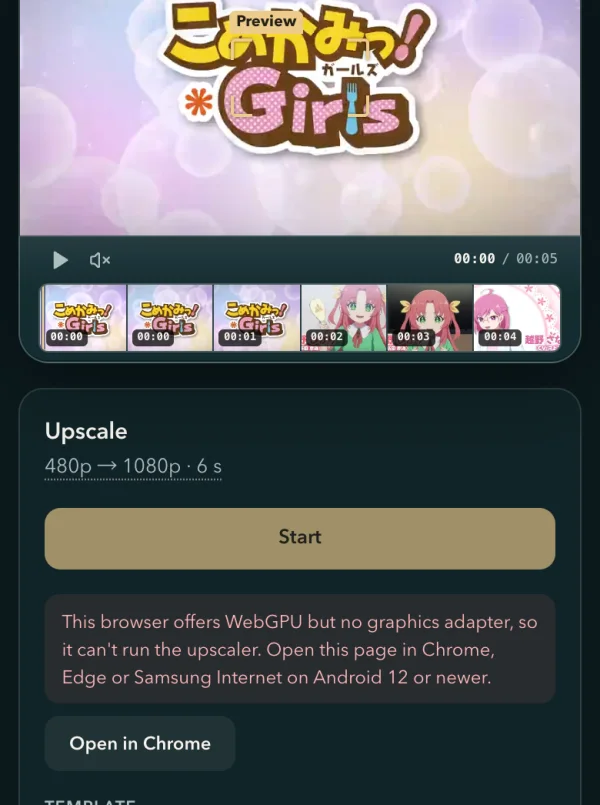
On Android, a browser that can't run the upscaler, such as a phone maker's own, sends you to one that can: the panel names Chrome, Edge or Samsung Internet on Android 12 or newer, with an Open in Chrome button under it.
Downloads named after the original, with its title and comments kept
A download is named after the original, its Output and its Quality, so a Fast and a Pro version of the same clip sit side by side in your Downloads folder:
| You upscale | The download is called |
|---|---|
holiday.mp4 to 4K on Pro | holiday_4K_Pro.mp4 |
| A 30-second trial of it | holiday_4K_Pro_trial-30s.mp4 |
| The same result, exported again as HEVC | holiday_4K_Pro_HEVC.mp4 |
A video from an Android phone's gallery, which reaches the page as 1000000087.mp4 | video_20261010-2310_4K_Pro.mp4, after the time it finished (local time) |
A second holiday.mp4 in the same batch, or one already in the folder | holiday_4K_Pro (2).mp4 |
Output and Quality are written in English in every language (Fast, Pro, Ultra), and the codec only when it isn't the container's usual one, as in the HEVC row. On the home page, the list under Choose video shows a video from an Android gallery by its length and the time it finished.
The file also carries the original's details, and says how it was made:
| In the upscaled file | What it says |
|---|---|
| Title, description, comments, author, keywords, copyright | The original's, as they were |
| The sound's language and name | The original's, from an MP4 or MKV |
| When and where the original was shot, and on what camera or phone | The original's, where photo libraries look for them — an MKV or WebM keeps the date and time; turn off "Keep date, location and camera info" under More options to leave them out |
| Encoding tool | 4K Video Upscaler and its version |
| One more line at the end of the comments | How it was made: the original and new frame size in pixels, the quality, the codec, the date and the site's address |
| A turned or mirrored video | It plays the way your player shows the original |
| Whose account the original came from, and its cover art | Left out |
| Anything about your device | Never written |
Players such as VLC show these under Media Information.
Also in this version
A preview with a picture when a video opens on black
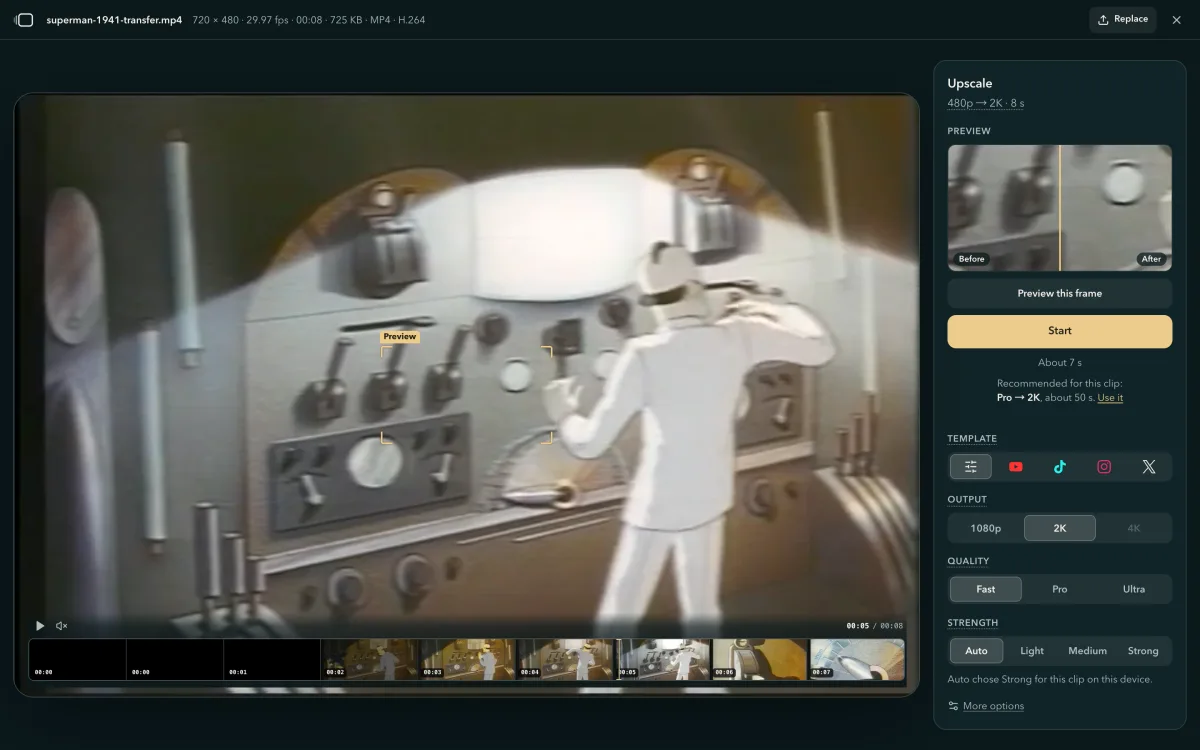
Some videos open on black: a tape transfer's leader, a fade-in, a title on black. For those, the preview card shows the part with the most on it, and the stage now shows the preview's frame as soon as the video opens.
Technical words explained where they appear
In the guide and on every page of this changelog, words such as Fast, Pro and Ultra, interlacing or WebGPU open a one-line explanation when you point at one or tap it; where the guide explains the word, the card's More link takes you there.
Pro and Fast laid out for Mali and Adreno graphics
On a phone, leave Strength on Auto: it takes the strongest the phone finishes within 8× the clip's length, Medium at most. On Android phones with a Mali graphics chip, the upscaler's engine lays out Pro, and Fast's Medium and Strong, the way that chip runs them fastest, so Pro's first frame starts without a round of trying block shapes first. Phones with an Adreno 6-series chip get part of that layout for Fast's Medium and Strong, and on phones with an Adreno 7-series chip the first run of Fast's Medium or Strong tries both ways of feeding the chip and keeps the faster.
Export again when the browser's storage is full
When the browser's storage is too full to export a result again, the Export again block names the result kept from an earlier run. Press "Delete the kept result and re-export": it deletes only that kept result, never your own videos, and exports again once there is room.
How batch upscaling runs and saves in your browser, and how SR Engine fits Mali graphics chips
From version 2026.10.12, on a computer, 4K Video Upscaler upscales a batch one video at a time on SR Engine, the product's own WebGPU engine, on your graphics chip. A small record of the batch in the browser's storage says which videos are done, and in Chrome and Edge each finished video is copied into the folder you picked, through the browser's File System Access API, and its copy in the browser deleted. On Android phones with a Mali graphics chip, SR Engine lays out Pro's work for that chip: on a budget Android phone with a Mali graphics chip it upscales a 480p frame on Pro 1.8× as fast as ONNX Runtime Web, with the same weights and frames, SR Engine as the upscaler runs it and ONNX Runtime Web on its WebGPU backend in half precision. The videos stay on your computer or phone, and nothing is uploaded.
One video at a time
200videos in one batch, at most
Every video planned before the first one starts
As the list fills in, the page reads each video — its size, its length, whether this browser can decode it — and gives it the largest size up to your Output that it can reach, and its time: the first video's measurement on this device, scaled by each video's pixels. Two videos at once would not finish sooner on one graphics chip, so they run in turn, and each finished video corrects the time left for the rest.
Saved as it goes
24 ha batch and its results stay in this browser after its last change
Progress saved video by video, the record kept in two copies
A long video in the batch saves its progress as it goes, as it would on its own, and a small record says which videos are done. The record is written to 2 files in turns, so a tab closed in the middle of a write always leaves one of them whole. Chosen again, the batch's videos are recognised by their name, size and modified time.
Shaped to the chip
1.8×as fast as ONNX Runtime Web on Pro, a 480p frame on a budget Android phone with a Mali graphics chip
Pro on a budget Mali phone stays within the chip's registers
How fast a phone's graphics chip runs a layer depends on how much each of its threads holds at once. On Mali chips, SR Engine gives each thread one pixel, brings in two groups of input channels at a time, and splits each 8-bit layer of Pro into smaller groups of outputs, so every thread's sums fit in its registers. With the shapes set in advance, there are no block shapes to try out before Pro's first frame. Adreno 6-series chips get the same two-group staging for Fast's Medium and Strong; Adreno 7-series chips time both stagings for each network on its first run and keep the faster.
Measured by us: the same weights and frames on both sides, run in turns on the same phone and browser, with SR Engine as the upscaler runs it and ONNX Runtime Web on its WebGPU backend in half precision.
Questions about this version
- Can I upscale multiple videos at once?
- Yes, on a computer, in any browser that runs the upscaler. Under Choose video, select several videos in the window that opens, drag them or a folder onto the page, or press choose a folder; one batch takes up to 200 videos. Set the settings once and press the gold button: the videos are upscaled one after another on your graphics chip, and nothing is uploaded. On a phone or a tablet, the page upscales one video at a time.
- Where do the upscaled videos of a batch go?
- In Chrome or Edge, with A folder (recommended), each goes into the folder you pick as soon as it is done; a file already there is never overwritten. With This browser, they stay in this browser for 24 hours after the batch's last change, and Download all hands them to your browser one by one, skipping any already downloaded; the browser may ask once to allow multiple downloads.
- What happens if I close the page in the middle of a batch?
- The finished videos stay, in your folder or in the browser, and the home page lists the batch under Choose video. To run the rest, come back in the same browser within 24 hours, choose the same videos (or their folder) again from that row, and press the button that runs the rest. A batch that was saving into a folder asks for that folder first: press Choose folder… and pick the same one. A video stopped halfway carries on from its last save.
- Do the videos in a batch have to be the same size?
- No. One set of settings goes for all of them, and Output is the most a video goes to: one too small for it goes to the largest size it can reach, as its row says before you start.
- What is an upscaled file called?
- The original's name, its Output and its Quality: holiday.mp4 upscaled to 4K on Pro is holiday_4K_Pro.mp4, and its 30-second trial is holiday_4K_Pro_trial-30s.mp4. A video from an Android phone's gallery, which reaches the page under a number, is named by the time it finished.
- Does the upscaled video keep the original's metadata, like its title or where it was filmed?
- The original's title, description, comments, author and keywords always go over as they were, with one line added saying how it was made; by default, when and where it was shot and on what camera or phone go over too, where photo libraries look for them, so your gallery files the result next to the original (an MKV or WebM keeps the date and time). Turn off "Keep date, location and camera info" under More options to leave those out. Whose account the original came from is never carried over, and nothing about your device is written into it.