
How it compares with online upscalers and desktop apps
| Most online upscalers | Desktop apps | This upscaler, in your browser | |
|---|---|---|---|
| Where your video is processed | On their server, after an upload | On your computer | On your computer or phone; never uploaded |
| Before you start | Create an account | Download and install; often a paid licence | Open the page; nothing to install |
| Watermark | Often on the free plan | None | None |
| Length | Often capped, or billed per minute | Any | Any; progress is saved during the run |
| How long it takes | Queue time plus the server's speed | Your computer's speed | Your device's speed, shown before you start |
| On a phone | Works, with an upload | Not available | Runs in the phone's browser |
How to upscale a video to 4K
- Choose a video.
Press "Choose video" on the home page, or drag the file onto the box. MP4, MOV, MKV and WebM files open at any length; DVD VOB, old AVI and camcorder MTS files open too since version 2026.09.27. The page reads the resolution, frame rate and length on your device, then opens the video next to the Upscale panel.

The home page. - Pick a size and a quality, then preview.
Choose 1080p, 2K or 4K under Output, and Fast, Pro or Ultra under Quality. For a video watched only on a phone, 1080p looks the same as 4K and finishes sooner. Pause on a frame you care about and press "Preview this frame". It shows that frame before and after, and how long the whole video will take on this device. The icons after "Can it run?" open an AI assistant with your device, the clip, your settings and the estimate already typed in, if you want a second opinion; the video itself is never sent.
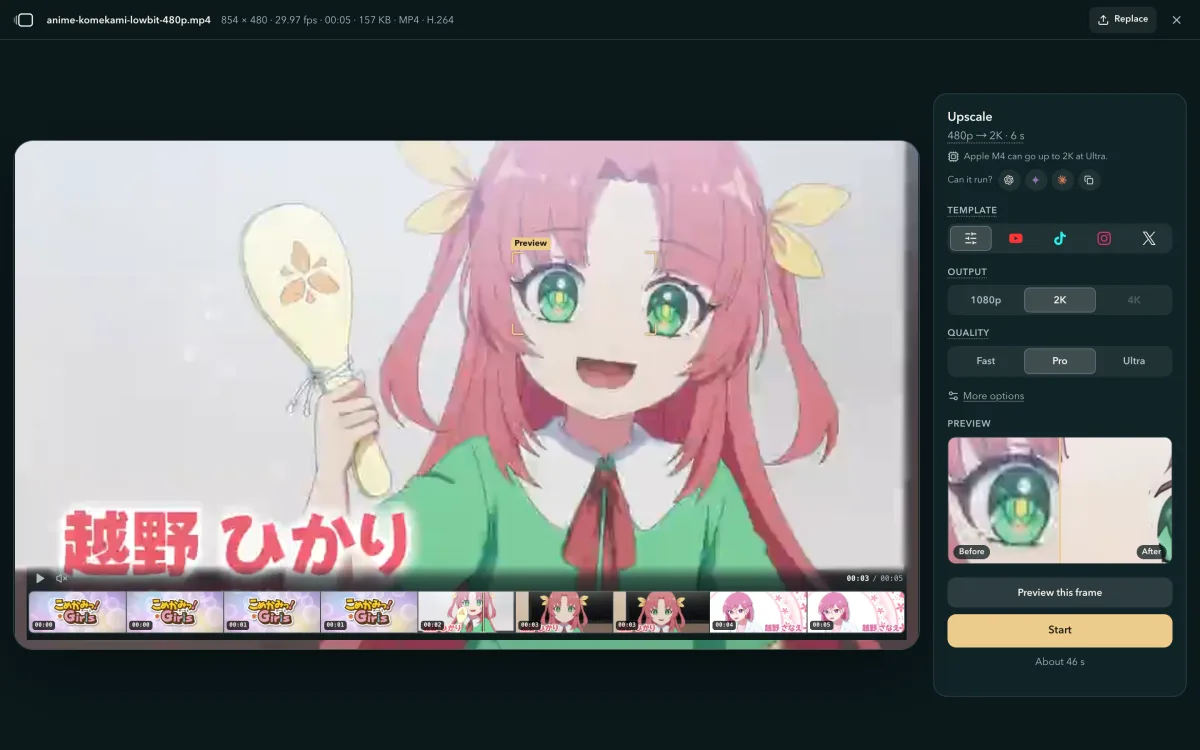
The preview at the top of the panel shows the marked area before and after. The time for this device is next to Start. - Start, then compare and download.
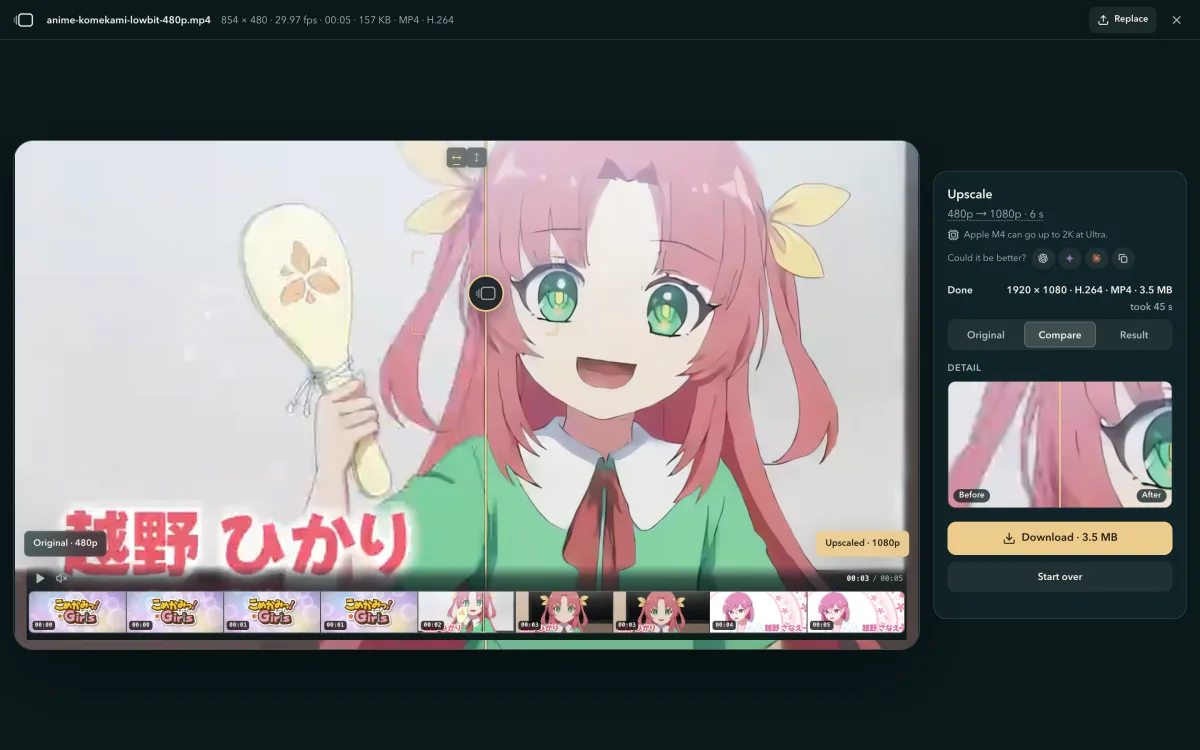
Press Start. You can pause and resume at any time. When it finishes, the original is on the left and the result on the right; drag the divider to compare the same frame, then press Download. A long video is saved while it runs, so if you close the tab halfway, the home page offers to continue it.
Fast, Pro or Ultra for anime, downloads and old film
| Quality | What it does | Best for | Open with |
|---|---|---|---|
| Fast | Sharpens edges and lines in 2× steps and leaves texture, colour and grain alone | Clean camera footage, anime, screen recordings, AI-generated video | Fast → 4K |
| Pro | Removes compression blocks and light noise while it upscales 4× | Downloaded or re-shared video, 480p–720p | Pro → 1080p |
| Ultra | Clears heavy grain and sharpens smeared texture, a deeper 4× repair than Pro | Old film, heavy grain, the worst 360p–480p sources | Ultra → 1080p |
To compare two settings, pause on a frame, press "Preview this frame", switch the quality and press it again. For close-ups of faces, start with Fast; if there are compression blocks, try Pro and check the faces in the preview.
Before and after on three clips
Three clips, one for each quality setting, upscaled by this page. The left side is the source enlarged the ordinary way, as a video player shows it; the right side is the result.
Which browsers and devices it runs on
| Device | Browser |
|---|---|
| Windows, macOS, ChromeOS | Chrome or Edge 113 or newer |
| Mac | Safari 26 |
| Android phone | Chrome 121 or newer on Android 12 or newer |
All of them support WebGPU, which lets a web page use the graphics chip. A link opened inside an app such as WeChat or TikTok uses the app's built-in browser; open it in Chrome or Safari instead.
How AI upscaling runs in your browser, on your own GPU
From the first release, version 2026.09.18, 4K Video Upscaler upscales video inside your browser, on this computer's or phone's own graphics chip, so the video is never uploaded. All three quality settings run on SR Engine, a WebGPU inference engine built for this upscaler: there is no general machine-learning runtime to download, and each setting downloads its model file the first time it is used, 19 KB for Fast and at most 2.4 MB.
One memory pool
112 Bof GPU memory per pixel for the large 2× network
Each frame needs less graphics memory
All of a frame's intermediate results live in one GPU buffer, sliced by how long each layer's output has to last; once its last reader is done, the slice is reused. The heaviest step of 720p to 4K needs 520 MB for the whole frame.
The per-pixel figure counts the network's intermediate results; the 520 MB also holds the input, the output and the weights. MB is 10⁶ bytes.
Banded inference
5 bandsfor the heaviest step of 720p to 4K when the GPU memory budget is 128 MiB, WebGPU compatibility mode's limit
4K on a small memory budget, identical to a whole-frame run
When a frame does not fit the memory budget, the engine cuts it into horizontal bands, each carrying the extra rows its layers read, and the output matches the whole-frame run bit for bit. A phone gets a budget of only 96 MiB and still reaches 4K.
Half precision
2.4×faster than 32-bit for the heaviest restoration network at 720p, on chips with shader-f16
16-bit floats where the chip supports them
With shader-f16 the whole network runs in 16-bit floats, otherwise in 32-bit. Against the PyTorch reference, 16-bit output measures 54–70 dB PSNR and 32-bit output 93–100 dB.
The tests fail below 50 dB for 16-bit and 60 dB for 32-bit.
Every pixel computed
100%of output pixels computed by the network, edges included
Edges computed, no mid-tone lift
The frame's edges are padded with zeros, so every output pixel is the network's own. Frames reach WebGPU through the browser's 2D path, because importing a video frame directly in Chrome lifts the mid-tones by 4–8/255 in 5 of 7 test clips.
Model files
19 KBfor Fast's model, 2.4 MB for Ultra's; each downloads once
One small file per quality setting, nothing else to install
Each model is a self-describing file: the network's structure in the header, the weights as 16-bit tensors. The engine plans memory, kernels and bands from the header. A general machine-learning runtime for the browser downloads 10–20 MB of WebAssembly before its first frame.
Checked against a reference
65GPU parity cases, run in each of 3 setups: Chrome on Metal, Chrome's software renderer and Safari's WebKit
Every shipped model is checked against known right answers
A plain TypeScript implementation of the networks defines what correct means, and each shipped model's PyTorch outputs are the answers it must match.
A build fails when a frame takes more than 10% longer than the recorded baseline.
SR Engine vs an open-source WebGPU upscaler, measured on one computer
| Property | SR Engine | Open-source WebGPU upscaler |
|---|---|---|
| GPU memory per pixel, large 2× network | 112 B | 368 B |
| 1080p → 4K, large 2× network | 25.9 ms per frame | 63.3 ms per frame |
| 4× restoration networks | Supported | 2× only |
| Precision | f16 where available, else f32 | f32 only |
| Frame edges | Every pixel computed | Last columns skipped, edge colours wrap around |
| Android compatibility mode (OpenGL ES 3.1) | Works, in bands within its 128 MiB limit | Not supported |
| Model files | 19 KB to 2.4 MB each | The same networks as JSON weights |
SR Engine is the engine of 4K Video Upscaler. Both engines measured by us with the same networks on Apple M4 (10-core GPU), Chrome on Metal: ours on 2026-09-17, the open-source upscaler on 2026-09-15.
Questions
- Is my video uploaded?
- No. The video is decoded, upscaled and encoded inside your browser, and the result stays in the browser's storage on your device until you download it. The page downloads only its own files and, the first time you use each quality setting, its model.
- How long does it take?
- It depends on your graphics chip, the quality setting and the length of the video. Before you start, the page measures your device and shows the time next to Start. For a long video, try a short part first.
- Is it free? Do I need an account?
- It's free, and there is no account. The result has no watermark and there is no length limit. The upscale runs on your own graphics chip, so there is no server time to charge for.
- Is the result real 4K?
- Yes. At 4K the long side of the video is 3840 pixels, so a 16:9 clip comes out at 3840 × 2160. How much detail it shows depends on the source.
- Can I upscale a full-length movie?
- Yes, at any length. A long run saves finished pieces in the browser as it goes, so you can close the tab halfway and continue it from the home page.
- Which formats does it open?
- MP4, MOV, MKV and WebM at the first release. DVD VOB, old AVI and camcorder MTS files open from version 2026.09.27 on.