
Open your last upscaled video again
- Find it under "Choose video".
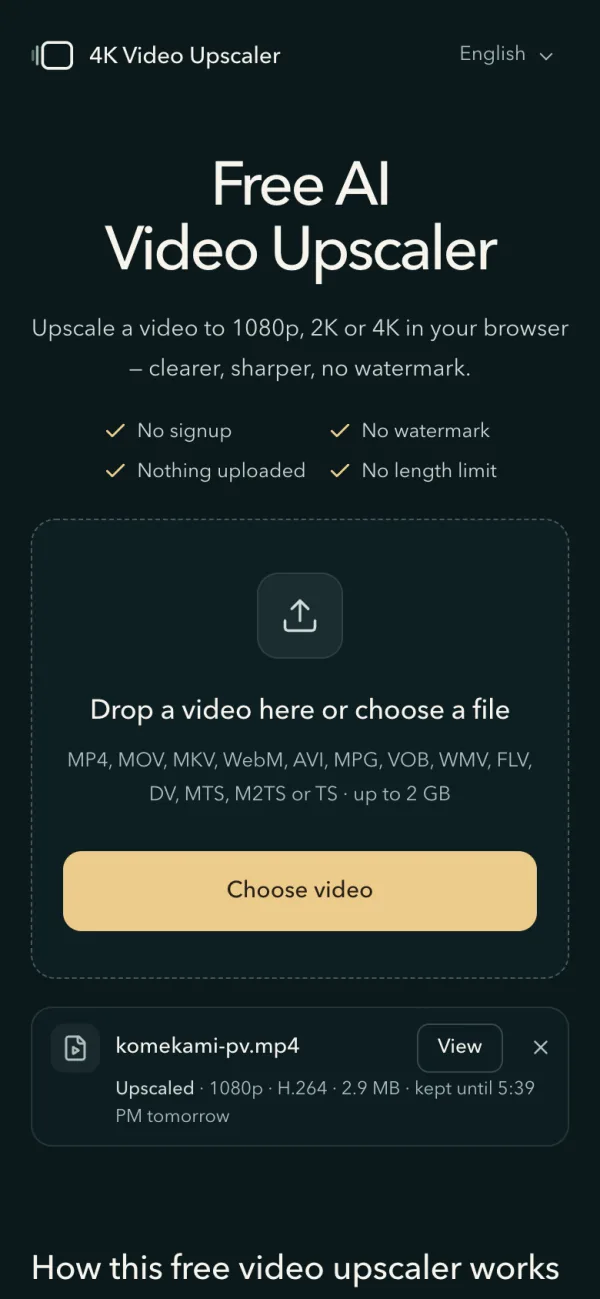
Come back to the home page in the same browser within 24 hours of the upscale, even after closing the tab or the browser. Under "Choose video" a row shows the video's name, the resolution, format and file size it came out in, and until when it is kept.
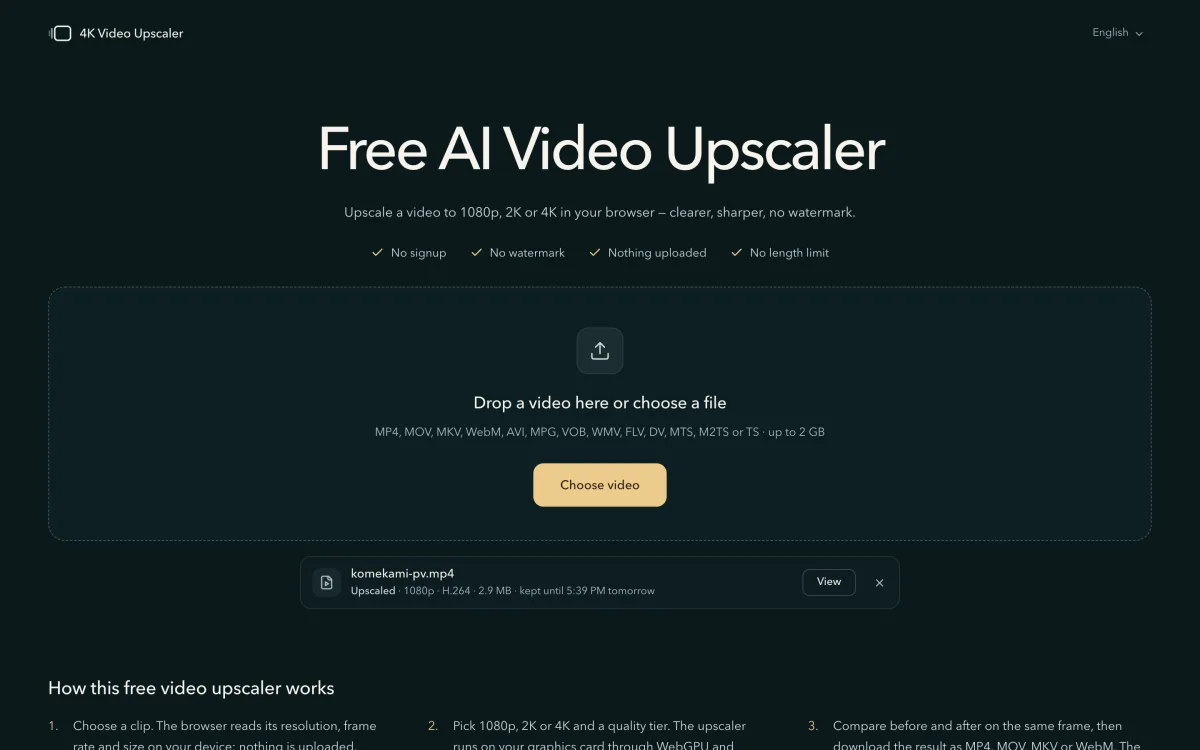
The last upscaled video, listed under the drop box. - Press "View".
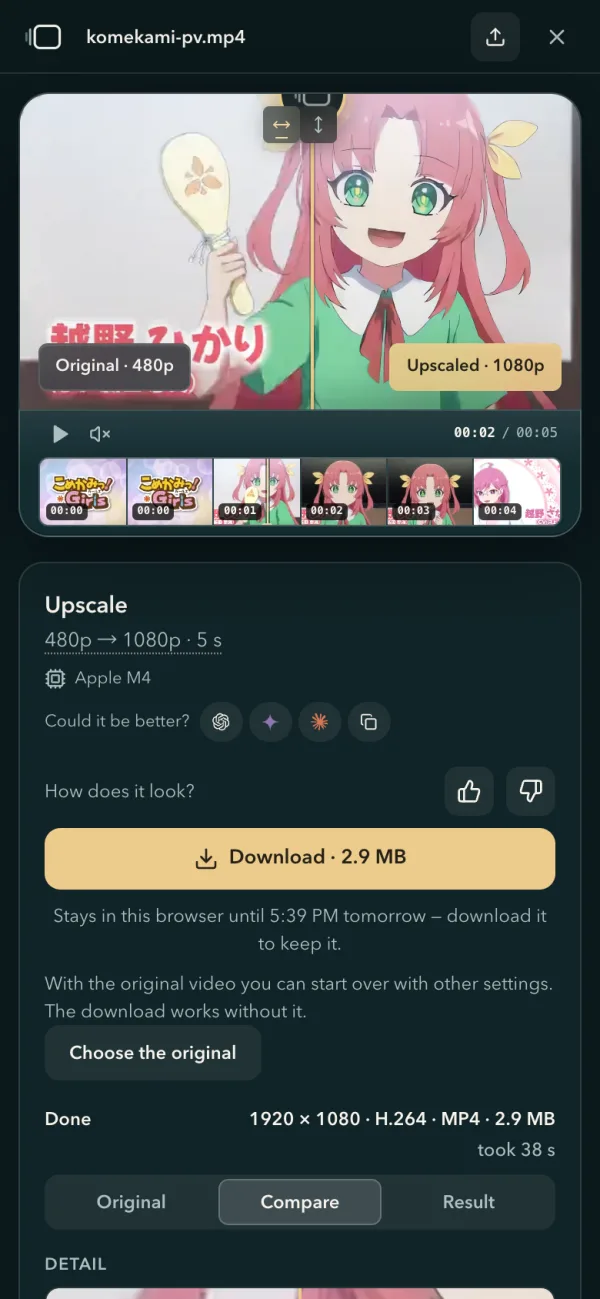
The video opens where it was made. Play it, drag the line across the picture to compare it with the original, download it again, or change its file size or format with "Export again". If the page no longer has the original, "Choose the original" brings it back for the comparison or a new run; the download works without it.
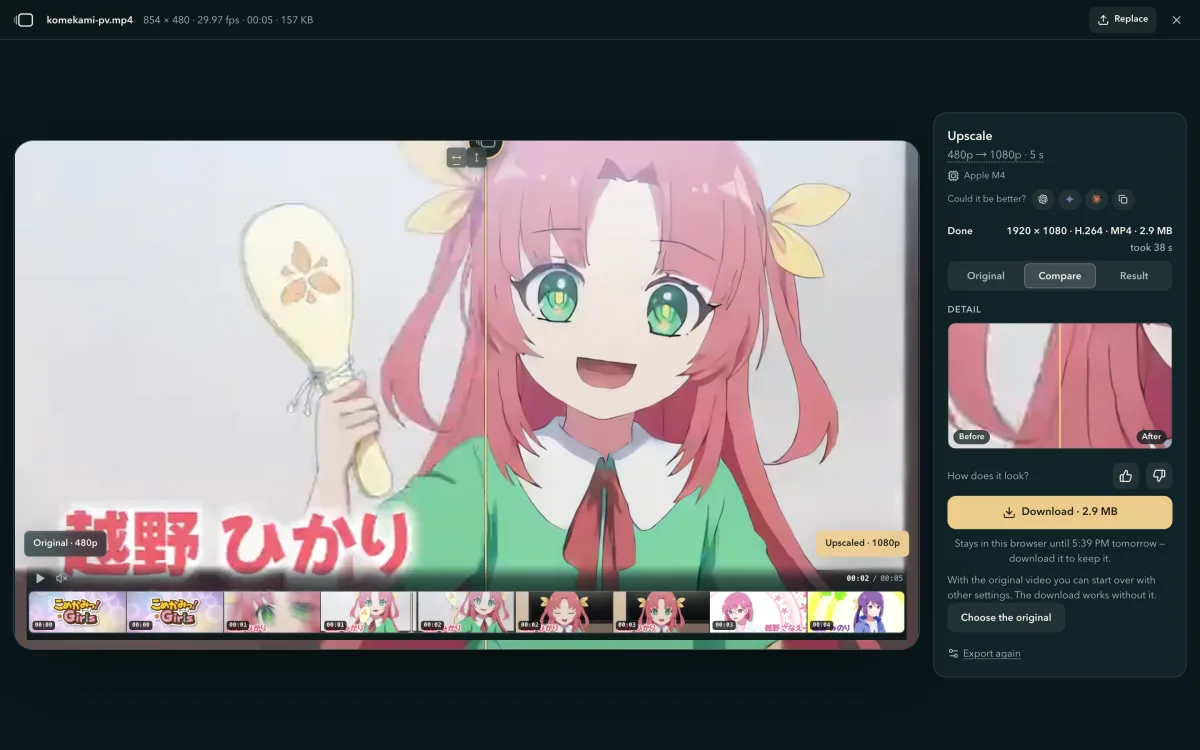
View opens the finished video with its comparison, Download and Export again. - Delete it when you are done.
The cross at the end of the row deletes it, and asks first if you have not downloaded it yet. Only the newest video is kept: the next one you upscale takes its place.
Pick a video straight from the Android gallery
Press "Choose video" on an Android phone or tablet and pick the video in the gallery that opens. The page opens it and upscales it from start to finish. Some phones stop letting the browser read a gallery video after a while; if that happens when you press Start, the panel says so and offers another way in.
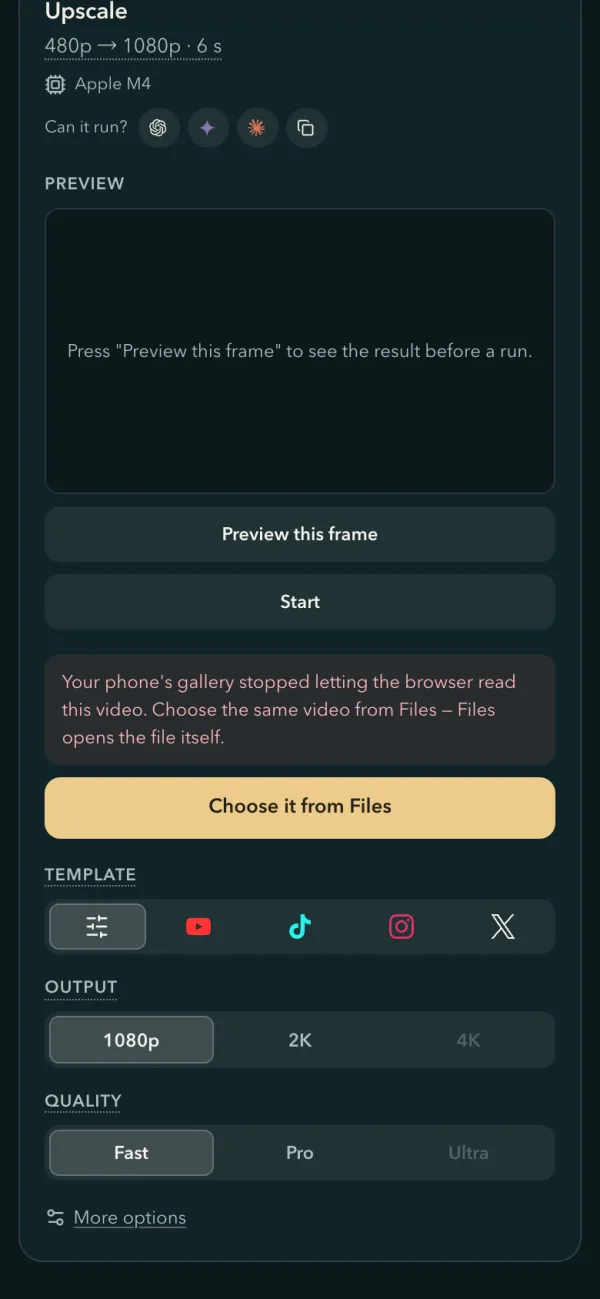
- Press "Choose it from Files".
The panel says "Your phone's gallery stopped letting the browser read this video", and its gold button becomes "Choose it from Files". Files opens the file itself rather than the gallery's view of it.

On an Android tablet: the words and the button under Start. - Pick the same video and press Start again.
Files has a Videos filter at the top. For the rest of the visit, "Replace" and the home page open Files too.
Save the video in an app's built-in browser
Apps like the Google app, Facebook, Instagram and TikTok open links in a browser of their own. What you do there to keep the finished video depends on the phone:
| Where the page is open | What the page shows | What to do |
|---|---|---|
| Safari, Chrome, Samsung Internet | "Download" when the video is done | Tap Download, as with any file. |
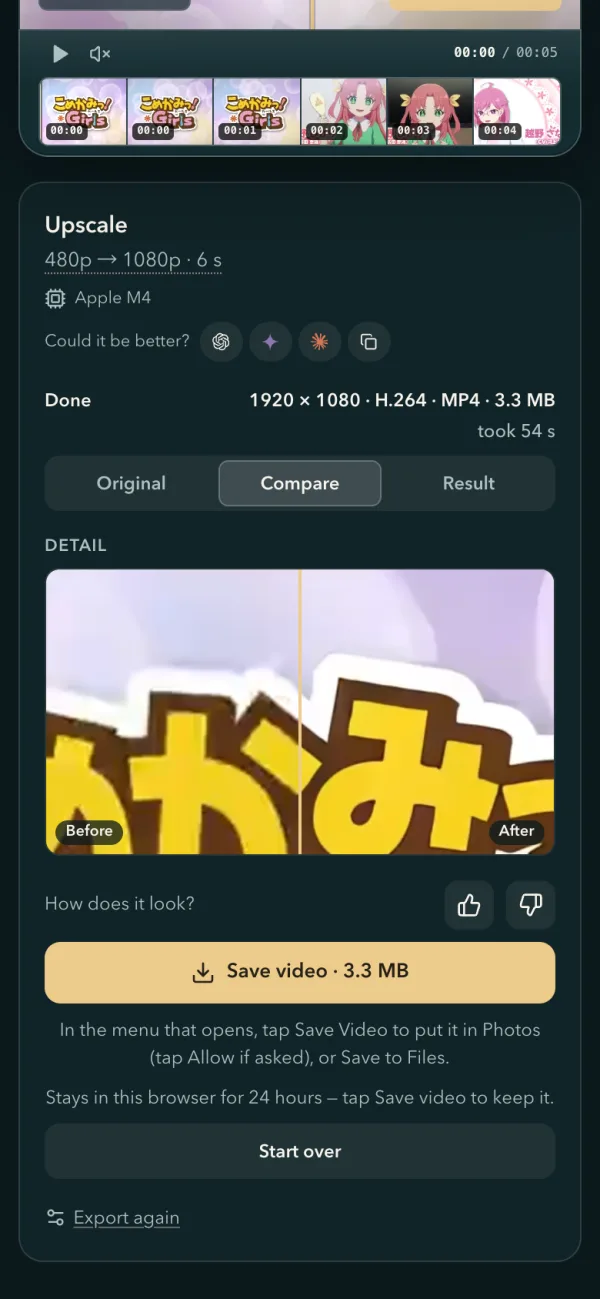
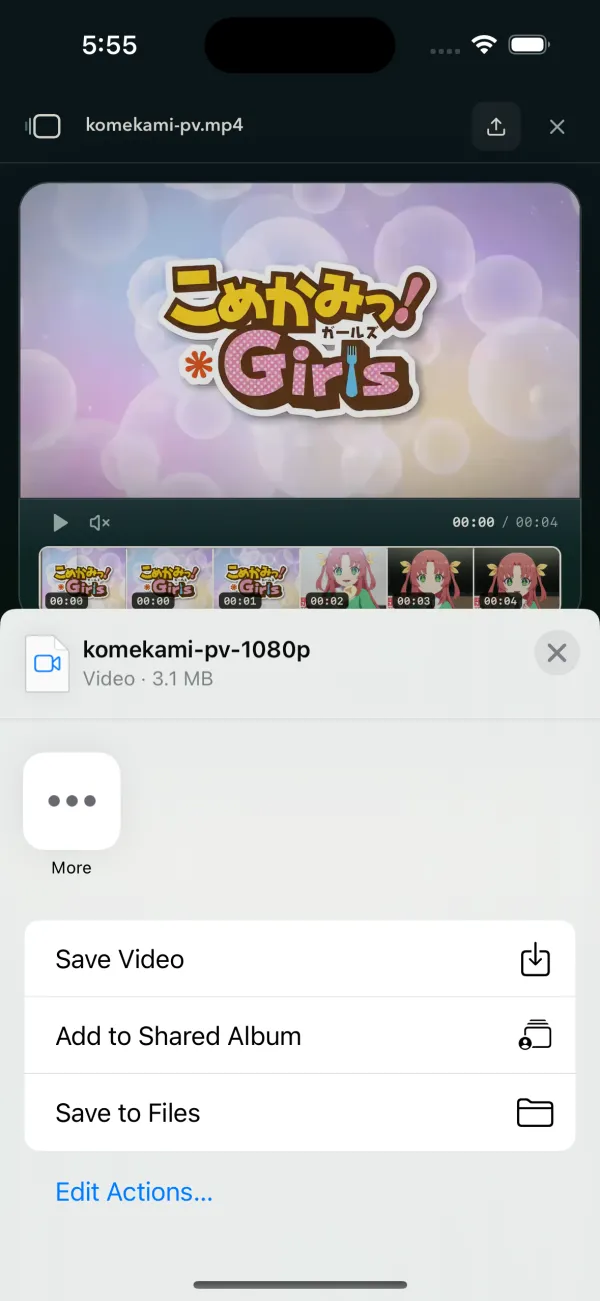
| An app on an iPhone or iPad (the Google app, say) | "Save video" when the video is done | Tap Save video. In the menu that opens, tap Save Video to put it in Photos (tap Allow if asked), or Save to Files. |
| An app on an iPhone whose browser cannot share files | A card at the top: "Open this page in Safari first." | Tap the app's three dots (••• or ⋯) or its share icon, choose "Open in Safari" or "Open in browser", and choose the video again there. |
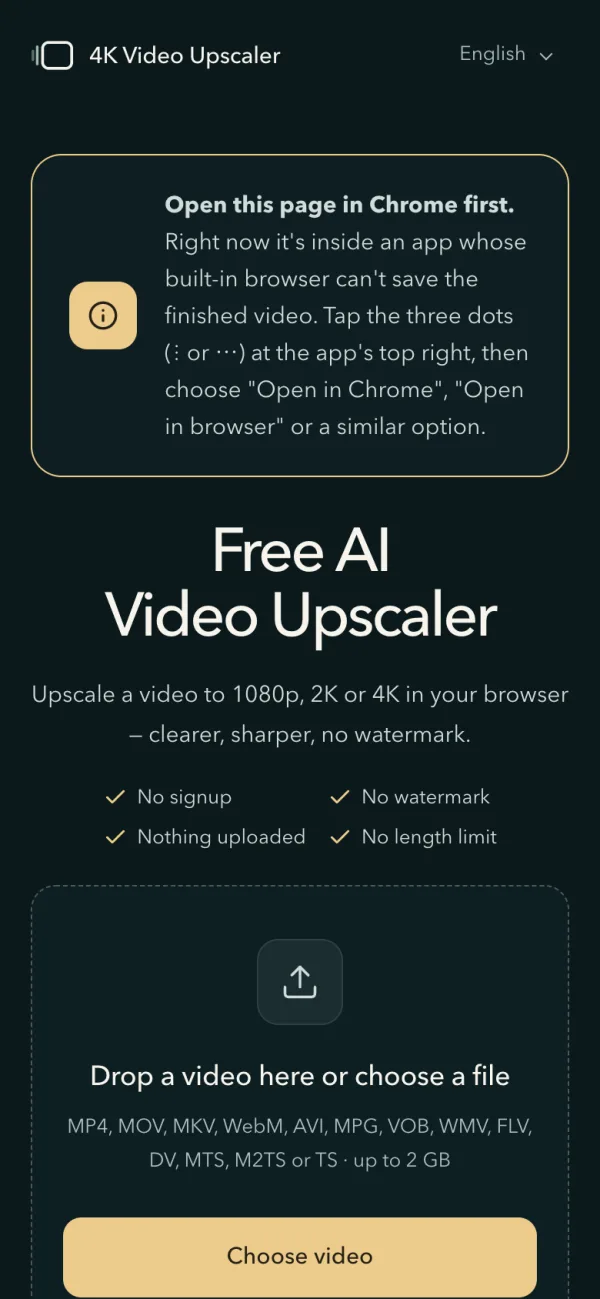
| An app on Android (Facebook, TikTok, the Google app …) | A card at the top: "Open this page in Chrome first." | Tap the three dots (⋮ or ⋯) at the app's top right, choose "Open in Chrome" or "Open in browser", and choose the video there. Chrome saves it to Downloads. |
When the browser switches WebGPU off
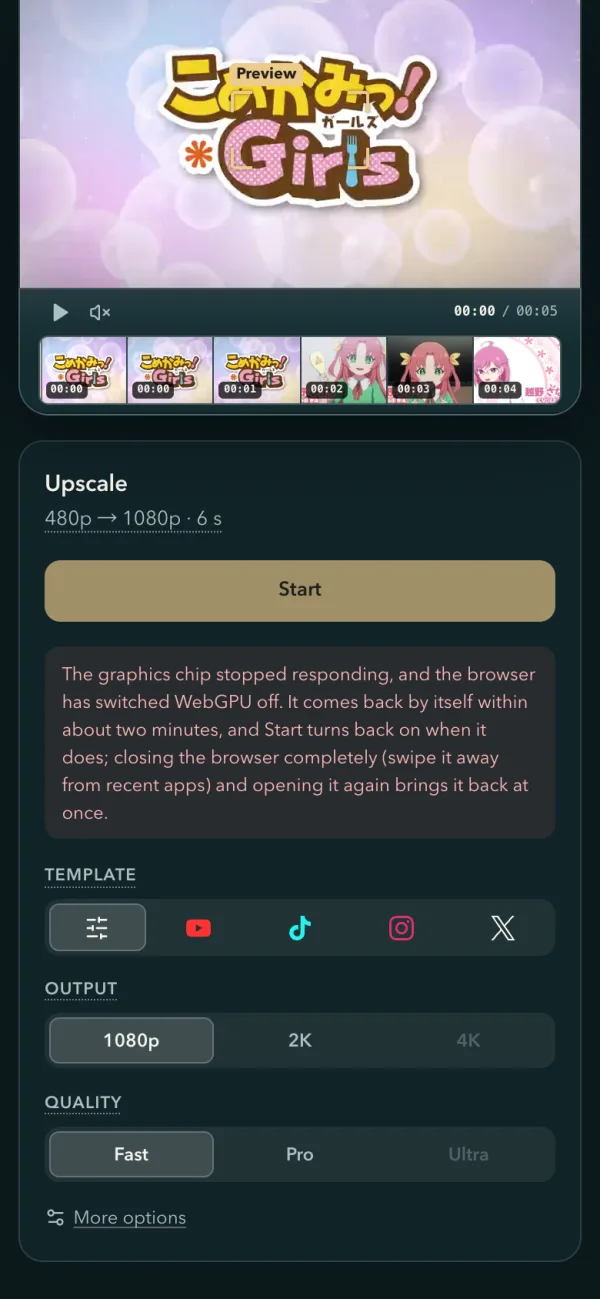
If the graphics chip stops responding twice within 2 minutes, Chrome and Edge switch WebGPU off in every tab, and say nothing. The panel now tells you which case you are in, and Start stays off until WebGPU answers again:
| Where | What the panel says | What to do |
|---|---|---|
| A computer | It can come back by itself within about two minutes, and Start turns back on when it does | Wait. If it is still off after that, quit the browser completely (every window) and open it again |
| A computer, later | The browser keeps WebGPU off until it restarts | Quit the browser completely (every window, not just the tab) and open it again |
| A phone | It comes back by itself within about two minutes | Wait, or swipe the browser away from recent apps and open it again to have it back at once |

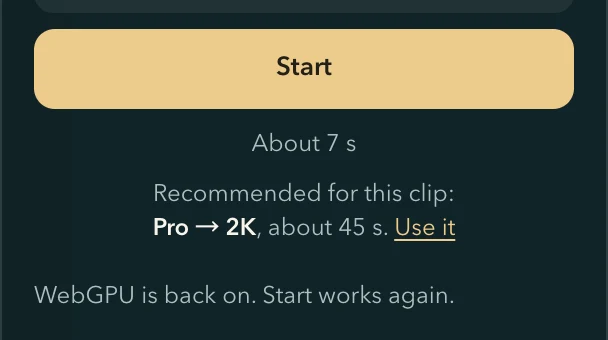
The page asks the browser again every 10 seconds while it is on screen. When WebGPU answers, Start turns back on by itself and the panel says "WebGPU is back on. Start works again." A job that stopped keeps its saved progress, and Start picks up from there.
How your browser keeps and reopens the video
From version 2026.09.29, 4K Video Upscaler keeps what it needs in your browser's private storage for this site: the finished video, a short note about it, and on Android a copy of the video you picked. Nothing is uploaded. The upscaling runs on your own graphics chip through WebGPU, and the page watches for WebGPU to come back when the browser switches it off.
Copied as it arrives
256 MiBthe largest video an Android pick is copied up to
A gallery video the phone cannot take back
On Android, the moment you pick a video the page copies it into its own storage in the browser, as it arrives. The run reads that copy, so it does not matter if the gallery stops sharing the file later, and View can compare with it afterwards. A bigger video is kept open instead until you close the page.
The copy never leaves the phone and is deleted with the job or the kept video.
Kept in the browser
24 hthe last upscaled video stays in this browser
Reopened from a short note beside the video
The finished video is written to the browser's private storage while it runs. Beside it the page keeps a short note: the settings, the size, the original's frame and length. The home page reads the note to list the video, and View rebuilds the finished view from it, with the original the page still has: the Android copy, or the frames a trimmed run used.
Only the newest video is kept; clearing this site's data in the browser deletes it too.
WebGPU watch
10 sbetween two checks while WebGPU is off
Start turns back on by itself
Chrome switches WebGPU off in every tab once its graphics chip stops responding twice within 2 minutes, and nothing on screen says so. The page remembers when it last saw the chip stop, in this browser only, so a missing graphics adapter within the next 60 minutes reads as that switch, not as a driver to update. While WebGPU is off it asks again every 10 seconds, only while the page is on screen.
The time itself never leaves this browser.
Questions about this version
- Where do I find a video I upscaled earlier?
- On the home page, in the same browser, within 24 hours of the upscale: under "Choose video" there is a row with its name and until when it is kept. Press View to open it. Only the newest video is kept.
- Can I still compare the reopened video with the original?
- Yes, when the page still has the original: a video picked on Android, or the part a trimmed run used. Otherwise press "Choose the original" and pick the same file; the download works without it.
- My Android phone says to choose the video from Files. What happened?
- The phone's gallery stopped letting the browser read the video. Press "Choose it from Files" and pick the same video; Files opens the file itself, and Start works again.
- How do I save the video inside the Google app on an iPhone?
- When the video is done, tap "Save video". In the menu that opens, tap Save Video to put it in Photos (tap Allow the first time), or Save to Files.
- Why does the page ask for Chrome inside Facebook or TikTok on Android?
- An Android app's built-in browser cannot save a video made in the page. Open the page in Chrome from the app's three dots (⋮ or ⋯) at the top right, then choose the video there; Chrome saves it to Downloads.
- The panel says the browser switched WebGPU off. What now?
- The browser does that after the graphics chip stops responding twice within 2 minutes. On a computer it usually comes back by itself within about 2 minutes, and Start turns back on; if it stays off, quit the browser completely and open it again. On a phone, wait, or swipe the browser away and open it again.