
Guide
How to Upscale Video to 4K Free in Your Browser (No Upload)
Last updated:
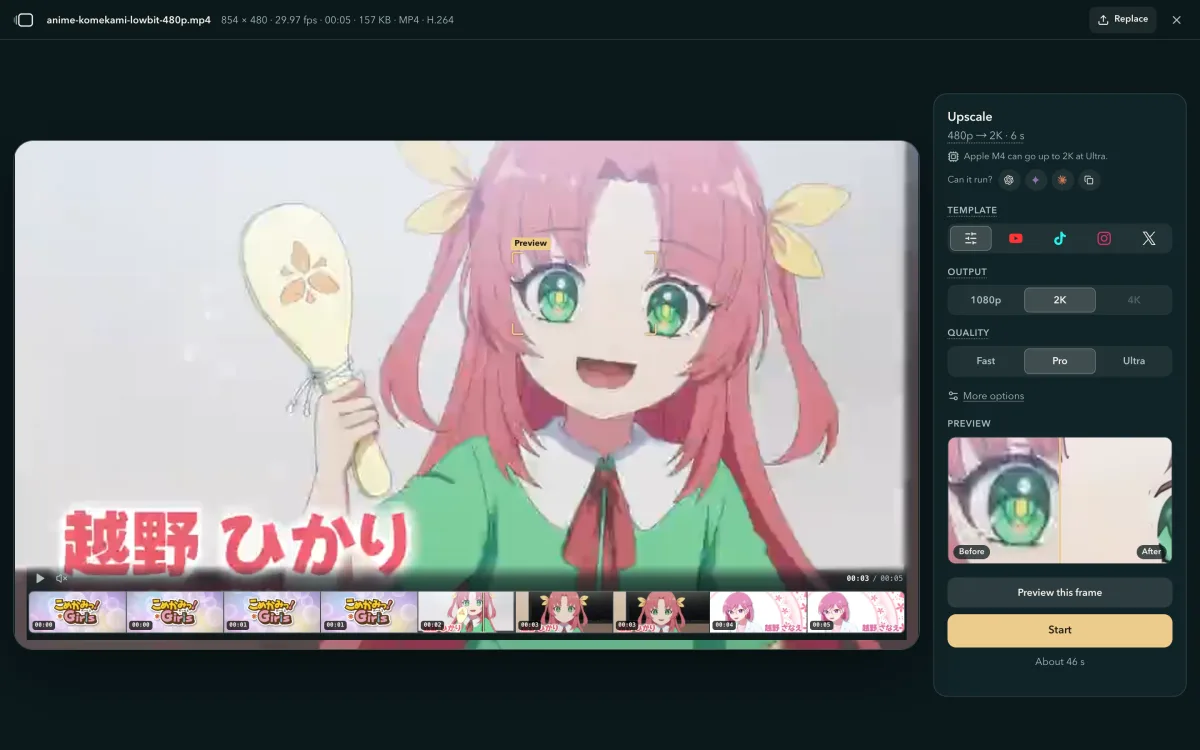
Drop a video on the home page — a clip of any length — pick a size (1080p, 2K or 4K) and a quality (Fast, Pro or Ultra), press Start, compare before and after on the same frame, download. On a computer, several videos or a whole folder go in one batch, upscaled one after another. Everything runs on your own computer's or phone's graphics chip through WebGPU, and the page measures your device before each run, so the time estimate is yours, not an average.
MP4, MOV, M4V, MKV, WebM or 3GP of any length — any size on a computer, up to 2 GB on a phone or tablet; AVI, MPG, VOB, WMV, FLV, DV, a camcorder's MTS and the other old formats open too, as do ProRes and 10-bit H.264 — the page turns them into an MP4 first. The browser reads the clip's resolution, frame rate and length on your device and opens the workbench in place of the drop box. Once it is open, the page takes 16 moments spread across the clip and recognises what it holds — whether the picture is 2D animation, live action, 3D animation or a screen recording, whether it shows faces, and whether the words on screen are subtitles, a watermark or danmaku — measures how sharp, noisy and blocky it is, and reads whether the file carries an AI-generated label: the basis for choosing the upscale's experts and tuning it to the content. A phone or tablet whose graphics chip supports half-precision shaders (shader-f16) recognises the kind of picture and the faces, without telling subtitles, a watermark or danmaku apart; any other phone or tablet measures the picture by its rules only. The recognition runs on your device in the background and stops the moment you press Start. A file this browser cannot open or decode is named the moment you choose it, with what to do next: the browsers that open it as it is, or a conversion to MP4 (H.264). If a run later finds the file can no longer be read, the panel asks for it again: with Replace, or on an Android phone — whose gallery can stop letting the browser read a video — from Files.

A platform button (YouTube, TikTok · Shorts · Reels, Instagram, X) fills in the shape, size, file type and frame rate that platform wants, and Strength, under Quality, starts on Auto: the page picks how hard Fast and Ultra work for this clip on this device. "Preview this frame" runs a short test on the frame you paused on and shows it before and after, with the time estimate; under Start the panel names the setting it recommends for this clip, and its time, one tap away. Then press Start; you can pause and resume, a long run saves its progress as it goes, and a long job offers a short trial first — as much of the clip as your device upscales in about 1 min — whose finished view starts the whole clip in one tap.
The original sits on the left and the result on the right — same frame, same moment — and a Detail window on the picture shows one spot of both at the result's own pixels, opening where the upscale sharpened most. Download as MP4, MOV, MKV or WebM with the sound, copied or re-encoded for the format — where this browser cannot carry it into the format you chose, the panel says so before you start. The file size (the video bitrate) is a setting: Smaller, Standard or Larger — about 17.1 / 34.2 / 54.7 Mbit/s for 4K H.264 — or a rate you type (1–100 Mbit/s), and the panel shows the megabytes before you start. Once a run is done, "Export again" rewrites the file from the frames you already have, with no second upscale: another file size (bitrate) — Smaller, Standard, Larger or a rate you type — or another format, container or frame rate; a change of container alone copies the picture over in seconds. The result stays in this browser for 24 hours: within that time, "View" under "Choose video" on the home page opens it here again, to play, compare and download. Open the tool when you are ready.
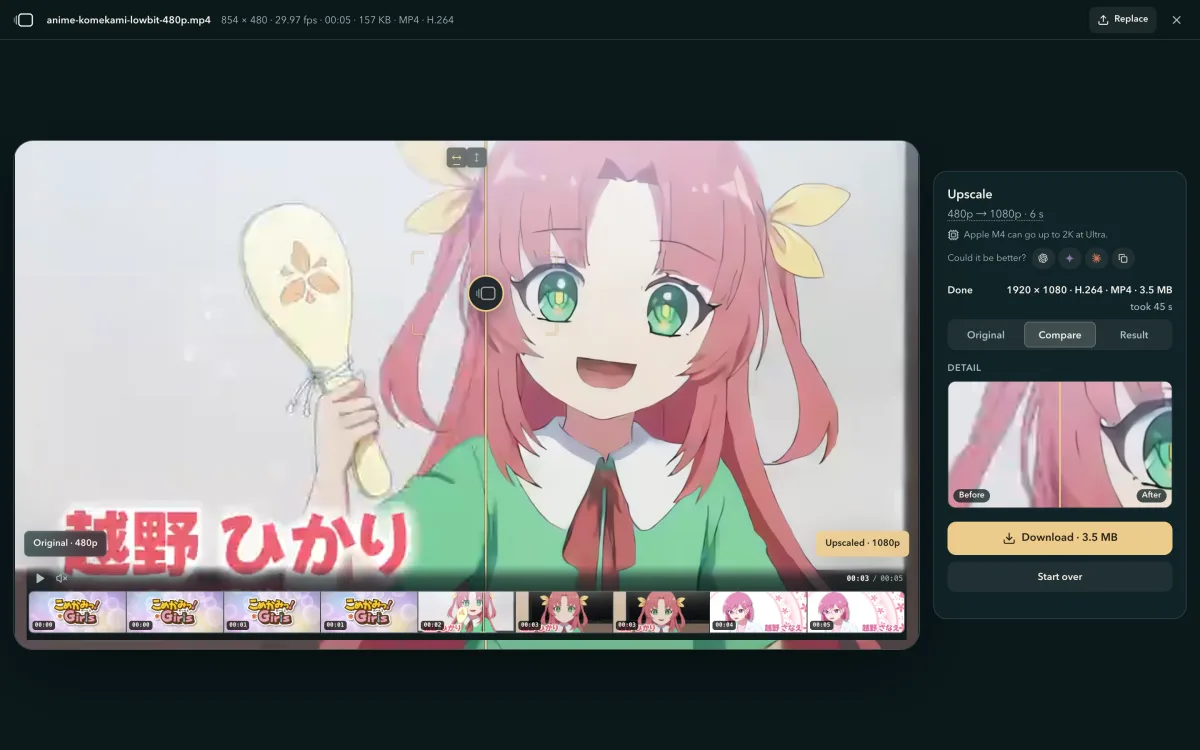
Screenshots: Komekami! Girl's PV (2026), official channel — CC BY 4.0 via Wikimedia Commons, re-encoded at 220 kbit/s.
no cap on the clip — a two-hour film runs the way a ten-second one does, and on a computer the file can be any size
of graphics work before the first finished piece is on disk, then one every 30 s
an unfinished run waits for you — the home page offers to continue it from the last saved piece, frame for frame
The result streams into your browser's private storage while the run goes on, in finished pieces — which is what lets a long video, a full movie or an hour-long recording, run through. A job the estimate puts past 90 seconds gets its first piece after 15 seconds of graphics work, and one more every 30 seconds after that; once that first piece is saved, the panel says the run can be continued after a reload. Close the tab — or come back to a browser the phone has closed — within 24 hours: the home page lists the job, picks it up from the last saved piece frame for frame, and joins the pieces into one file at the end. Shorter jobs run straight through in one piece. You can take the whole clip, a window of 5 seconds to 10 minutes dragged on the filmstrip, or one that ends where you type; the estimate next to Start gives the time on your own device, a long job's panel says how much room it needs and offers a short trial first, and where the browser measures its free space, the page checks the result fits before any graphics work starts; when it does not, the panel names a result kept from an earlier run and deletes it in one tap if that makes room. If the device runs out of space partway through a long job, the panel says how much the job had stored and how much free space finishing needs: free that much and press Start, and the run carries on from the save. With no saved progress to continue from, it offers a smaller Output that fits, with the room that size needs.
On a computer, in any browser that runs the upscaler, you can pick several videos in the window "Choose video" opens, drag several videos or a whole folder onto the page, or press "choose a folder" under "Choose video" — videos in its subfolders come too. One batch takes up to 200 videos. You set Output and Quality once, the list shows what each video becomes and about how long it takes, and the videos are upscaled one after another on your graphics chip. A video too small for the Output you chose goes to the largest size it can reach, and a Quality this computer can't run for a video steps down to one it can, as its row says. AVI, MPG, VOB, a camcorder's MTS and the other files the page converts first are upscaled one at a time: choose each of those on its own. A phone or a tablet upscales one video at a time.
Under "Where the results go", "A folder (recommended)" — in Chrome and Edge — saves each video into a folder you pick as soon as it is done, beside the files already there and never over one. "This browser", in every browser that runs the upscaler, keeps the results here for 24 hours, and "Download all" saves them one after another. Close the page halfway, and "Your recent videos" on the home page keeps the batch: come back in the same browser within 24 hours and choose the same videos again to run the rest. A batch that was saving into a folder asks for that folder again.
A download is named after the original, its size and its quality: holiday.mp4 upscaled to 4K on Pro is holiday_4K_Pro.mp4, and a 30-second trial of it holiday_4K_Pro_trial-30s.mp4, so a Fast and a Pro version of the same clip sit side by side in your Downloads folder. A video an Android phone's gallery hands to the page under a number is named by the time it finished. The file keeps the original's title, description, comments, author, copyright and keywords — and, from an MP4 or MKV, its sound's language and name. It also keeps when and where the original was shot and the camera or phone it was shot on, written where photo libraries look for them, so your gallery files the upscaled video next to the original; MKV and WebM keep the date and time, as they have no standard place for GPS coordinates or a camera model. To leave all of that out, turn off "Keep date, location and camera info" under More options — your browser remembers the choice. The encoding tool names 4K Video Upscaler and its version, and one line at the end of the comments says how the file was made: the original and new frame size, the quality, the codec, the date and the site's address. Whose account the original came from and its cover art are never carried over, and nothing about your device is written into it. An original's AI-generated label carries over whatever the settings: when the original says it was made with AI — Content Credentials (C2PA), an IPTC digital source type, or the generator's own label in its metadata — an MP4 or MOV result declares it too, in IPTC's standard form, and a label in the metadata goes over word for word in MP4, MOV, MKV and WebM alike. The C2PA manifest itself is signed over the original's bytes, so it stays with the original. A turned or mirrored video comes out the way your player shows the original.
Camcorder files open as they are. The MTS / M2TS of an AVCHD camera and TS recordings are rewrapped as MP4 inside the page before the workbench shows them — the pictures copied, not re-encoded, and a Dolby Digital (AC-3) sound track turned into AAC (Opus in Firefox) so every browser plays it; a bar in the drop box shows how far it is, and nothing is uploaded. A recording joined from several parts into one file — MTS, TS, VOB or FLV — opens whole, every part in order. Most camcorder and TV footage is interlaced, and the panel says so: it is upscaled with its fields as they are, so moving edges can show fine comb lines. Try a short window first, or deinterlace it in HandBrake (step 3 below) for the cleanest result.
DVD rips and older downloads come in containers and codecs that browsers do not read — AVI (often DivX or Xvid), MPG and VOB (MPEG-2), WMV, FLV and DV, an MKV holding MPEG-2 or Xvid, and the Motion JPEG of old cameras' AVI and MOV files or the MPEG-4 and H.263 of old phones' 3GP. Two pictures from editing and filming take the same path: Apple ProRes, which no browser decodes, and the 10-bit or 4:2:2 H.264 of cameras' high-quality modes where the browser cannot decode it. The page converts such a file into an MP4 inside your browser with FFmpeg's own decoders, fetched the first time you choose one, deinterlacing interlaced pictures on the way, and nothing is uploaded: the beginning opens within seconds — enough to preview it and try a short run — while the rest is prepared behind the workbench, and a run of the whole video starts once it is ready; an AVI or FLV that holds H.264 has its video copied into the MP4 untouched. The converted video carries the file's first sound track, re-encoded in AAC (Opus in Firefox) — 5.1 stays 5.1 where the browser's encoder takes it, else it becomes stereo; its other sound tracks, subtitles and chapters stay in the original file. In a browser without WebAssembly these formats still need a conversion first, and the page says so the moment you choose one. Convert such a file once to MP4 (H.264) at its own size, then upscale the MP4:
A file that plays in one browser and not in another — an iPhone's HEVC in Firefox — needs no conversion: the page names the browsers on your device that run the site and open it as it is. An MKV opens in Safari too, rewrapped the same way. Every container and codec is listed on Supported formats.
When the page can't open a file, its message says why; why a video won't open in your browser explains each message and what to do.
For DVD and tape footage, how to upscale old videos says how big it can go, which tier to pick and how long an hour takes.
Starting points from our own test footage; the preview decides for your clip. Every row opens the tool with those settings.
| Your video | Try | Why |
|---|---|---|
| Phone or camera footage, 720p–1080p, clean | Fast → 2K or 4K open with these settings | Fast crispens edges and leaves the look alone; the repair tiers spend minutes per minute of clip to change little. |
| Blurry, shaky or dim phone clip, any size | Fast → 1080p or 2K open | Blur and shake are not fixed by any tier. Pro only if flat areas (sky, walls, skin) show small squares, like a bad livestream. |
| Anime, motion comics, line art, UI, screen recordings | Fast → the largest size offered open | Line content gains the most from Fast: crisper edges, no bright rims, nothing invented. A 640 × 480 episode reaches 2K, not 4K. |
| Downloaded anime with blocks, white rims or noise | Pro → 2K (on a phone too: 480p episodes) open | Pro gives the cleanest lines on animation. A DVD's VOB or MPG is deinterlaced as the page converts it; an interlaced MP4 or MKV rip is cleanest deinterlaced first (HandBrake's deinterlace filter, or ffmpeg's yadif). |
| AI-generated video | Fast → 4K; Pro when it looks smeared and is ≤ 720p open | Generated clips are clean but soft. Never Ultra on them: it hardens the soft look into wax. |
| Downloaded or re-compressed 480p–720p live footage with visible blocks | Pro → 1080p or 2K open | Pro removes blocks and light noise most cleanly; on this footage Fast looks the same as a plain enlargement. |
| Old film, heavy grain, the worst 360p–480p sources | Ultra → 1080p or 2K, on a computer; preview first open | Ultra is the one tier that wins on heavy grain and on footage Pro leaves blocky. A clip that is smeared flat rather than blocky cannot be brought back by any tier — Ultra makes it worse. |
| 1080p with compression blocks | Fast → 4K open | On a computer's graphics chip Pro and Ultra take a 1080p clip too, and the time next to Start says how long it will run. |
| Faces close up | Fast; for Pro or Ultra, check the skin in the preview — with Ultra, set Strength to Light open Ultra · Light | Fast does not restore skin and does not make it plastic; a 4× repair can over-smooth it, and Ultra at Light keeps more of the skin's own texture. |
| Night and dark scenes | Fast; with visible noise, Pro open Pro | Fast leaves noise as it is; Pro cleans light noise best; Ultra hardens fine detail. The stripes in a dark sky (banding) stay at every tier. |
| Old tapes with stripes on moving things (interlaced) | An AVI, MPG, VOB, WMV, FLV or DV: choose it as it is. An MP4, MKV or MTS: deinterlace first (HandBrake or ffmpeg yadif), then upscale | The page deinterlaces the old formats as it converts them. The upscale keeps an MP4's or a camcorder file's fields as they are, and would sharpen the stripes. |
| Already 4K | Pro → 4K repair, on a computer | The panel opens on 4K repair: Pro cleans the picture at the clip's own size. It needs a graphics chip with half-precision shaders; anywhere else the panel says the video is already 4K. |
Time is frames × time per frame: one minute of clip at 30 fps is 1,800 frames. The estimate next to Start is measured on your own device — the settings the clip opens with, every other setting converted from that measurement by the work it takes — and is the one to trust. Under it the panel recommends a setting for the clip: Pro at the largest size it runs, when that finishes within 8× the clip's length — or within 5 minutes for a short clip — and Fast otherwise; Ultra is never the recommendation, and a phone's is Fast. A setting past 5 minutes names a quicker one that saves at least 30 % of the time, and the recommended one, each one tap away. For scale, on a Mac with Apple silicon:
| Job | Graphics chip, per frame | Graphics chip, per minute of clip |
|---|---|---|
| Fast, 1080p → 4K | 21.1 ms | ≈ 51 s |
| Fast, 720p → 4K (two 2× steps) | 50.7 ms | ≈ 2 min |
| Pro, 720p → 4K | 404 ms | ≈ 16 min |
| Ultra, 720p → 4K | 777 ms | ≈ 31 min |
Fast's rows are at Strong, the largest of its three networks; from 1080p to 4K, Medium takes 10.6 ms a frame there and Light 3.1 ms. The table is the graphics chip's time alone; a whole run also decodes and encodes the video.
A phone runs Fast at Medium by itself (Strength on Auto), which looks like Strong on most footage: on a flagship Android phone with an Adreno 7-series graphics chip that is about 2.5 min per minute of 1080p clip to 4K, against 4.5 min at Strong, and a phone slows further as it warms up. A mid-range phone takes a few times more; where Medium would run past 8× the clip's length, Auto takes Light. A computer with an NVIDIA RTX 30–50-series graphics card is in the Mac's range or quicker; built-in graphics take a few times longer, and Intel built-in graphics (10th-gen Core or older) far longer. A browser with graphics acceleration switched off runs on the processor, far slower: the panel's device line recommends the quickest setting, and Auto takes Light.
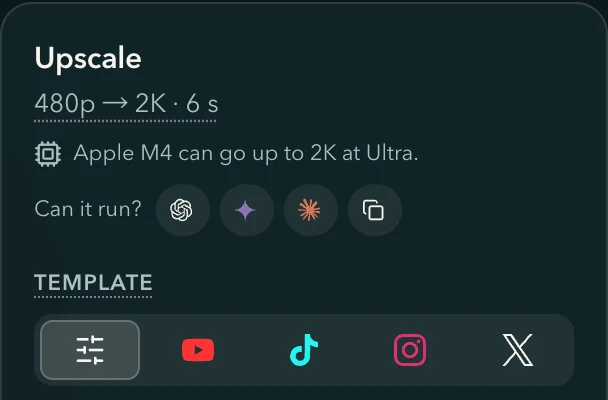
The icons after "Can it run?" open ChatGPT, Gemini or Claude with your device, clip, settings and estimate already typed in (the Copy icon puts the same text on the clipboard for any other assistant); the text links this guide, so the answer comes from the long version, not a guess.
A link to this site can name the settings to start from — https://4kvideoupscaler.com/?quality=pro&size=2k opens the page with Pro and 2K ready (the rows above and an assistant's answer link this way); what the device cannot run falls back to what it can, and a link never starts a run.
| Parameter | Values | Meaning |
|---|---|---|
quality | fast / pro / ultra | The quality tier. |
size | 1080p / 2k / 4k | The output size (longer side). |
template | youtube / shorts / instagram / x | A platform template: its shape, size and format, as the panel's own buttons set them. |
strength | auto / light / medium / strong | How hard the network works: Fast's size, Ultra's denoise; auto lets the page choose. |
steady | on / off | The Steady filter. |
denoise | 1 / 0.5 / 0 | Ultra's strength by its older name, in that order Strong / Medium / Light. |
fps | 60 / 30 / 24 | The output frame rate, only below the clip's own. |
reason | blocky / noisy / soft / fast / platform / archive | The main problem the settings answer — a label for our statistics, not a setting. |
via | — | Where the link came from (an assistant, the guide, a share). |
note | up to 60 characters | One line shown with the settings. |
Three tiers, two kinds of super-resolution network. Fast is a small 2× network that crispens edges. Pro and Ultra are 4× repair networks that rebuild the picture and remove compression blocks and noise: Pro is the cleaner choice for almost everything, Ultra the heavier one for old film and heavy grain. Under Quality, Strength sets how hard Fast and Ultra work — Fast's network size, Ultra's denoise — and Auto chooses for the clip and the device. Tier names stay; the network behind a tier may be updated.
Makes edges crisper, changes nothing else · the tier every device starts on
Doubles the size and firms up edges and lines on top of a plain enlargement. It adds crispness, not picture information: the look, colour and grain are left alone. Strength picks the network: Light the smallest and quickest, Medium about as sharp as Strong in about half the time or less, Strong the largest.
Repairs blocky, noisy footage · the cleanest lines on anime · half of Ultra's time
Rebuilds the frame at four times its size while removing compression blocks and light noise — the cleanest de-blocking of the three, and the cleanest lines on downloaded anime.
The heaviest repair · for old film and heavy grain · can smooth skin
The deepest repair: removes heavy grain and noise and sharpens smeared texture. Its Strength, under Quality, is its denoise in three steps — Strong (its plain model, which Auto runs), Medium, Light — and Light keeps grain and skin texture. About twice the time of Pro.
The repair tiers on a phone. Pro and Ultra are 4× restoration networks, and every frame is a long stretch of work for the graphics chip. On a phone that adds up: a 30-second 720p clip keeps the graphics chip working for about 29 minutes with Pro on a budget phone and 50 with Ultra even on a flagship, and runs that heavy can make the browser switch the graphics chip off. That is why a phone gets Pro on clips up to 480p and Ultra runs on computers; Fast is unaffected.
No tier interpolates frames (frames are only dropped), deinterlaces (the page does that to the old formats as it converts them, before any tier runs), restores faces or changes colour and exposure; each frame is processed on its own, and the optional "Steady" filter under More options only settles grain that flickers in still areas.
Three real runs of this page's own engine, one per tier, from low-resolution sources: the same window of the same seconds, the source on the left the way a player shows it, the result on the right. Drag the axis.
Every tier of 4K Video Upscaler runs on SR Engine, our own WebGPU inference engine: 62 KiB of code (gzip), every compute kernel written for this family of networks, and model files of 4 KB to 2.4 MB, each fetched the first time it runs. Measured by us against ONNX Runtime Web, a general-purpose runtime for machine-learning models in the browser, with the same weights and frames: Fast is 4–14× faster in GPU time per frame on a Mac with Apple silicon and a budget Android phone with a Mali graphics chip, Pro and Ultra 1.6–2.4× faster on the Mac, and Pro 1.8× faster on that phone. On the same machine and network, SR Engine is 3.0× faster than the open-source engine we ran before.
faster in GPU time per frame than ONNX Runtime Web with Fast — the same networks and frames, on a Mac with Apple silicon and
a budget Android phone with a Mali graphics chipof engine code (gzip) before the first frame, models aside; ONNX Runtime Web's WebGPU files are 3.84 MiB even with brotli, 6.39 MiB with gzip
faster than the open-source engine we ran before — the large 2× network (Fast at Strong), the same machine: 21.1 ms against 63.3 ms per 1080p → 4K frame
Arena memory
112 Bper pixel for the large 2× network — 368 B before
All the intermediate results of a frame live in one GPU buffer, sliced by how long each layer's output must survive; a slice is reused the moment its last reader is done. The heaviest step of 720p to 4K takes 546 MB for the whole frame, the input, the output and the weights included, and fits a 128 MiB budget in 4 bands.
720p → 4K, second step (2560 × 1440 in): 112 B × 3.686 MP is the 413 MB of feature maps, and the 546 MB whole-frame figure adds the weights, the input texture, the output pixels and one readback. Megabytes here are 10⁶ bytes; the 128 MiB budget is binary, because the limit it comes from — the storage binding every WebGPU device must allow — is defined that way.
Row bands
4.6%extra rows on the heaviest repair network — 20% before the planner derived each layer's rows from its readers
When a frame will not fit the memory budget, the engine cuts it into horizontal bands, each carrying the rows of context its own layers need, and the output is the same as a whole-frame run down to the last bit. Carrying that context is the only cost, and the planner works every layer's rows backwards from what reads them instead of assuming the worst: 4.6% extra rows on the heaviest repair network, 1.1% on the Fast second pass. Rows the planner stopped recomputing are wall clock on a phone: Fast runs 3.23× faster there with the medium network and 2.02× with the large one, and the heaviest tier fits in 3 bands instead of 4. A device with a 128 MiB binding limit still delivers 4K, and 96 MiB is all a phone is given.
The same second step in 4 bands under the 128 MiB budget: 42.2 ms per frame, output equal to the whole-frame run. The phone figures are one session on a flagship Android phone with an Adreno 7-series graphics chip.
Half precision
3.5×faster with shader-f16 than the 32-bit path
Where the graphics chip offers 16-bit shader arithmetic (shader-f16), the whole network runs in 16-bit floats, otherwise in 32-bit: the heaviest repair pass takes 0.78 s per 720p frame, against about 2.7 s on the 32-bit path. Against the PyTorch reference, 16-bit output measures 54–70 dB PSNR and 32-bit output 93–100 dB.
The tests fail below 50 dB for 16-bit output and 60 dB for 32-bit.
Frame-sized submits
88 msto answer a tap on a phone while a repair job runs — 1024 ms when each frame went to the graphics chip in one go
A phone's browser paints the page on the same graphics chip the networks run on, and only once the work already handed to it is done: a frame given in one go holds the page for as long as the frame takes. So the engine hands a frame over in pieces of about 12 ms of GPU time — one display frame, measured on the device as it runs — cutting a longer layer into blocks of rows that compute the same pixels, and the page paints between two pieces. On a computer the pieces are 50 ms and the next one already waits in the queue, so the chip never idles: the large 2× network still runs a 1080p → 4K frame in 21.1 ms, against 63.3 ms on the open-source engine we ran before, which submitted once per layer. Between bursts of frames the page also pauses, so a whole run takes about 1.4× the network time and the device stays usable.
On a flagship Android phone with an Adreno 7-series graphics chip, running Pro on a 480p clip, the longest the page went without painting fell from 750 ms to 33 ms, for 4% more time per frame — the page painting again takes its turns on the chip.
Pixel-exact
100%of the pixels computed, and the result's mean colour within 1.5 of 255 of the source's
Every output pixel is the network's own, out to the frame's last column and row: the work covers the whole frame and its edges are padded with zeros, where the open-source engine we ran before worked in blocks of eight, left the last few columns and rows unprocessed and wrapped a quarter of the opposite edge's colour into the outermost ring. Frames reach WebGPU through the browser's 2D path, because importing a video frame directly in Chrome lifts the mid-tones by 4–8 out of 255, and an automated export test compares the result's mean colour with the source's. The exported file is written in BT.709, the colour standard players assume for HD video, and tagged as such: the export tests decode colour bars from it to check both.
Measured in Chrome with no network, each frame imported and written straight back: the mid-tones lifted in 5 of 7 test clips.
On the device itself
102checks on a flagship Android phone with an Adreno 7-series graphics chip, re-run on every real-device pass
A desktop is not evidence about a phone, so the networks run on one: every stored layer is read back on the device and compared with the CPU reference, layer by layer, alongside the operator probes and the 8-bit path. That is how the 3 compiler defects only phone graphics chips showed were caught — 2 on this phone, 1 on a budget Android phone with an Adreno 6-series graphics chip — and each is registered as a workaround that can be switched off, with a probe that re-asks on every run whether it is still needed, instead of the defect being rediscovered the day it stops holding.
The same graphs passed on all 3 desktop engines — Metal, the software renderer and WebKit — and only phones showed these 3.
Eight bits, on phones
3.22 sper 720p frame for the heaviest network on a flagship Android phone with an Adreno 7-series graphics chip — 6.24 s on the same phone in 16-bit float
Where a phone's graphics chip can multiply 8-bit integers four at a time, the engine quantises a repair network's weights to 8 bits and keeps the sums in 32-bit integers, with a calibration file beside the model deciding each layer's scale. Phones run Pro this way; Ultra stays on computers: even in 8 bits, a 30-second 720p clip would keep a flagship phone's graphics chip working for about 50 minutes. Desktops stay on 16-bit floats, where the integer path is emulated and slower.
Measured on a flagship Android phone with an Adreno 7-series graphics chip in three steps: 7.05 s in 16-bit float on the build this engine replaced, 6.24 s in the same precision here (the planner, 4 bands down to 3), then 3.22 s in 8 bits — 1.94× for the 8-bit step, 2.19× end to end. Correctness is checked on that class of device: 49.9–50.1 dB against the integer reference, where the test fails below 44, and a banded run matches a whole-frame one.
Separable resize
1.8–2.9×faster resize than the pass it replaced, same frames
The step that fits a network's output onto the size you asked for used to sample a square of pixels for every output pixel. It now runs as two one-dimensional passes — across, then down — with the horizontal result held in workgroup memory, so the work grows with the width of the filter instead of its square. The filter weights are computed once into a table the shader reads.
Against the CPU reference the resize now lands at 98–102 dB, where the previous one sat at 76–78.
Tuned on your GPU
18%faster on a Mac with Apple silicon once the engine picks the block shape
The fastest block shape depends on the network and the chip together, so the first time a model, a precision and a device meet, the engine runs each candidate on a reduced frame and keeps the fastest; every later run takes the cached answer. A candidate has to win by more than 8% to displace the default. Where the wider block is known to lose — a flagship Android phone with an Adreno 7-series graphics chip runs the repair network 2.5× slower with it, on register spills — the wider block is never tried.
Not measuring the wider block on those chips takes first-run setup on the large 2× network from 1.7 s to 1.1 s, and saves 4.7 s on the repair network.
Low-spec baseline
16 KBof workgroup memory is all the baseline kernel asks for — the minimum WebGPU guarantees on every device
Every kernel is written within a low baseline — 4 storage buffers, 128 threads per workgroup, 16 KB of workgroup memory, no 16-bit shaders required — which the graphics chips of old and budget phones meet: a budget Android phone with a Mali graphics chip runs Fast at all three strengths, and Pro at 480p, in the comparison below, and a budget Android phone with an Adreno 6-series graphics chip, whose graphics chip has no half precision, runs Fast in 32-bit floats and matches the CPU reference. Where a device offers more, the engine detects it and steps up.
The engine's tests plan every shipped network at the sizes the product runs it, in 32-bit and 16-bit and at every block shape, and fail if a kernel asks for more than these limits.
Reference-checked
261GPU parity cases on each of 3 browser engines
A plain TypeScript implementation of the networks defines what "correct" means, and PyTorch outputs of every shipped model are the fixtures. The GPU suite runs those on Chrome (Metal), on Chrome's software renderer and on the Safari engine, plus odd sizes, bands, device loss and misuse. The 894 shader texts the engine generates are pinned as well, so a kernel that changes has to say so.
A per-frame time more than 10% over the recorded baseline fails the build.
Model file
4 KBto 2.4 MB per model, fetched when a tier first runs
Models ship as standard ONNX files: the network written in standard ONNX operators, the weights as 16-bit tensors, in the open format other model tools read. The engine reads the file with its own importer and plans memory, kernels and bands from the graph, so adding or swapping a tier is a converted weight file, and two weight sets of one network can be blended at load time.
The importer maps the whole family onto the engine’s own kernels: 3×3 and 1×1 convolutions, ReLU / LeakyReLU / PReLU / CReLU, dense concatenation, pixel shuffle.
We ran SR Engine and ONNX Runtime Web, a general-purpose runtime for machine-learning models in the browser, on the same weights and the same frames, taking turns on the same device, with ONNX Runtime Web on its WebGPU backend in half precision. On Fast's small networks SR Engine is 4–14× faster. On the heavier Pro and Ultra it is 1.6–2.4× faster on the Mac, and 1.8× faster running Pro at 480p on a budget Android phone with a Mali graphics chip.
SR Engine ONNX Runtime Web Compare the two bars within a row, not across rows
| Job · where it ran | Time per frame | Result |
|---|---|---|
| Fast · GPU time per frame, upload included | ||
| Fast, Strong · 1080p input Apple silicon Mac · Chrome | SR Engine 24.1 ms ONNX Runtime Web 158.5 ms | SR Engine 6.6× faster |
| Fast, Light · 1080p input Apple silicon Mac · Chrome | SR Engine 6.6 ms ONNX Runtime Web 67.8 ms | SR Engine 10× faster |
| Fast, Strong · 1080p input Apple silicon Mac · WebKit, Safari's engine | SR Engine 33 ms ONNX Runtime Web 289.5 ms | SR Engine 8.8× faster |
| Fast, Light · 1080p input Budget Android phone · Mali | SR Engine 136.4 ms ONNX Runtime Web 1,915.5 ms | SR Engine 14× faster |
| Fast, Medium · 720p input Budget Android phone · Mali | SR Engine 180.2 ms ONNX Runtime Web 1,415.7 ms | SR Engine 7.9× faster |
| Fast, Strong · 720p input Budget Android phone · Mali | SR Engine 506.8 ms ONNX Runtime Web 2,043.7 ms | SR Engine 4.0× faster |
| Pro and Ultra · whole time per frame | ||
| Pro · 720p input Apple silicon Mac · Chrome | SR Engine 467 ms ONNX Runtime Web 734 ms | SR Engine 1.6× faster |
| Pro · 720p input Apple silicon Mac · WebKit, Safari's engine | SR Engine 552 ms ONNX Runtime Web 1,299 ms | SR Engine 2.4× faster |
| Ultra · 720p input Apple silicon Mac · Chrome | SR Engine 934 ms ONNX Runtime Web 1,455 ms | SR Engine 1.6× faster |
| Ultra · 720p input Apple silicon Mac · WebKit, Safari's engine | SR Engine 1,026 ms ONNX Runtime Web 2,459 ms | SR Engine 2.4× faster |
| Pro · 480p input Budget Android phone · Mali, SR Engine in 8 bits | SR Engine 5,876 ms ONNX Runtime Web 10,583 ms | SR Engine 1.8× faster |
Median time per frame, measured by us: the same weights and frames on both sides, run in turns on the same device and browser, with SR Engine as the upscaler runs it and ONNX Runtime Web on its WebGPU backend in half precision.
Correctness · Fast, Light · Budget Android phone · Adreno 6 series
 ONNX Runtime Web · PSNR 5.6 dB
 SR Engine · PSNR 99.5 dB
| Property | SR Engine | The open-source engine we ran before |
|---|---|---|
| Memory per pixel, large 2× network | 112 B | 368 B |
| 720p → 4K second step, feature maps | 413 MBor 128 MiB in 4 bands | ≈ 1.36 GB |
| 1080p → 4K, large 2× network | 21.1 ms / frame | 63.3 ms / frame |
| 1080p → 4K, small 2× network | 3.1 ms / frame | 8.4 ms / frame |
| 8-bit integer path on phones | Yes — where the chip has an integer dot product | No |
| 4× repair networks | Yes | No — 2× only |
| Precision | f16 where offered, f32 otherwise | f32 only |
| Frame edges | Every pixel computed | Last columns skipped, edge colour wrapped |
| How a frame is handed to the GPU | In slices of GPU timeabout 12 ms each on a phone, 50 ms on a computer, measured as it runs | One submission per layer |
| First-run setup, large 2× network | 1.1–1.7 sonce per device: the block shape is measured on your GPU and kept | Fixed block shape |
| Model files | Standard ONNX, 4 KB to 2.4 MB per tier | The same networks, as JSON weights |
Both engines measured by us on a Mac with Apple silicon in Chrome, same networks.
More answers: FAQ · Supported formats · System requirements
The cloud version is for what your own device cannot do in reasonable time: a whole episode with Pro or Ultra on an ordinary laptop, a batch that would keep your computer busy for days, a device without WebGPU, a phone whose graphics chip is not offered the repair tiers. Access is by invitation — tell us what you tried and what was missing, and we invite first the requests it can already serve. Requesting is free; the cloud version needs an account and, for some models, a fee, and the invitation says what applies before you send any footage.
Your address is used to contact you about cloud access and for nothing else (privacy policy).