
- Switching apps on Android
- Strength
- Camcorder, TV and DVD recordings
- Trial, container and storage
- Also in this version
- How it's done
- Questions
Keep upscaling through app switches, a reclaimed graphics chip or a closed browser
On an Android phone or tablet, switching to another app pauses the job, and meanwhile the system may take the browser's graphics chip back, or close the browser, to free memory. On an iPhone or iPad, locking the screen or switching apps stops the job, and it picks up from its last save when you come back.
- Start the upscale, and switch apps whenever you like.
While the job runs, the panel says what switching does: "Switching to another app pauses the job; it continues when you come back to this page." The moment you leave, a long job is saved in this browser up to that frame, and nothing is uploaded.
- Come back to the page.
The job carries on by itself from where it paused. If the phone took the graphics chip back meanwhile, the page carries on from the save it made as you left, and says so for a few seconds: "Continued from the last save — while this page was in the background, the system took back the graphics chip the browser was using."
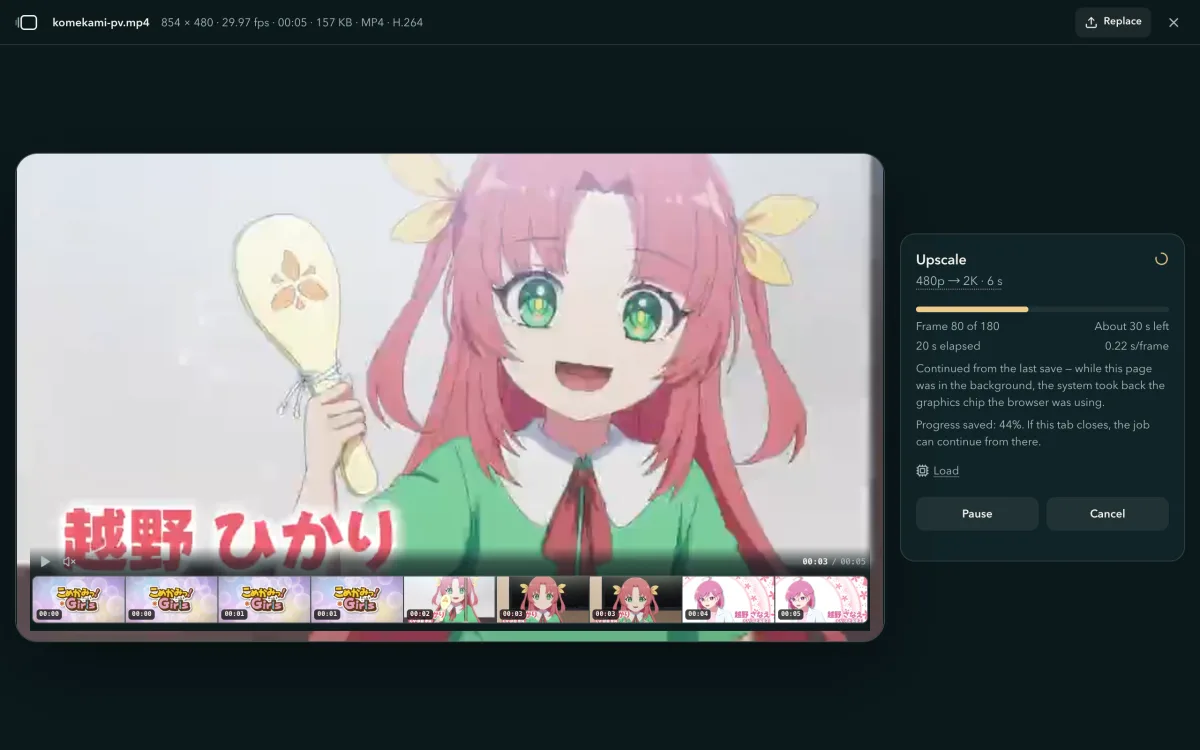
On an Android tablet, back from another app: the line under the progress says what happened. - Phone closed the browser? Continue from the home page.
Open this site again in the same browser within 24 hours. The job waits under "Choose video", in Your recent videos. Press Continue, and it goes on from the frame where you left. If the row says "choose this file again", press Choose file and pick the same video.
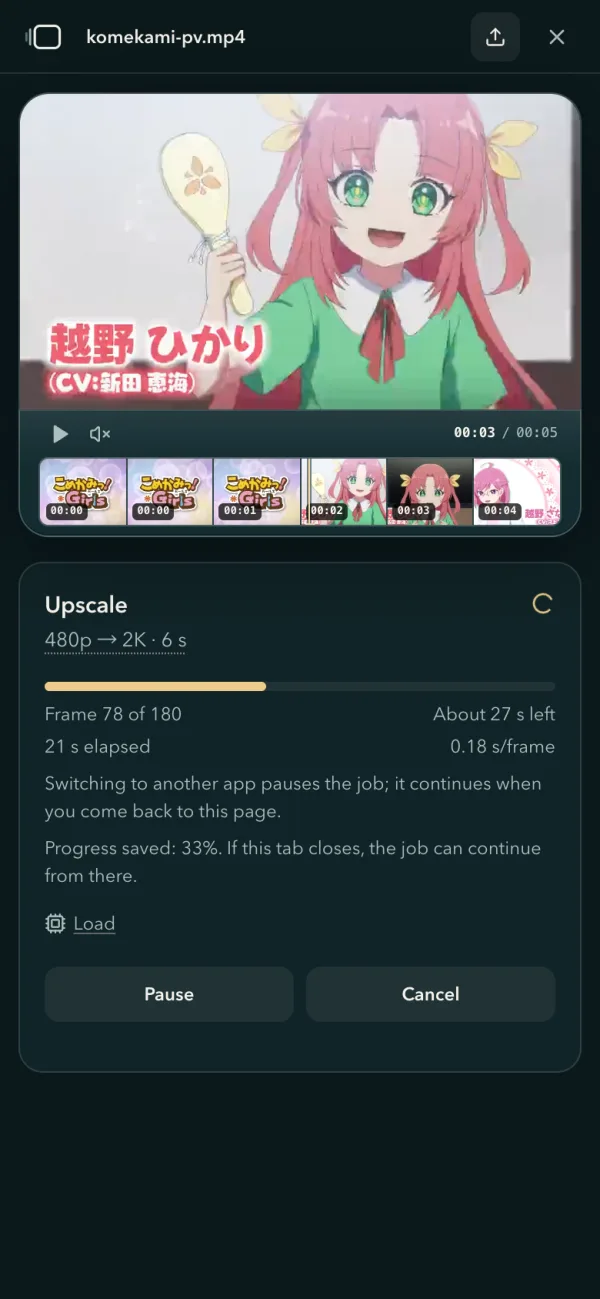
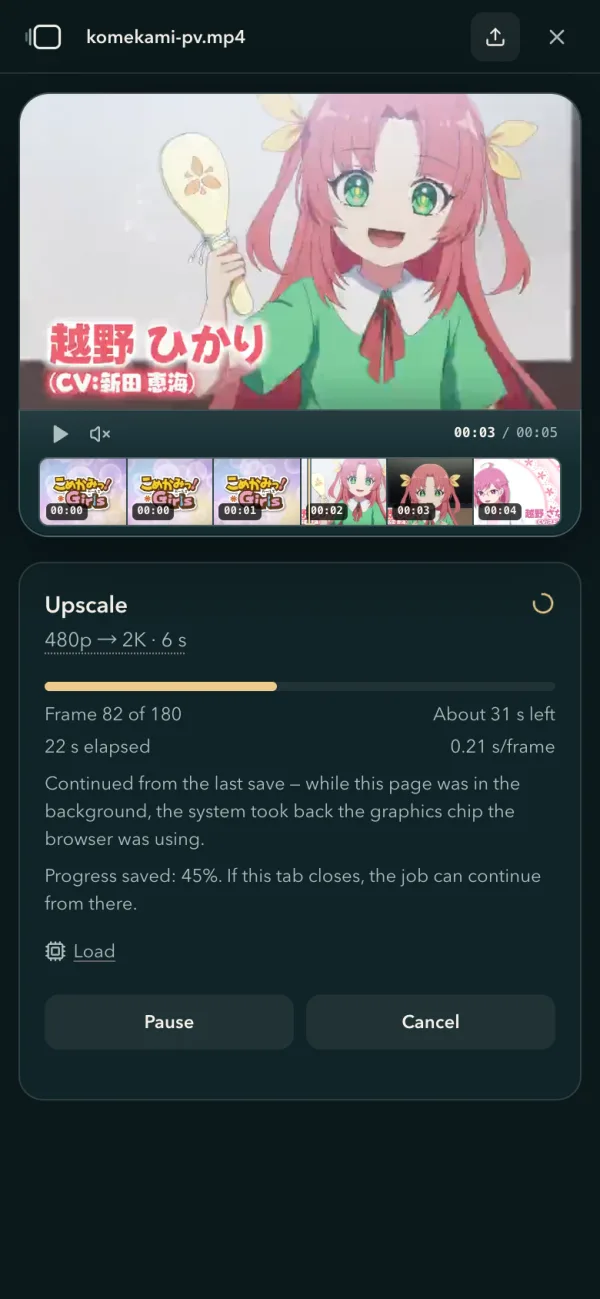
Back on the page, the panel says in one line what happened. Most of the time there is nothing to do; only a closed browser, or the same video open in another tab, needs you:
| What happened | What you see | What to do |
|---|---|---|
| The job paused | "Continued — the job was paused while you were in another app." | Nothing |
| The phone took back the graphics chip | "Continued from the last save — while this page was in the background, the system took back the graphics chip the browser was using." | Nothing |
| The job ran much slower once back | "Continued from the last save — the job ran much slower after this page came back from the background." | Nothing |
| The phone closed the browser | The home page lists the job in Your recent videos | Press Continue, in the same browser, within 24 hours |
| The video is open in another tab too | "This video is being upscaled in another tab." | Let it finish there, or close that tab and press Start here |
When a run falls far behind, the page carries on from the save
The page measures your clip on your device before the run, so it knows this device's usual pace, on a phone or a computer. If a run falls many times behind it, as can happen after the browser's GPU process restarts, and carrying on from the save would finish sooner, the page carries on from its last save by itself and says why: "Continued from the last save — the job was running many times slower than this device's usual pace." If it is still just as slow, the panel tells you how to get the usual pace back: quit the browser completely (on a phone, swipe it away from recent apps), open this site again and continue the job from Your recent videos.
Choose how hard Fast and Ultra work
- Find Strength under Quality.
Pick Fast or Ultra, and the Strength row sits right under Quality, on Auto. For Fast, Auto checks which strengths this device can finish within 8× the clip's length (or within 5 minutes for a short clip) and takes the strongest of them, Medium at most on a phone. For Ultra, Auto is Strong. The panel says which one it chose. Ultra runs on computers only, so on a phone the Strength row comes with Fast. Press the word Strength to see what each one does.
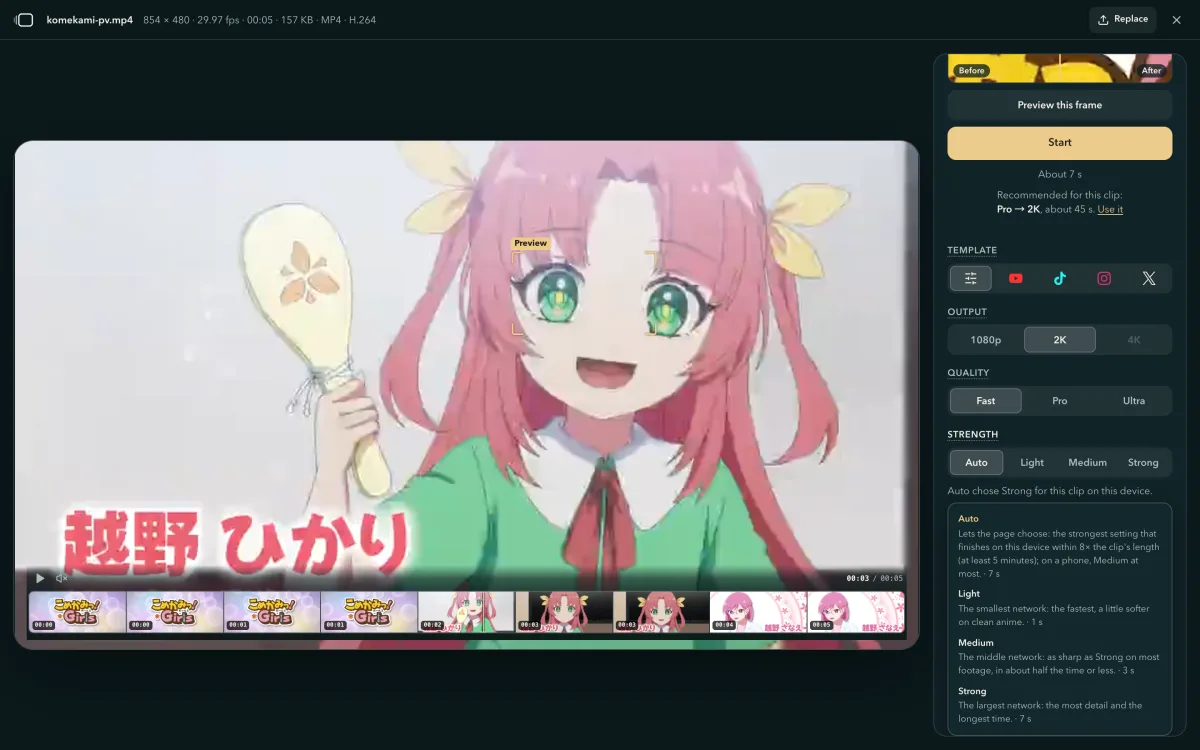
Fast on Auto, which chose Strong on this computer. The row's help gives each strength's time here. - Or pick one yourself.
For Fast, Strength changes the network's size; for Ultra, the denoise. The table shows what each one does. Press "Preview this frame" to see it on your own clip before you start.
| Strength | Fast (sharpens, 2×) | Ultra (heavy repair, 4×) |
|---|---|---|
| Auto | The strongest this device finishes within 8× the clip's length (5 minutes for a short clip); Medium at most on a phone | Strong |
| Light | The smallest network: the quickest, a little softer on clean anime | Keeps grain and skin texture; blocks still removed |
| Medium | As sharp as Strong on most footage, in about half the time or less | Most blocks and noise gone, more grain and skin texture kept |
| Strong | The largest network: the most detail and the longest time | The cleanest result; can smooth skin and fine texture |
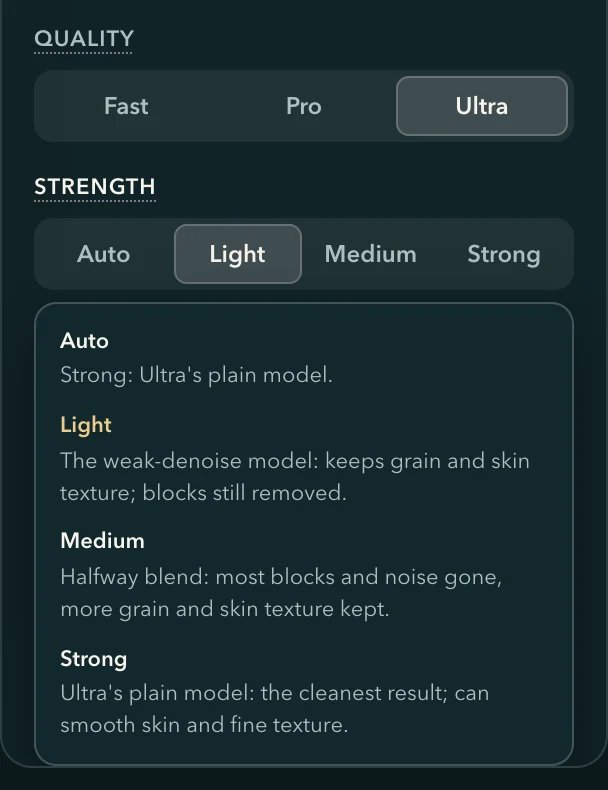
Ultra's Strength in the panel's own words. Pro has a single network, so it has no Strength row.
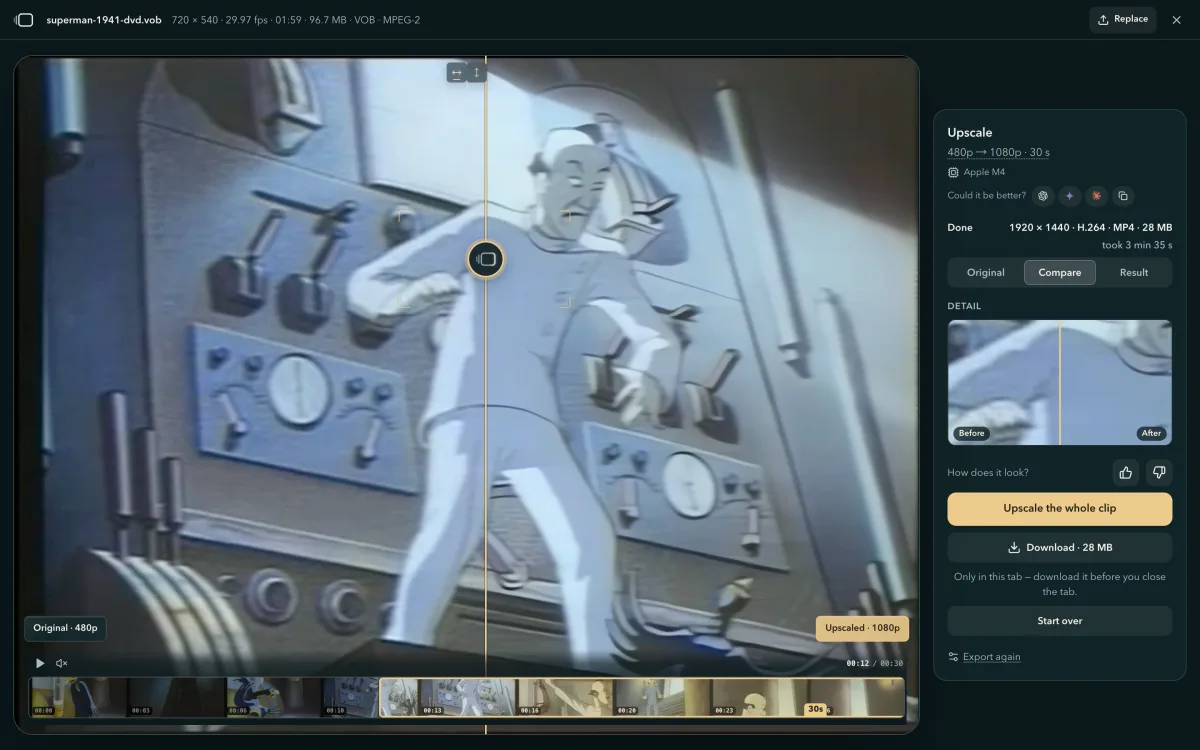
Ultra at Light and at Strong · the same frame of a 1941 cartoon on DVD, at 1080p
 Ultra · Light
 Ultra · Strong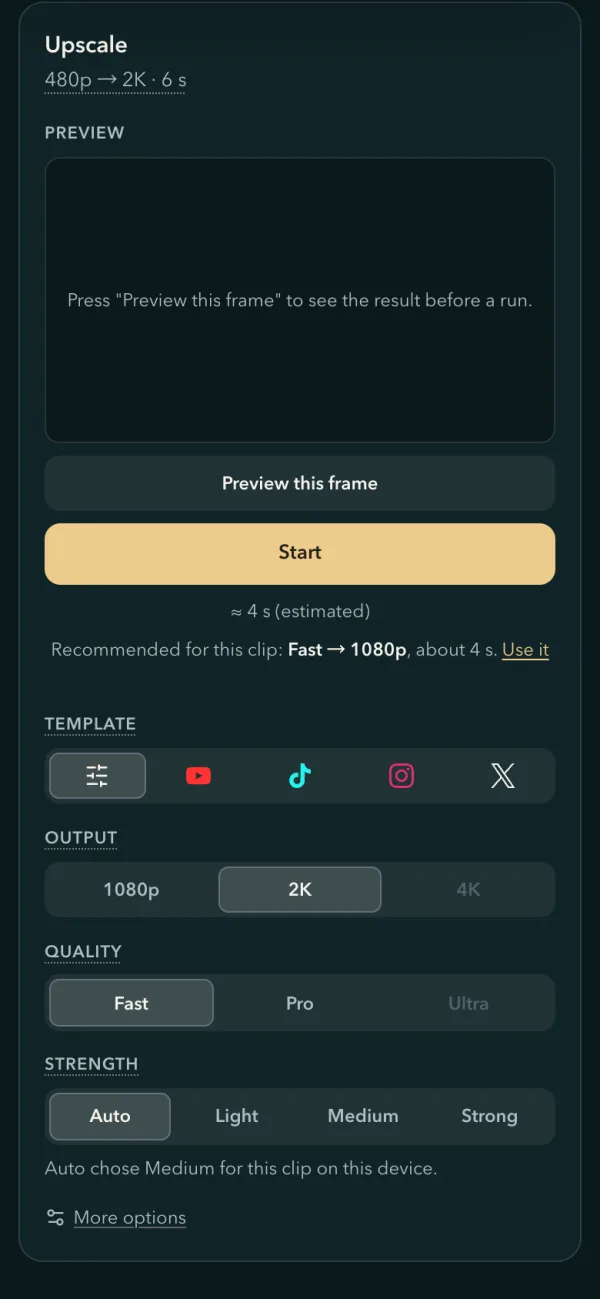
On a phone, Auto goes up to Medium.
Camcorder, TV and DVD recordings that open whole
What the page does with the files that camcorders, TV boxes and DVDs record:
| File | What the page does |
|---|---|
| One file joined from several parts: MTS or TS from a camcorder or a TV box, a joined VOB or FLV | Opens as one video: every part, in order, its time carrying on across the joins |
| An older-format video (VOB, MPG, AVI …) that turns interlaced partway in (fine comb lines on the edges of moving things) | Deinterlaced as the page converts it, however late the interlacing begins |
| A picture that changes size partway: a screen recording that switches windows, a clip joined from two cameras | The whole picture kept, fitted into the frame with black borders |
| A camcorder or older-format file whose upscale stopped halfway (MTS, AVI, MPG …) | Choose it again and it carries on from the last save, without converting the file again |
| A Dolby Vision MP4 | Recognised the moment you choose it, with how to convert it |
Trial, container and storage
Try 30 seconds, then go straight to the whole clip
On a long job, "Try 30 seconds first" upscales a short part. In its finished view, the gold button is "Upscale the whole clip": press it to upscale the whole clip with the same settings. The trial's download has "trial" in its name, so the two files don't get mixed up.
Change the container without a second encode
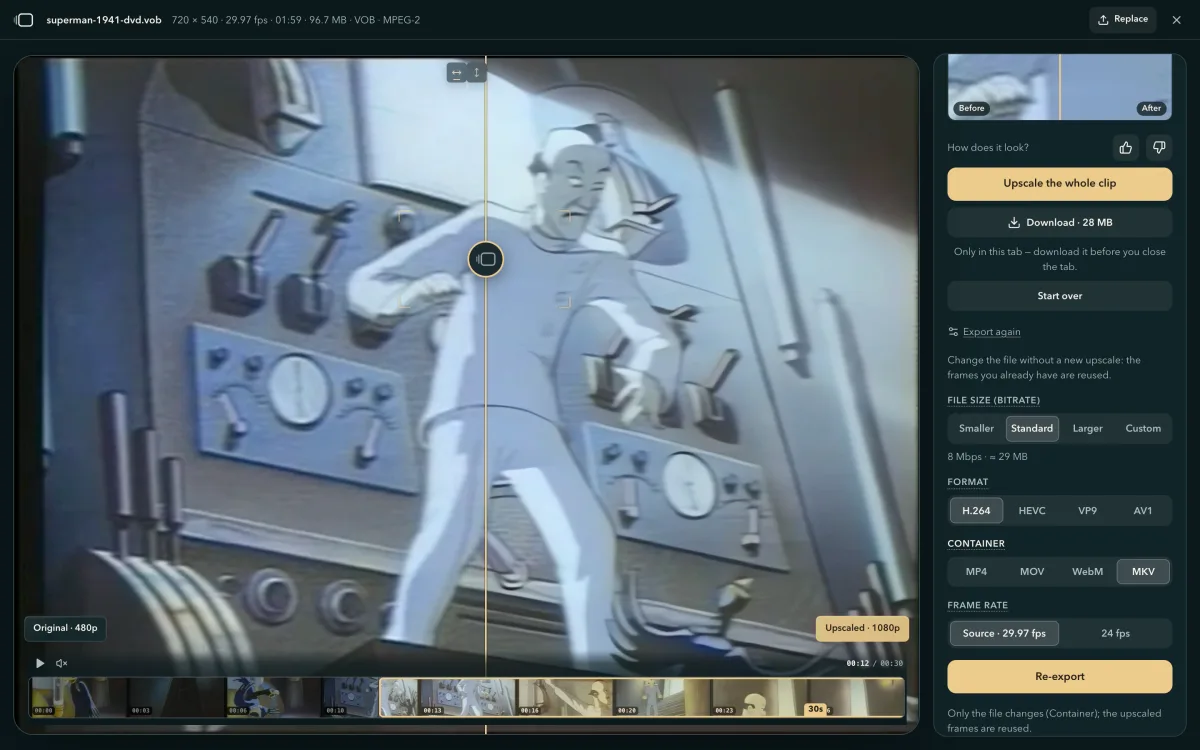
Open "Export again" and change only the Container: MP4, MOV or MKV, or WebM for a VP9 or AV1 result. Then press the Re-export button. The upscaled picture is copied into the new file as it is. The sound is copied too where the new container carries it; for WebM, sound that is not Opus becomes Opus.
Browser storage full? Start in one tap anyway
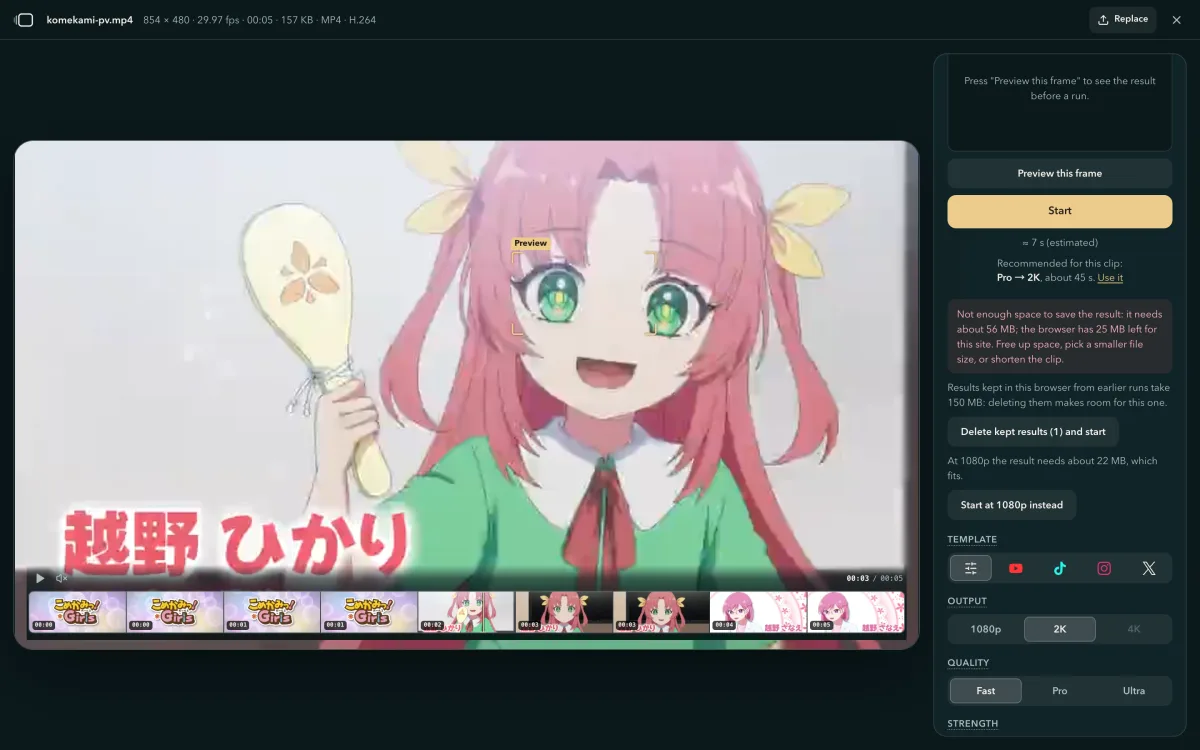
When the browser's storage is too full, the panel says how much the result kept from an earlier run takes. Where deleting it makes the room, press "Delete kept results (1) and start". It deletes only the upscaled video this browser kept from an earlier run, not your own videos; download it first if you want it. Where a smaller size fits, the panel says so: press a button like "Start at 1080p instead" to start at that size.
Also in this version
iPhone and iPad without WebGPU
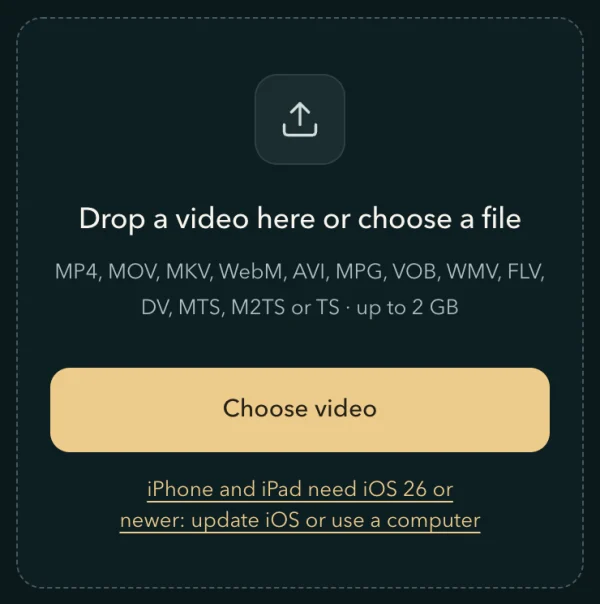
Safari brings WebGPU from iOS and iPadOS 26. On an earlier version, the home page says what to do right under "Choose video": update (Settings › General › Software Update), or use a computer.
Pages translated by your browser
Read the page in your own language with Chrome's or Safari's translation and keep using it: choose a video, preview it and upscale it as on the original page.
Suggestions that fit your device
When a video needs another browser, the page suggests only browsers that run on your device. On a computer without graphics acceleration, the device line recommends the quickest setting to start with.
When the video decoder trips, the upscale carries on
If your device's video decoder trips partway through, the upscale carries on by itself from the frame it had reached: no frame is lost, and there is no need to press Start again.
A fresh start in one tap
When continuing a saved upscale stops at the same point twice, the panel puts "Start from the beginning" first: press it to run the whole video again. Start still continues from the save.
Square and portrait videos in pixels
Where a size name would not read as an upscale, like 1080p → 1080p for a square or portrait video, the panel's labels give the pixels instead: 1080 × 1080 → 1920 × 1920.
How an Android upscale carries on from the background, and how Auto picks a strength
From version 2026.10.01, when an Android phone sends the page to the background, 4K Video Upscaler pauses the upscale and saves the part it was writing in this device's browser; later, if a run falls 3 times behind what it measured on this device and carrying on from the save would finish sooner, it carries on from the save. Each Strength runs a network of its own on SR Engine, the product's WebGPU engine, on your own graphics chip. The video and the saved parts stay on your phone or computer, and nothing is uploaded.
Saved as you leave
3 sthe longest the page waits for the encoder, as you switch apps, to save the part being written
Carries on from the frame where you left
A long job saves finished parts in the browser as it goes. Once the page is in the background, the hardware encoder may drop frames fed to it, so the page pauses the job at once and closes the part it was writing: the encoder hands over its frames, and the page saves them as one more finished part. Whatever the system does next, taking the graphics chip back or closing the browser, the job carries on from the frame where you left.
Jobs estimated at over 90 seconds save in parts.
Pace watch
3×the usual time per frame counts as too slow
A run that crawls carries on from its save
The page compares the first frames after the page comes back with the last ones before it went, and a run's opening frames with what it measured on this device before the run. When frames take 3 times as long and carrying on from the save would finish sooner, it ends that run and carries on from the last save in a fresh one; if it is still just as slow, the panel tells you to restart the browser, and how to continue the job after it.
It compares the middle value of a few frames, so one slow frame, the graphics chip waking up, does not count.
Strength
8×the clip's length (5 minutes for a short clip): the time Fast's Auto picks within
Auto picks the strength your device can finish
Fast's Light, Medium and Strong are three networks of different sizes; Ultra's Strong is its plain model, Light a weak-denoise model, and Medium a network made at load time from half of each one's weights. When you choose a clip, the page measures this device on it, and Fast's Auto takes the strongest strength it can finish in that time. Once it has picked, the page measures that one too, so the estimate under Start is measured on this device.
How fast each Fast strength runs per 720p frame, SR Engine vs ONNX Runtime Web
You don't need to work out your own clip's time from this table: before you start, the page shows an estimate for your device. ONNX Runtime Web is a general-purpose runtime for machine-learning models in the browser. We ran SR Engine and ONNX Runtime Web on the same weights and the same frames, taking turns on a Mac with an Apple M4 in Chrome and on a budget Android phone with a Mali graphics chip: for Fast's Light, Medium and Strong, SR Engine is 4–12× faster in GPU time per 720p frame. SR Engine is 57 KiB of code to download before the first frame with gzip, models aside; ONNX Runtime Web's WebGPU build is 6.39 MiB with gzip.
SR Engine ONNX Runtime Web Compare the two bars within a row, not across rows
| Fast strength | GPU time per frame (720p input) | Result |
|---|---|---|
| A Mac with an Apple M4, in Chrome | ||
| Light | SR Engine 3.5 ms ONNX Runtime Web 32.6 ms | SR Engine 9.3× faster |
| Medium | SR Engine 6.9 ms ONNX Runtime Web 58.1 ms | SR Engine 8.4× faster |
| Strong | SR Engine 12.1 ms ONNX Runtime Web 74.7 ms | SR Engine 6.2× faster |
| A budget Android phone with a Mali graphics chip | ||
| Light | SR Engine 68.5 ms ONNX Runtime Web 854.6 ms | SR Engine 12× faster |
| Medium | SR Engine 180.2 ms ONNX Runtime Web 1,415.7 ms | SR Engine 7.9× faster |
| Strong | SR Engine 506.8 ms ONNX Runtime Web 2,043.7 ms | SR Engine 4.0× faster |
The GPU time to upload, run and finish one 720p frame, median, measured by us: the same weights and frames on both sides, run in turns on the same device and browser, with SR Engine as the upscaler runs it and ONNX Runtime Web on its WebGPU backend in half precision.
Correctness · Fast at Light · a second budget Android phone, Adreno 613
 ONNX Runtime Web · PSNR 5.6 dB
 SR Engine · PSNR 99.5 dB
Questions about this version
- Does an upscale keep going if I switch apps on my Android phone?
- It pauses while you are in the other app and carries on when you come back. For jobs estimated at over 90 seconds, the page also saves your progress at the frame where you left, so the job goes on from there even if the phone took back the graphics chip or closed the browser (then open this site in the same browser within 24 hours and press Continue under Your recent videos). If the row says "choose this file again", press Choose file and pick the same video.
- Why did my upscale start again by itself?
- It was running many times slower than this device's usual pace, often because the browser's GPU process restarted while the page was in the background. The page carried on from its last save, and the panel says why. If it stays slow, quit the browser completely (on a phone, swipe it away from recent apps), open this site again and continue the job from Your recent videos.
- Does an upscale keep going if I switch apps on an iPhone or iPad?
- Yes. On an iPhone or iPad the panel says: "Locking the screen or switching apps stops the job; it picks up from its last save when you come back to this page."
- Which Strength should I use on a phone?
- Leave it on Auto. On a phone it goes up to Medium; if Medium would take longer than 8× the clip's length (5 minutes for a short clip), it takes Light. Pick Strong yourself when you have the time.
- Can I upscale a camcorder recording joined into one file from several parts?
- Yes. An MTS or TS recording joined into one file from several parts, or a joined VOB or FLV, opens as one video: every part, in order, its time carrying on across the joins.
- Can I change the container after upscaling without waiting again?
- Yes. Under Export again, change only the Container and press the Re-export button: the upscaled picture is copied into the new file without a second encode. Changing the Format or the File size (bitrate) encodes it again.