
On the 4K Video Upscaler home page, press "Choose video" and pick the old video (or drag it in on a computer), then upscale it to 1080p. Old formats like VOB, AVI and DV open as they are, with no converting first, and everything happens on your own computer or phone. Nothing is uploaded.
Pick the tier by what is wrong with the picture: Fast for a clean picture or faces, Pro with Steady for compression blocks or tape noise. A phone works too; if the link opened inside an app such as WeChat or Instagram, open it in your browser from the app's "⋯" menu.
How to open DVD and tape files
Old videos usually come in old formats. You don't need a converter: choose the file on the home page, and anything that needs converting is converted on your device, nothing uploaded.
How each kind of file is handled is in the drawing. The beginning is ready within seconds, so you can preview and try a short part while the rest is converted.
MP4MOVM4VMKVWebM3GPOpened as they are
MTSM2TSTScamcordersRewrapped as MP4a new box, the same picture
AVIMPGVOBWMVFLVDVold formatsConverted to MP4deinterlaced on the way
All on your device, nothing uploadedthen upscaled
DVD (VOB files)
- Copy the disc's VIDEO_TS folder to the computer.
- The film is in its large VOB files (VTS_01_1.VOB, VTS_01_2.VOB …), at most 1 GB each, and each one opens here as it is.
- For the whole film in one file, open the VIDEO_TS folder in the free HandBrake and convert it to one MP4 (steps).
Discs you recorded yourself open as they are; many films sold on DVD are encrypted, and neither this page nor HandBrake gets past that.
VHS, Hi8, MiniDV
A tape has to go into a computer first: with a capture device, or through a transfer service. What comes back — AVI, DV, MPG or MP4 — opens here. DV files are big, and a computer opens them whole, however long the tape. On a phone or a tablet one file can be up to 2 GB — just under 10 minutes of DV.
Old phones, cameras, VCDs
3GP clips and old cameras' AVI or MOV files open too. The smallest ones go to 1080p too: a video under 480 pixels on the long side — a VCD's 352 × 288, an old camera's 320 × 240, an early phone's 176 × 144 — is enlarged 4× and the last step fills the rest, and the page starts it on Pro, the tier that cleans up blur and blocks. 2K and 4K need more: see below.
If a file still won't open, the page says why; why a video won't open in your browser explains each message.
Why does the picture get stripes when something moves?
Tapes, camcorders and many DVDs recorded TV pictures. A TV frame is taken in two halves, called fields: first the odd lines, then the even lines, a fraction of a second later.
That looks fine on a TV. On a computer or a phone, both fields show in one frame, so anything that moves sits in two places at once and its edges turn into fine comb teeth (see the drawing). An upscale would sharpen those too, so deinterlace first, then upscale.
- Field 1the odd lines
- +Field 2the even lines, a moment later
- =Both in one framea moving edge turns into comb teeth
- →Deinterlacedone whole picture, no comb
Old formats are deinterlaced as they are converted
AVI, MPG, VOB, WMV, FLV and DV files are deinterlaced as they open: one whole picture per frame, at the same frame rate. The one exception is H.264 inside an AVI or FLV, which is copied as it is, fields and all.
Interlaced MP4, MKV and MTS need deinterlacing first
These are upscaled as they are. If one is interlaced, moving edges show fine comb teeth, and the panel tells you. For clean edges, convert it in HandBrake with Deinterlace on first (steps).
Can you upscale a DVD or VHS to 4K?
Mostly not: 4K Video Upscaler enlarges a picture up to 4 times, and most DVDs and tapes only reach 2K that way (see the drawing). 4K needs at least 960 pixels on the long side to start from.
One kind reaches 4K: a widescreen DVD or DV from Europe, China or Australia, shown at 1024 × 576.
For most old videos, choose 1080p: it already shows every detail the recording holds. 2K takes about as long and makes a bigger file, with no more detail in it.
- Widescreen DVD 853 × 480
- Enlarged 4 times 3412 × 1920
- 1080p, 2K and 4K
An old video file often stores a different width from the one a TV showed. The page first gives the picture back its TV shape, then enlarges it. Find your video on the left of the table; the last column says how far it goes.
| Video | Shown at | Goes up to |
|---|---|---|
| DVD or DV, 4:3 — US, Japan stored as 720 × 480 | 720 × 540 | 2K |
| DVD or DV, widescreen — US, Japan stored as 720 × 480 | 853 × 480 | 2K |
| DVD or DV, 4:3 — Europe, China, Australia stored as 720 × 576 | 768 × 576 | 2K |
| DVD or DV, widescreen — Europe, China, Australia stored as 720 × 576 | 1024 × 576 | 4K |
| 480p download or phone video | 854 × 480 | 2K |
| Old digital camera, 4:3 | 640 × 480 | 2K |
| Old phone or camera, small | 320 × 240 | Too small |
| Early phone (3GP) | 176 × 144 | Too small |
Fast, Pro or Ultra for old footage?
Look at what is wrong with the picture and find it in the drawing. The cards say what each tier does to it.
What does your video look like?
- A clean picture, or mostly facesFastkeeps the look, only clearer
- Blocky, or tape noisePro + Steadycleans it up, smooths fine texture
- Old film, heavy grainUltrathe strongest repair, on a computer only
Fast
It enlarges and sharpens what is there: skin, grain and texture stay as they were recorded. In the comparison further down it stays the closest of the three to the original (below). But it sharpens a tape's noise too, and it removes only part of a DVD's compression blocks; for those, use Pro.
Pro
It removes compression blocks and tape noise as it enlarges: the cleanest picture. The cost is that fine texture — skin, brick, grain — gets smoothed too, a little painted. On tapes, use it with Steady. On a phone it runs on videos up to 854 pixels on the long side, at the size the table above shows them.
Ultra
The strongest repair, on a computer only, for old film with heavy grain. In the comparison further down it came out furthest from the original, with edges sharper than the original's. Compare it with Pro on the same frame first (Preview this frame); for faces, set its Strength to Light, which keeps grain and skin texture and came out closer to the original than Auto.
What can upscaling fix in an old video, and what can't it?
Upscaling makes edges firmer and removes compression blocks and tape noise; detail that was never recorded, and damage on the tape, don't come back.
We took two shots of an HD film, a face and a street railing, and made two poor copies of each on purpose: one compressed the way a DVD is, one blurred, colour-shifted and noisy the way a tape is. Each tier upscaled them, side by side with a plain enlargement and the HD original.





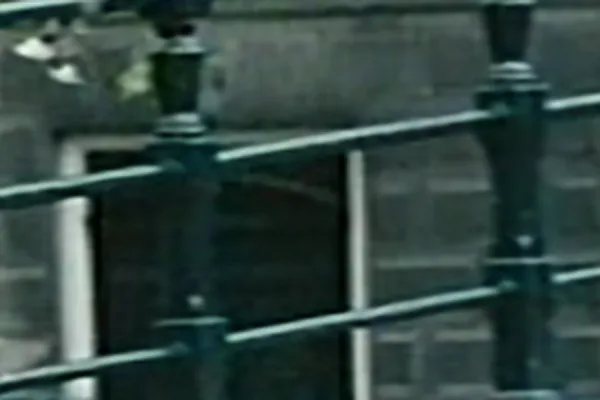


Frames: Tears of Steel (2012), Blender Foundation, CC BY 3.0; the DVD-like and tape-like copies made by us.
| How close to the HD original | Plain | Fast | Pro | Ultra |
|---|---|---|---|---|
| DVD-like copy | 35.6 | 36.2 | 33.3 | 29.7 |
| Tape-like copy | 32.4 | 31.3 | 30.2 | 27.4 |
Edges, blocks and tape noise get better
Edges are firmer at every tier. Pro takes compression blocks almost down to the HD original's level and removes tape noise. On a big screen, the picture no longer has a plain enlargement's soft, blocky look.
Lost detail and tape damage don't come back
A VHS tape holds about half a DVD's detail across the picture; what a repair tier puts in the missing part is newly drawn, not recovered. These also stay after the upscale.
- Dropouts and tracking lines from the tape and the player
- Colour bleeding past edges
- Blur from focus or shaking
How long does an hour of old video take?
An hour of 480p old video to 1080p takes about 55 minutes with Fast, about 7 hours with Pro and about 14 hours with Ultra on a Mac with Apple silicon (30 fps).
| Tier | One minute of video | One hour of video |
|---|---|---|
| Fast | about 54 seconds | |
| Pro | about 7 minutes | |
| Ultra | about 14 minutes |
Devices differ a lot: how long an upscale takes lists each kind, and once your video is open the panel shows the time for your device. The result is saved into the browser's storage on your device as it runs; before it starts, the page checks there is room and says how much it needs. Remember to press Download and save the finished video to your device: it stays in this browser for only 24 hours.
Can you close the page halfway through a long video?
Yes. A long run saves as it goes (see the drawing). If the page closes, open the home page in the same browser within 24 hours and press "Continue" under "Your recent videos": it picks up from the last save. If the video says "choose this file again", press "Choose file" and pick the same video.
For a long film, two more things help.
- Try a short part first. Press "Try … seconds first" in the panel: the page picks a 5–30-second part that takes about 1 min; look at the result, then run the whole video.
- Keep the computer awake. Plugged in and not sleeping; on a phone, plugged in and on this page.
The upscale is a new file: keep the DV, AVI or VOB originals.
While it runs
- saved: the first part after 15 s of running, then every 30 s
- not saved yet
- page closed
Within 24 hours, open the home page again in the same browser
After reopening
- continues from the last save
When should you leave an old video as it is?
- Only on a TV: a 4K TV enlarges a DVD or a 480p file to fill its screen by itself. Upscaling here pays when the video goes onto a phone, a website or into an edit, or when blocks and noise need cleaning.
- Damage from the tape: a new transfer on a better player is what helps.
Try it
Press a link below and the home page opens with its settings; then choose your video. The AI video enhancer page sorts the problems by how they look, with a before and after for each.
Updates
- 16 October 2026: a computer opens a DV file of any length whole.
- 15 October 2026: first version.