
Drop a video on the home page, pick a size (1080p, 2K or 4K) and a quality (Fast, Pro or Ultra), press Start, compare before and after on the same frame, download. Everything runs on your own computer's or phone's graphics chip through WebGPU, and the page measures your device before each run, so the time estimate is yours, not an average.
1. How to use it
- Choose a clip.
MP4, MOV, M4V, MKV, WebM or 3GP, up to 2 GB, any length. The browser reads its resolution, frame rate and length on your device and opens the workbench in place of the drop box. If it cannot decode the clip's codec (a ProRes MOV, some HEVC on Windows), the page says so — export the clip as an H.264 MP4 from your editor and try again.

Drop a clip on the box or press Choose video. - Pick a size and a quality, preview, start.
A platform button (YouTube, TikTok · Shorts · Reels, Instagram, X) fills in the shape, size, file type and frame rate that platform wants. "Preview this frame" runs a short test on the frame you paused on and shows it before and after, with the time estimate. Then press Start; you can pause and resume, and a long run saves its progress as it goes.
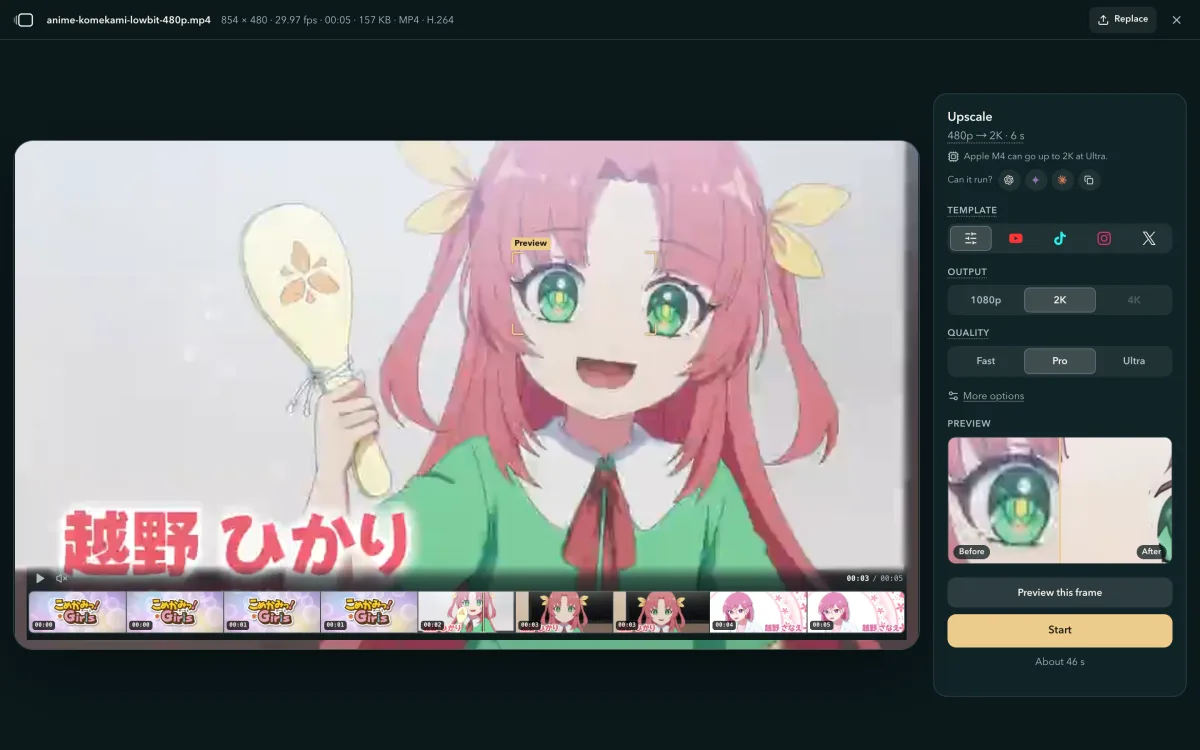
Pro on a blocky 480p download: the preview card shows the marked window before and after; the estimate sits under Start. - Compare and download.
The original sits on the left and the result on the right — same frame, same moment — with a magnifier that shows the same window of both at the result's pixels. Download as MP4, MOV, MKV or WebM; the original audio is kept. Open the tool when you are ready.
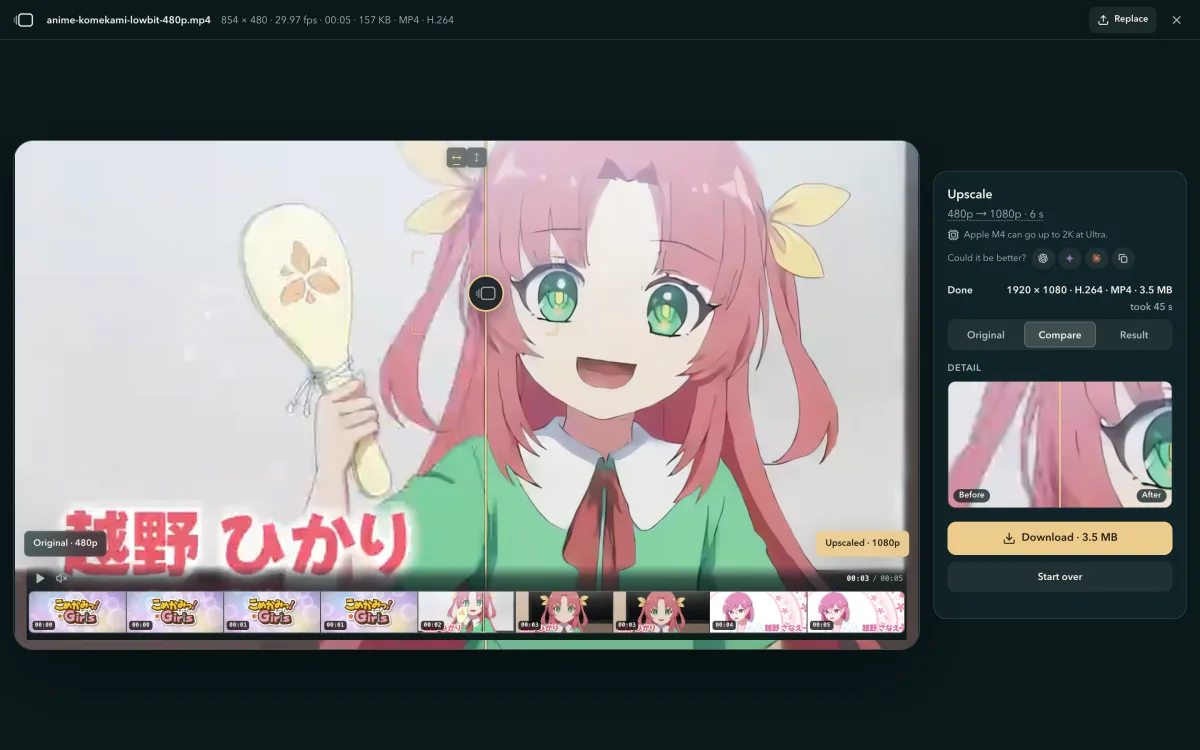
Done: original left, result right, the axis between them draggable.
Screenshots: Komekami! Girl's PV (2026), official channel — CC BY 4.0 via Wikimedia Commons, re-encoded at 220 kbit/s.
Which settings for which video
Starting points from our own test footage; the preview decides for your clip. Every row opens the tool with those settings.
| Your video | Try | Why |
|---|---|---|
| Phone or camera footage, 720p–1080p, clean | Fast → 2K or 4K · open with these settings | Fast crispens edges and leaves the look alone; the repair tiers spend minutes per minute of clip to change little. |
| Blurry, shaky or dim phone clip, any size | Fast → 1080p or 2K · open | Blur and shake are not fixed by any tier. Pro only if flat areas (sky, walls, skin) show small squares, like a bad livestream. |
| Anime, motion comics, line art, UI, screen recordings | Fast → the largest size offered · open | Line content gains the most from Fast: crisper edges, no bright rims, nothing invented. A 640 × 480 episode reaches 2K, not 4K. |
| Downloaded anime with blocks, white rims or noise | Pro → 2K (on a phone too, for 480p episodes) · open | Pro gives the cleanest lines on animation. DVD rips are often interlaced — deinterlace first (HandBrake's deinterlace filter, or ffmpeg's yadif). |
| AI-generated video | Fast → 4K; Pro when it looks smeared and is ≤ 720p · open | Generated clips are clean but soft. Never Ultra on them: it hardens the soft look into wax. |
| Downloaded or re-compressed 480p–720p live footage with visible blocks | Pro → 1080p or 2K · open | Pro removes blocks and light noise most cleanly; on this footage Fast looks the same as a plain enlargement. |
| Old film, heavy grain, the worst 360p–480p sources | Ultra → 1080p or 2K, on a computer; preview first · open | Ultra is the one tier that wins on heavy grain and on footage Pro leaves blocky. A clip that is smeared flat rather than blocky cannot be brought back by any tier — Ultra makes it worse. |
| 1080p with compression blocks | Fast → 4K · open | The repair tiers take sources up to 720p; nothing here repairs a 1080p clip. |
| Faces close up | Fast; for Pro or Ultra, check the skin in the preview — with Ultra, set Denoise to Light · open Ultra · Light | Fast does not restore skin and does not make it plastic; a 4× repair can over-smooth it, and Light denoise keeps more of the skin's own texture. |
| Night and dark scenes | Fast; with visible noise, Pro · open Pro | Fast leaves noise as it is; Pro cleans light noise best; Ultra hardens fine detail. The stripes in a dark sky (banding) stay at every tier. |
| Old tapes with stripes on moving things (interlaced) | Deinterlace first (HandBrake or ffmpeg yadif), then upscale | Nothing here deinterlaces; the stripes would only be sharpened. |
| Already 4K | Nothing to do | The page says so and offers no size. |
How long it takes
Time is frames × time per frame: one minute of clip at 30 fps is 1,800 frames. The estimate next to Start is measured on your own device and is the one to trust; above 5 minutes the page warns and offers a one-tap switch to quicker settings. For scale, on an Apple M4 laptop:
| Job | Graphics chip, per frame | Run, per minute of clip |
|---|---|---|
| Fast, 1080p → 4K | 25.9 ms | ≈ 1 min |
| Fast, 720p → 4K (two 2× steps) | 64.5 ms | ≈ 2.5 min |
| Pro, 720p → 4K | 399 ms | ≈ 16 min |
| Ultra, 720p → 4K | 763 ms | ≈ 31 min |
A flagship Android phone (Adreno 750) takes about 4× as long on Fast — about 4.5 min per minute of 1080p clip to 4K — and slows further as it warms up; a mid-range phone a few times more. A gaming PC with a recent NVIDIA or AMD card should be in the laptop's range or quicker; a laptop with built-in graphics sits between the two.
Asking an AI about your settings
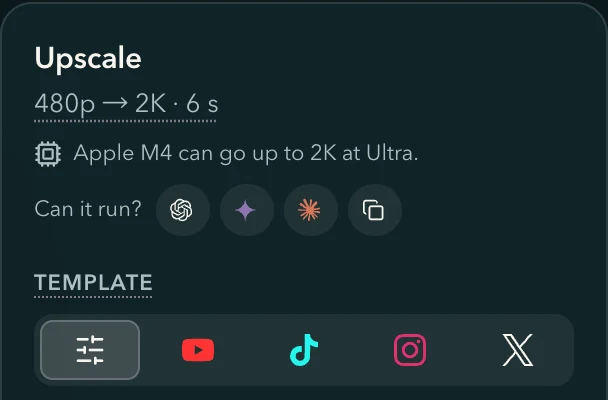
The icons after "Can it run?" open ChatGPT, Gemini or Claude with your device, clip, settings and estimate already typed in (the Copy icon puts the same text on the clipboard for any other assistant); the text links this guide, so the answer comes from the long version, not a guess.
Links that carry settings
A link to this site can name the settings to start from — https://4kvideoupscaler.com/?quality=pro&size=2k opens the page with Pro and 2K ready (the rows above and an assistant's answer link this way); what the device cannot run falls back to what it can, and a link never starts a run.
| Parameter | Values | Meaning |
|---|---|---|
quality | fast / pro / ultra | The quality tier. |
size | 1080p / 2k / 4k | The output size (longer side). |
template | youtube / shorts / instagram / x | A platform template: its shape, size and format, as the panel's own buttons set them. |
steady | on / off | The Steady filter. |
denoise | 1 / 0.5 / 0 | Ultra's denoise strength (Strong / Medium / Light). |
fps | 60 / 30 / 24 | The output frame rate, only below the clip's own. |
reason | blocky / noisy / soft / fast / platform / archive | The main problem the settings answer — a label for our statistics, not a setting. |
via | — | Where the link came from (an assistant, the guide, a share). |
note | up to 60 characters | One line shown with the settings. |
2. Quality tiers
Three tiers, two kinds of network. Fast is a small 2× network that crispens edges. Pro and Ultra are 4× repair networks that rebuild the picture and remove compression blocks and noise: Pro is the cleaner choice for almost everything, Ultra the heavier one for old film and heavy grain. Tier names stay; the network behind a tier may be updated.
Fast
Makes edges crisper, changes nothing else · the tier every device starts on
Doubles the size and firms up edges and lines on top of a plain enlargement. It adds crispness, not picture information: the look, colour and grain are left alone.
- Comparable to
- An Anime4K-class 2× network (a few thousand to about a hundred thousand parameters).
- Per frame
- ≈ 25.9 ms per 1080p → 4K frame; ≈ 64.5 ms per 720p → 4K frame (two steps)
- Best for
- Clean footage, anime, line art, screen recordings, AI-generated video — and everything on a phone.
- Not for
- Compression blocks, noise, old tapes: there it looks the same as a plain enlargement.
- Phones
- Yes.
Pro
Repairs blocky, noisy footage · the cleanest lines on anime · half of Ultra's time
Rebuilds the frame at four times its size while removing compression blocks and light noise — the cleanest de-blocking of the three, and the cleanest lines on downloaded anime.
- Comparable to
- A Real-ESRGAN-class compact 4× network, the lighter member of that family.
- Per frame
- ≈ 0.4 s per 720p frame — about 6× the time of Fast on the same job
- Best for
- Downloaded or compressed anime; blocky or lightly noisy live footage up to 720p.
- Not for
- Sources over 1280 px on the longer side; clean footage, where it costs minutes for little change.
- Phones
- For clips up to 854 px on the longer side (480p) — one to two seconds a frame on a recent phone, so a short window.
Ultra
The heaviest repair · for old film and heavy grain · can smooth skin
The deepest repair: removes heavy grain and noise and sharpens smeared texture. Its denoise strength has three steps under "More options" — Strong, Medium, Light — and Light keeps grain and skin texture. About twice the time of Pro.
- Comparable to
- A Real-ESRGAN-class compact 4× network, the deeper member of that family.
- Per frame
- ≈ 0.8 s per 720p frame — about 12× the time of Fast on the same job
- Best for
- Old film, heavy grain, the worst 360p–480p footage when Pro leaves blocks behind. Preview faces first, and try Light denoise on them.
- Not for
- Clean or AI-generated clips (it hardens them), sources over 1280 px on the longer side, phones.
- Phones
- No — needs a computer's graphics chip.
No tier interpolates frames (frames are only dropped), deinterlaces, restores faces or changes colour and exposure; each frame is processed on its own, and the optional "Steady" filter under More options only settles grain that flickers in still areas.
3. Before and after
Three real runs of this page's own engine, one per tier, from low-resolution sources: the same window of the same seconds, the source on the left the way a player shows it, the result on the right. Drag the axis.
4. The engine: SR Engine
Every tier runs on SR Engine, our own WebGPU inference engine. There is no general-purpose machine-learning runtime and nothing to download but the model file (3 KB to 2.4 MB); every compute kernel was written for this family of networks. On the same machine and the same network it is 2.4× faster than the open-source engine we ran before, and it runs the heaviest step in 223 MB of graphics memory (in bands) where that engine needed about 1.36 GB.
- 2.4
×
faster than the open-source engine we ran before — same network, same machine: 25.9 ms against 63.3 ms per 1080p → 4K frame
- 223 MB
of graphics memory for the 720p → 4K second step in bands, 520 MB whole; about 1.36 GB before
- 3 KB
the smallest model file, 2.4 MB the largest — fetched once per tier, no runtime to download
Arena memory
112 Bper pixel for the large 2× network — 368 B before
One pool for every intermediate result
All the intermediate results of a frame live in one GPU buffer, sliced by how long each layer's output must survive; a slice is reused the moment its last reader is done. The pass that used to take about 1.36 GB takes 520 MB whole, 223 MB in bands.
720p → 4K, second step (2560 × 1440 in): 112 B × 3.7 MP is the 413 MB of feature maps; the 520 MB whole-frame figure adds the input, output and weights.
Row bands
96 MBis enough for 4K on a phone
Big frames in bands, identical output
When a frame will not fit the memory budget, the engine cuts it into horizontal bands, each carried with the 34 rows of context the deepest network needs, and the output is the same as a whole-frame run down to the last bit. A device with a 128 MB binding limit still delivers 4K — that is how a phone renders it.
The same second step in 5 bands under the compatibility-mode budget: 56 ms per frame, output equal to the whole-frame run.
Half precision
2.4×faster with shader-f16 than the 32-bit path
Half precision, same picture
Where the graphics chip offers 16-bit shader arithmetic, the whole network runs in it: the heaviest repair pass takes 0.76 s per 720p frame, against about 1.8 s on the 32-bit path. Against the PyTorch reference the result stays within 54–70 dB — far beyond what a display can show.
Tests fail below 50 dB (f16) and 60 dB (f32); measured 93–100 dB in f32.
One submit per frame
25.9 msper 1080p → 4K frame with the large 2× network
The network alone runs faster than the clip plays
Every convolution layer, every band and the pixel shuffle go to the GPU in one command buffer with one bind group; the weights are read through a constant binding. The open-source engine we ran before submitted once per layer and needed 63.3 ms for the same frame. A full run takes about 1.4× the network time: the page pauses between bursts of frames so the computer stays usable — a pause after every frame would let the graphics chip clock down, and measured three times slower.
25.9 ms is ≈ 39 frames per second for the network; the small network takes 4 ms.
Edge-exact
100%of the pixels are computed
Edges computed, not skipped
Two defects of the engine we ran before are gone: dispatching work in blocks of eight, which left the last few columns and rows of a frame unprocessed, and sampling the edge with a repeating wrap, which mixed a quarter of the opposite edge's colour into the outermost ring. Frame edges are zero-padded and every output pixel is the network's own.
Both defects were found in the open-source engine we ran before, in its shader dispatch and its display sampler.
Colour-exact
< 1.5of 255 — the export test's tolerance on mean colour, source to result
Sharper, not brighter
Importing a decoded video frame straight into WebGPU lifted the mid-tones by 4–8 out of 255 in 5 of 7 test clips — a colour-space conversion the browser applies quietly. The engine takes its frames through the 2D path instead, and an automated export test checks that the result's mean colour matches the source's.
The lift reproduces in Chrome with an identity pass and no network, in any pipeline that imports the frame directly.
Compatibility first
4storage buffers is all the baseline kernel needs
Built to fit old phones' limits
The baseline kernel fits WebGPU's compatibility-mode limits — 4 storage buffers, 128 threads per workgroup, 16 KB of workgroup memory, no f16 — so Chrome's compatibility adapter on Android (OpenGL ES 3.1) can run it. Where a device offers more, the engine detects it and steps up.
Checked against the compatibility adapter with its default limits: zero validation errors.
Reference-checked
65GPU parity cases on 3 browser engines
Checked against a CPU reference
A plain TypeScript implementation of the networks defines what "correct" means, and PyTorch outputs of every shipped model are the fixtures. The GPU suite runs those on Chrome (Metal), on Chrome's software renderer and on the Safari engine, plus odd sizes, bands, device loss and misuse.
A per-frame time more than 10% over the recorded baseline fails the build.
Model container
3 KBto 2.4 MB per model, fetched when a tier first runs
A new model is a file
Models ship in a self-describing container: the network graph in a header, the weights as 16-bit tensors. The engine plans memory, kernels and bands from the header, so adding or swapping a tier is a converted weight file, and the container can blend two weight sets at load time.
The container covers the whole family: 3×3 and 1×1 convolutions, ReLU / LeakyReLU / PReLU / CReLU, dense concatenation, pixel shuffle.
Against the engine we ran before
| Property | SR Engine | The open-source engine we ran before |
|---|---|---|
| Memory per pixel, large 2× network | 112 B | 368 B |
| 720p → 4K second step, graphics memory | 223 MB in bands520 MB whole | ≈ 1.36 GB |
| 1080p → 4K, large 2× network | 25.9 ms / frame | 63.3 ms / frame |
| 1080p → 4K, small 2× network | 4 ms / frame | 8.4 ms / frame |
| 4× repair networks | Yes | No — 2× only |
| Precision | f16 where offered, f32 otherwise | f32 only |
| Frame edges | Every pixel computed | Last columns skipped, edge colour wrapped |
| GPU submissions per frame | 1 | One per layer |
| Android compatibility mode (OpenGL ES 3.1) | Fits its limits | No |
Both engines measured by us on Apple M4 (10-core GPU), Chrome on Metal, same networks. General-purpose machine-learning runtimes in the browser are not in the table: they need a 10–20 MB WebAssembly download before the first frame.
FAQ
- Which quality should I pick?
- Fast for clean footage, anime, screen recordings, AI-generated video and most clips on a phone: it crispens edges and changes nothing else. Pro for downloaded, re-compressed or lightly noisy sources up to 720p: it removes the blocks and the noise. Ultra only for heavy grain and old film. When unsure, press "Preview this frame" and compare.
- How long does upscaling take?
- Frames × time per frame; the page measures your own device before it starts and shows the estimate next to Start. On an Apple M4 laptop, one minute of clip at 30 fps takes about 1 min from 1080p to 4K with Fast, about 16 min with Pro from 720p and about 31 min with Ultra; a phone is several times slower. There is no length limit: a long run saves its progress and the home page offers to continue it after a reload. To do only a part, drag a 5 / 10 / 15 / 30 / 60-second window on the filmstrip.
- Why is 4K not offered for my clip?
- The biggest size offered is 4× the clip's longer side: 4K needs a source of at least 960 px on that side, 2K at least 640 px, 1080p at least 480 px; a clip under 480 px is offered nothing, and a clip that is already 4K has nothing to gain. A phone is offered the same sizes as a computer.
- Why is Ultra (or Pro) greyed out for me?
- Pro and Ultra need hardware rendering with half-precision shaders (shader-f16) and a source no wider than 1280 px on the longer side. Ultra also needs a computer's graphics chip — most laptops count, phones do not; on a phone, Pro is offered for clips up to 854 px (480p). Tapping a grey button shows the reason for your device.
- Which browsers and devices work?
- Chrome and Edge 113 or newer on Windows, macOS and ChromeOS; Chrome 121 or newer on Android 12 or newer; Safari 26 on macOS, iOS and iPadOS; Firefox 141 or newer on Windows and 145 or newer on Apple Silicon Macs. Browsers inside apps — TikTok, WeChat, Instagram, phone-maker browsers — usually have no WebGPU; open the same link in Chrome or Safari.
- How do I get the cloud version?
- It is invitation-only. Fill in the form at the end of this page (or email the cloud address with the subject "Cloud access"): what you tried locally and what was missing, the footage, your device. Requesting is free. A cloud version needs an account and, for some models, a fee — the invitation says what applies.
5. Cloud version
The cloud version is for what your own device cannot do in reasonable time: a whole episode with Pro or Ultra on an ordinary laptop, a batch of files, a device without WebGPU, Ultra from a phone. Access is by invitation — tell us what you tried and what was missing, and we invite first the requests it can already serve. Requesting is free; the cloud version needs an account and, for some models, a fee, and the invitation says what applies before you send any footage.
Your address is used to contact you about cloud access and for nothing else (privacy policy).